Lab 8 — In-Browser Protection using Browser-Based DLP
Labs 6 and 7 demonstrated network-upload, application file-access, and clipboard controls. Lab 8 uses preconfigured Browser DLP policies to mask sensitive values before submission, block sensitive PDF downloads from a website, and watermark a document viewed in Chrome.
Browser-Based DLP does not replace Inline Web DLP or Endpoint DLP. Each operates at a different control point and covers a different threat surface:
| Control | Where it operates | What it covers |
|---|---|---|
| Inline Web DLP (Lab 6) | Network proxy | Data leaving via HTTP/S uploads |
| Endpoint DLP (Lab 7) | OS / agent layer | Application File Access and Clipboard rules scoped to Notepad++ |
| Browser-Based DLP (Lab 8) | Inside the browser | GenAI prompt masking, sensitive-file download blocking, and browser-viewed document watermarking |
These controls complement one another. Coverage depends on supported applications, platforms, inspection settings, and policy scope.
All tasks in this lab must be performed from the lab VM using Google Chrome. The Zscaler Browser DLP Chrome extension must be active. Complete the prerequisite login steps below before starting Task 1.
Prerequisite — Log In to the Chrome Extension
On the same CloudShare VM, authenticate the Chrome extension with the SDC Admin credentials listed in Pre-Requisites for Module 2. This extension login is separate from the Student Admin login used by ZCC. Lab 8 uses preconfigured Browser DLP policies; it does not require the DP Project Code engine you created in the Lab Tenant.
Prereq Step 1 — Open the Extension Sign-In Website
Open Google Chrome on the lab VM and go to enterprise.onsqrx.com.
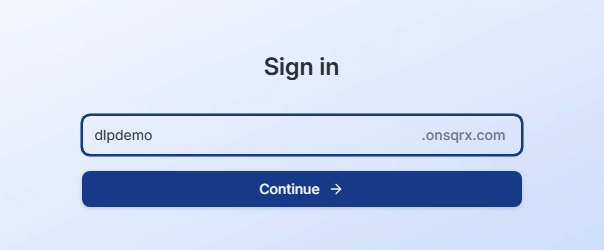
Prereq Step 2 — Enter the Tenant Identifier
Enter dlpdemo as the tenant identifier and click Continue.
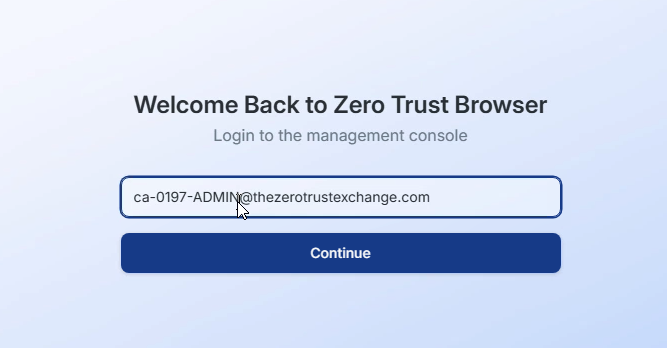
Prereq Step 3 — Enter the Lab User ID
Enter the Admin Username from CloudShare → Credentials → SDC Credentials.
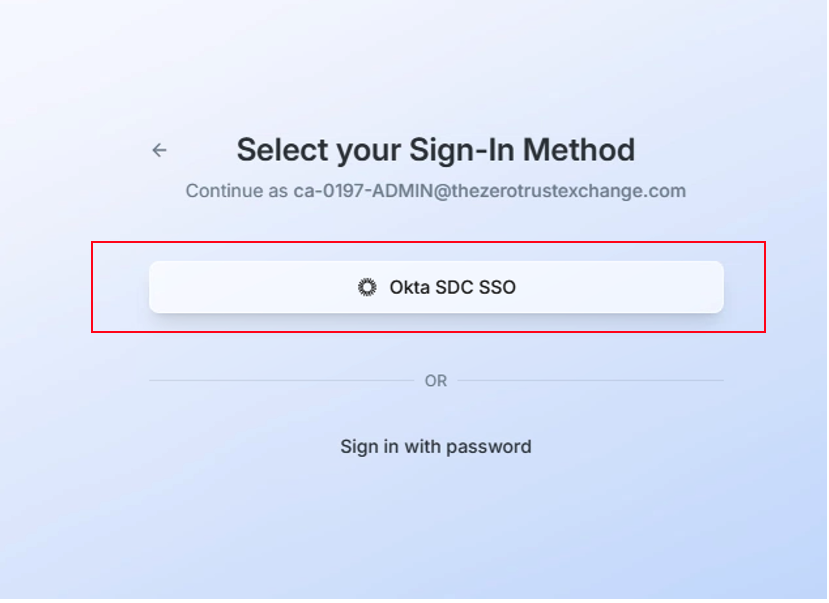
Prereq Step 4 — Select Okta SSO
Click Okta SDC SSO to proceed to identity provider authentication.
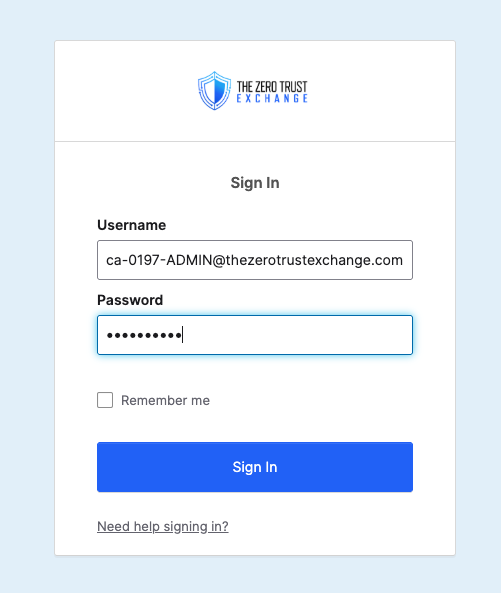
Prereq Step 5 — Complete IDP Authentication
Complete the identity-provider login with the same SDC Admin Username and its assigned password.
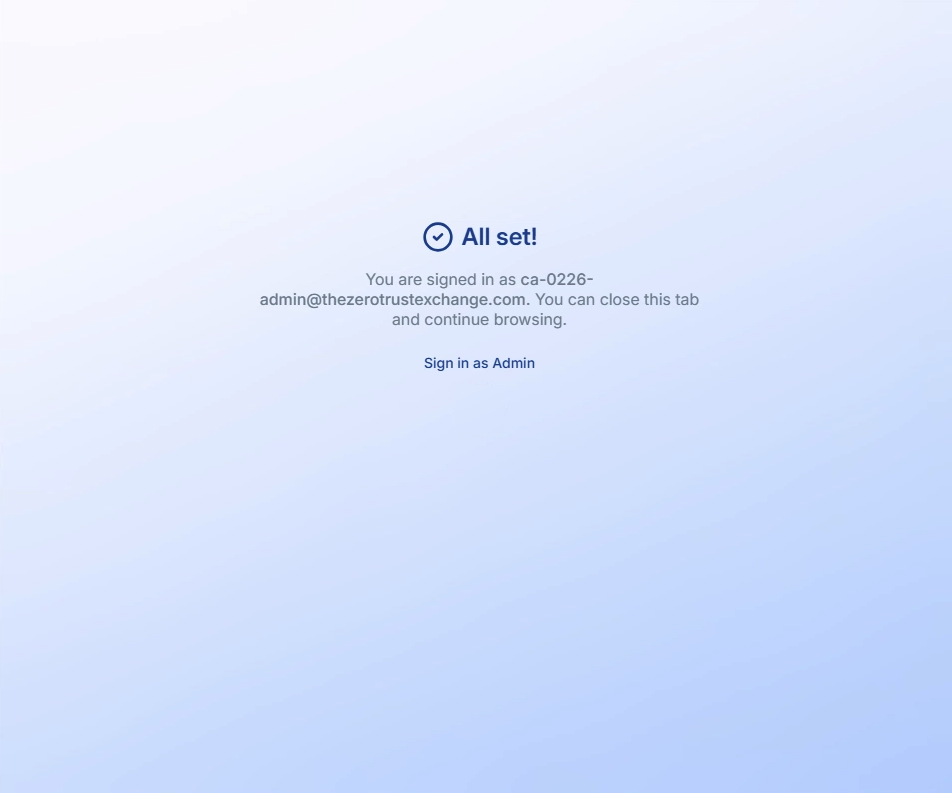
After signing in with your SDC Admin credentials, you will see the "All set!" confirmation screen. This signs you in to the installed Browser DLP extension. Do not click "Sign in as Admin" — it is not required for this lab. Close this tab and return to the lab guide.
Task 1 — Mask Sensitive Values Before GenAI Submission
Demonstrate how Browser-Based DLP intercepts sensitive data typed or pasted into a GenAI prompt and masks it before submission — protecting data that never touches the network layer.
Steps
Kevin opens ChatGPT in Chrome and pastes the following sample customer record. Use this supplied example rather than real customer data:
📋 Content to paste into the ChatGPT prompt:
Customer name: Daniel Reeves
Email: daniel.reeves@acme-corp.com
Phone: +1 415-238-7712
SSN: 531-72-8943
Issue: Customer reported duplicate billing for invoice INV-4482 and
wants confirmation once the refund is processed.
As soon as Kevin pastes the content, the Browser-Based DLP extension detects the sensitive values — SSN, email, phone number — and masks them inline before the prompt is submitted. Kevin is notified that sensitive content has been redacted.
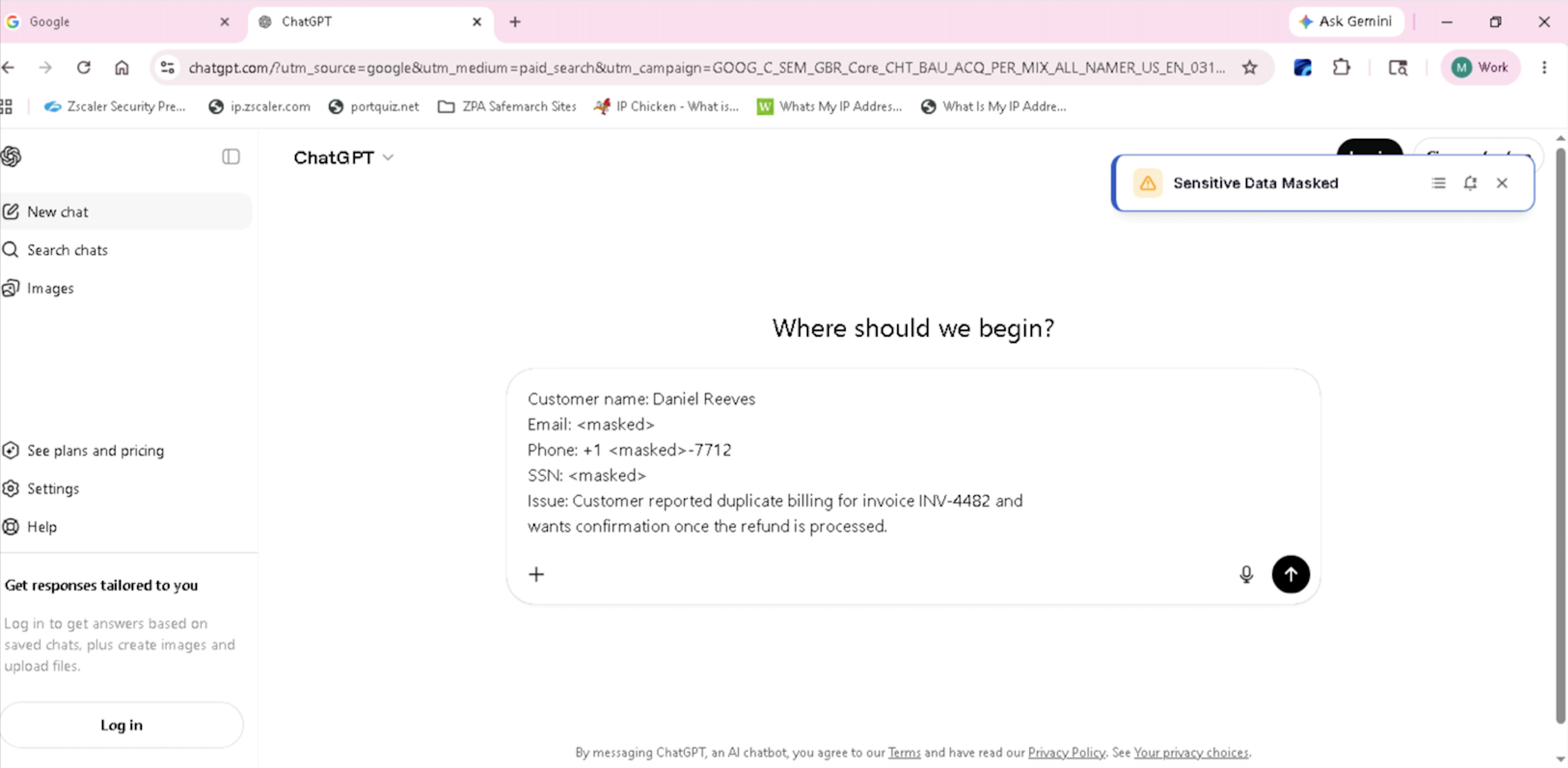
Browser DLP masks values at the input field before submission. Inline DLP can inspect supported outbound traffic when SSL inspection and policy scope apply, but it does not provide the same in-page masking experience.
Use the application and input surfaces covered by the configured Browser DLP policy.
Task 2 — Block Sensitive File Downloads
Attempt to download a PDF containing sensitive sample data and verify that the browser policy blocks it.
Step 1 — Select the Sample and Download Format
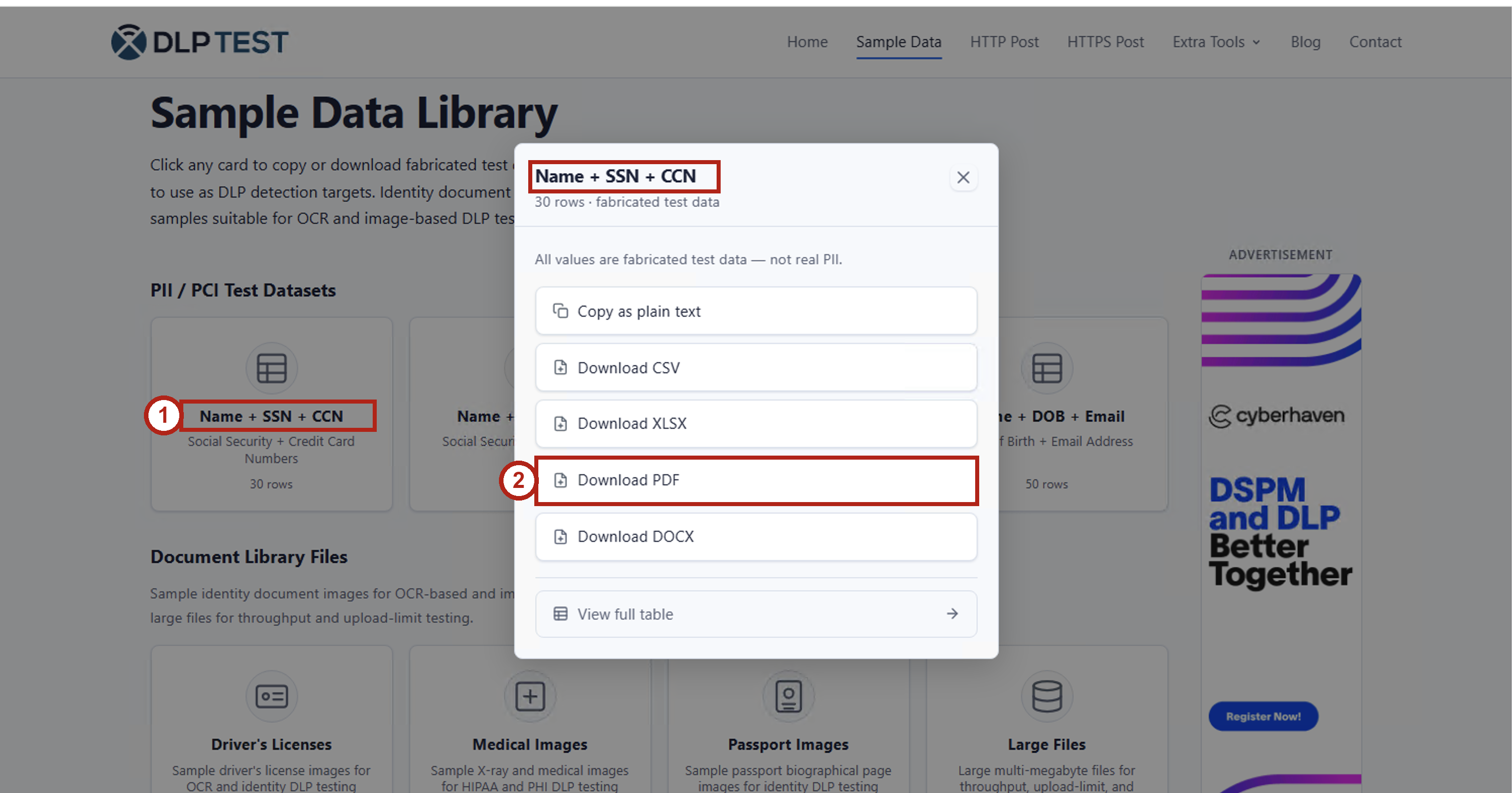
- In Chrome on the lab VM, open https://dlptest.com/sample-data/.
- Under PII / PCI Test Datasets, select Name + SSN + CCN (callout 1). This dataset contains fabricated names, Social Security numbers, and credit card numbers.
- In the dialog, click Download PDF (callout 2).
Step 2 — Verify the Download Is Blocked
Confirm that the Download Blocked notification appears (callout 3) with the message:
File Download has been blocked based on policy
The screenshot also shows dlptest-name-ssn-ccn.pdf marked Removed in Chrome's downloads list. The expected outcome is that the PDF is not available as a successful download.
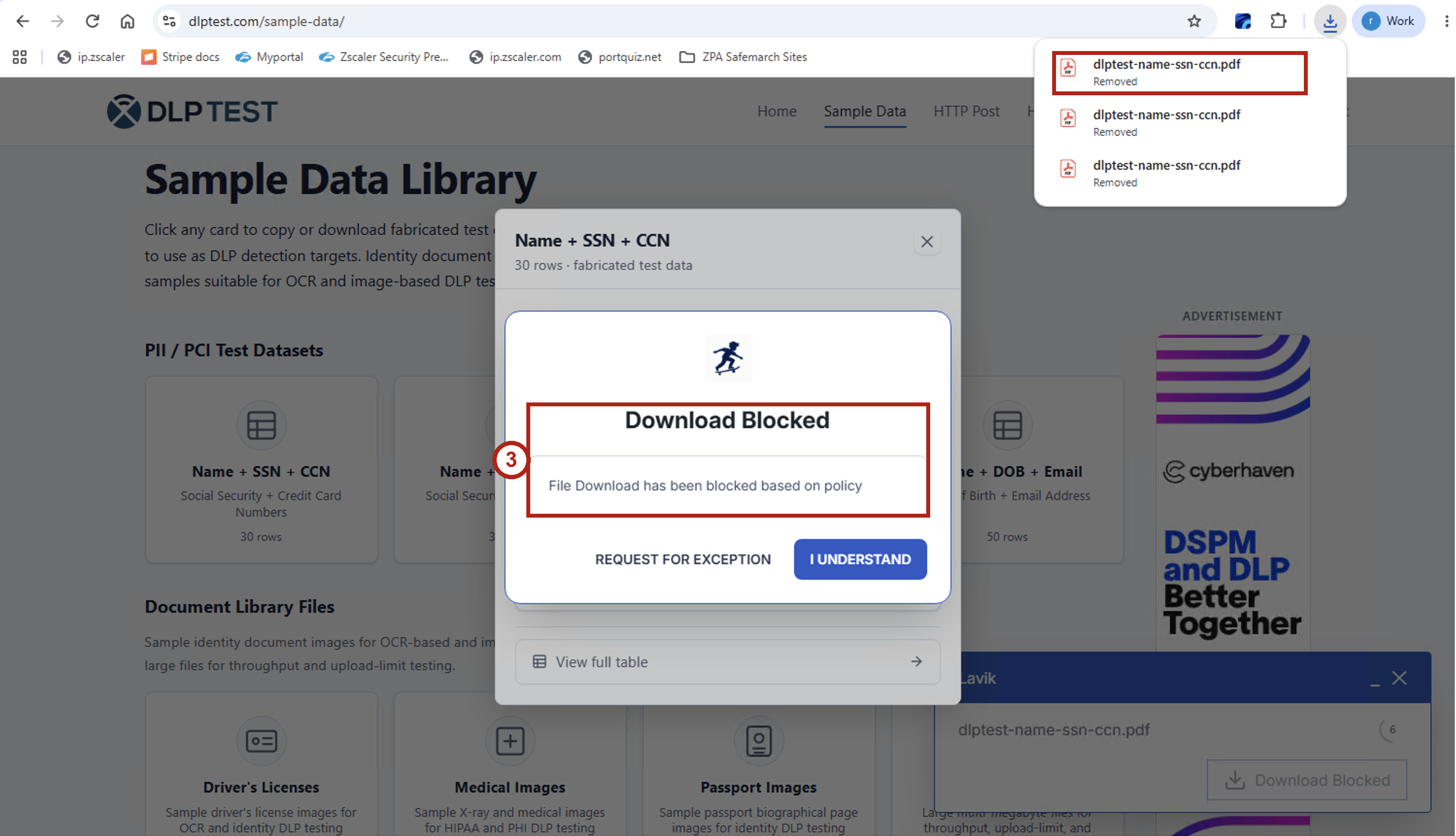
Select I UNDERSTAND to dismiss the notification. If the file downloads successfully or only a generic browser error appears, confirm the Browser DLP extension is authenticated and ask your facilitator to check the demo policy.
Task 3 — Dynamic Watermark with Viewer Identity
Demonstrate how Browser-Based DLP dynamically watermarks sensitive documents viewed in the browser with the viewer's identity — creating a visual deterrent and forensic trail without altering the source file.
Steps
Kevin opens the following sensitive Dataparity document in Chrome — this document has been tagged for dynamic watermarking by the Browser-Based DLP policy:
📋 Open this link in Chrome on the lab VM:
docs.google.com/document/d/1hY6dxddc24anjf1U8GsnVtQwYvvPxasM59_NR35toQA/edit
As soon as the document renders in the browser, the extension overlays a dynamic watermark containing Kevin's identity — user name, email, and timestamp — across the document view.
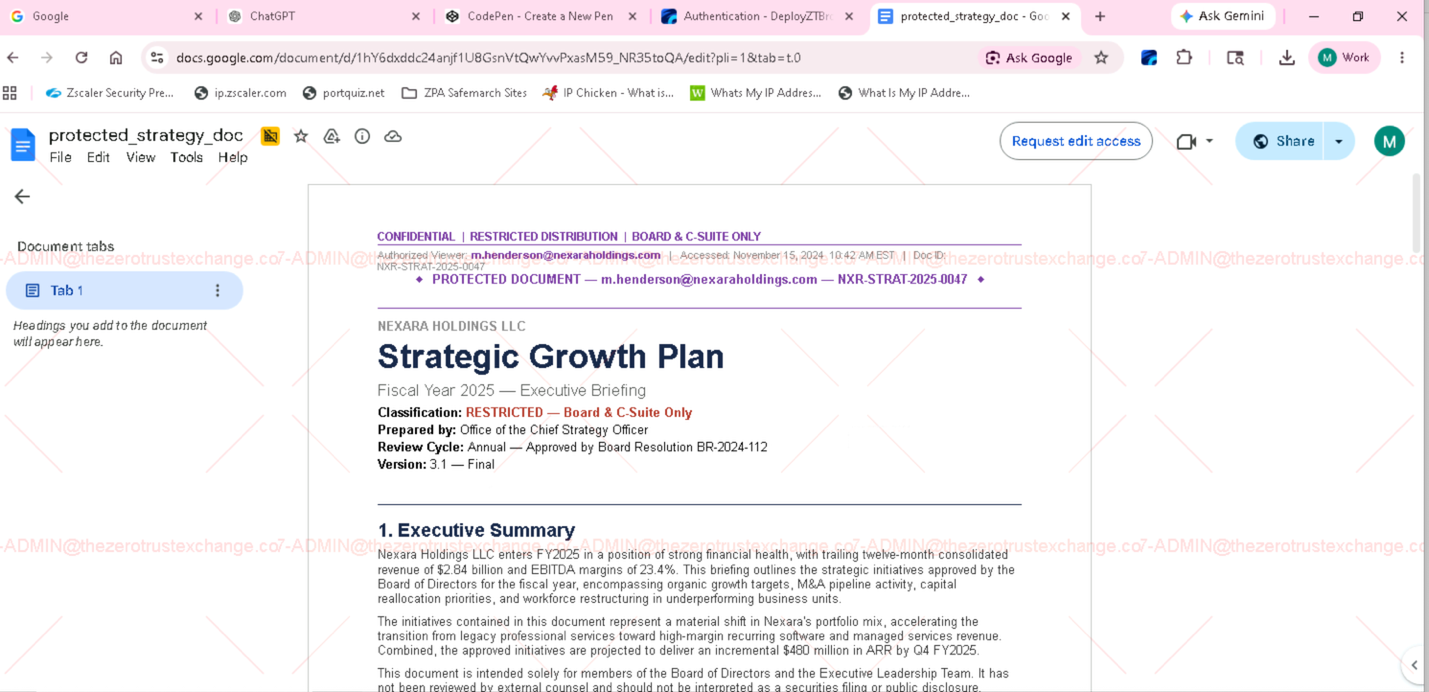
The watermark is applied to the browser view, not to the source file. It identifies the viewer in the displayed document; this exercise does not establish that a downloaded copy retains the watermark.
Watermarking is a visual deterrent. It is not a replacement for access, download, or data-movement controls.
- Task 1 masked content before submission to ChatGPT. How would you handle a use case where a user legitimately needs to ask an AI assistant about a customer record — for example, a support agent using an internal AI tool?
- Task 2 blocked a sensitive PDF download. How does preventing data from being saved locally complement the upload and endpoint controls tested in Labs 6 and 7?
- Task 3 showed a deterrent watermark. Can you think of a scenario where watermarking alone is insufficient and a Block action would be required instead?
- Browser-Based DLP requires a Chrome extension. How would you handle employees using Firefox, Edge, or Safari — and what does that mean for your coverage model?
The controls are complementary. Lab 6 tested an inspected web upload, Lab 7 tested file access and clipboard paste into Notepad++, and Lab 8 demonstrated browser masking, sensitive-download blocking, and watermarking with preconfigured policies.
Next, return to the Enterprise Tenant for Lab 9 to review separate pre-populated incidents and existing response workflows.