Pre-Requisites for Module 2
Complete these steps before starting Lab 5. You will access your lab VM, log into the Lab Tenant admin console, and configure the Zscaler Client Connector forwarding profile and Windows app policy. Allow 15 minutes.
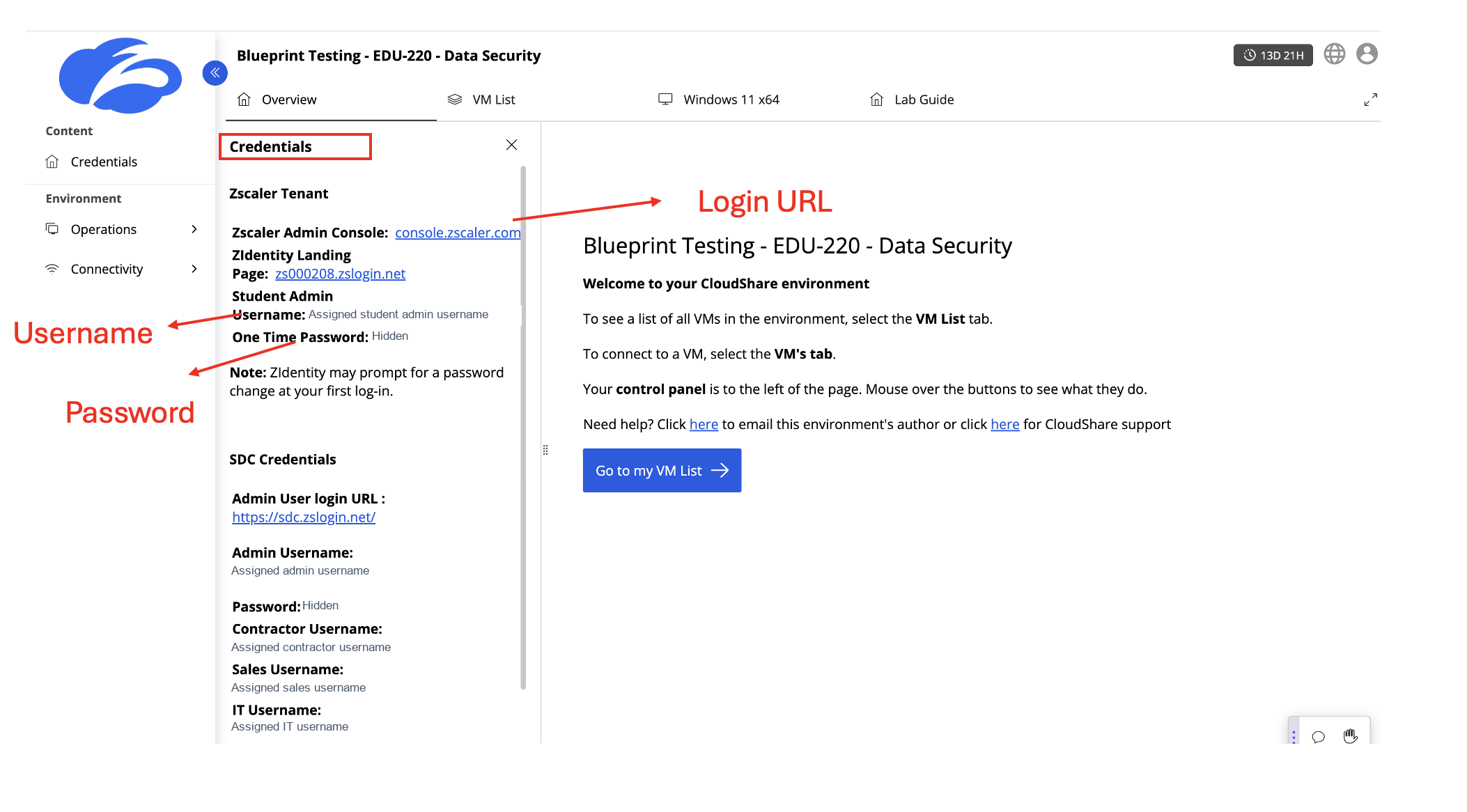
Open Credentials in your assigned CloudShare environment. For Module 2, use the Zscaler Tenant / Student Admin credentials, not the SDC Credentials used in Module 1.
Module 2 (Labs 5–8) runs on the Lab Tenant with a Windows VM and the Zscaler Client Connector. Complete Parts 1–3 below before starting Lab 5.
📌 None of this is needed for Module 1 — the Enterprise Tenant login for Labs 1–4 is covered at the start of Lab 1.
Lab Environment Overview
Your lab environment consists of two components:
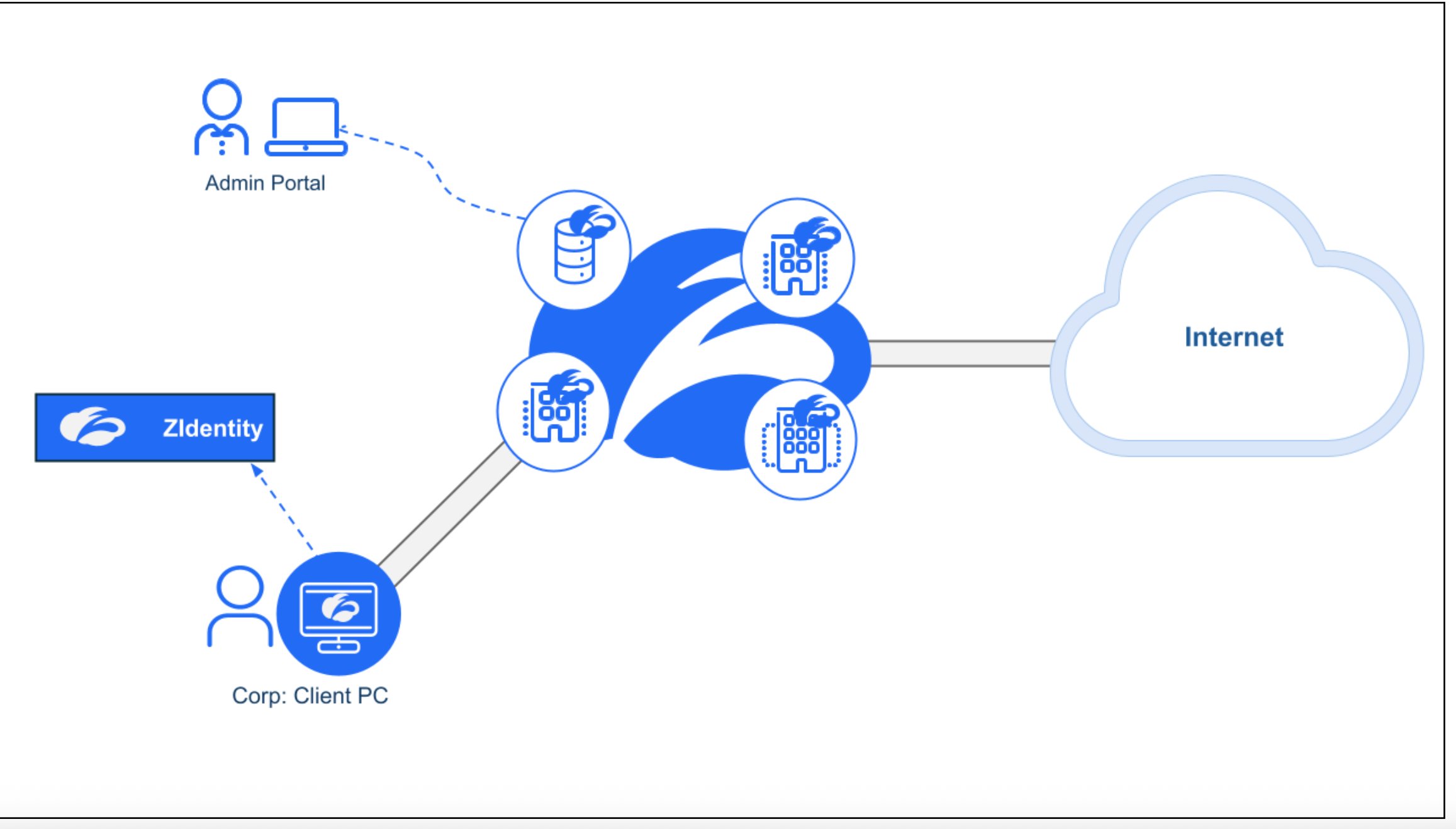
| Component | Description |
|---|---|
| Corp Client PC | A Windows VM in your assigned CloudShare environment. Used for all Kevin (end user) tasks in Labs 6, 7, and 8. |
| Admin Portal | The Zscaler console accessed from your own laptop. Used for all Alex and Priya tasks. |
| Zscaler Cloud | Your traffic and DLP enforcement plane. ZCC on the VM routes all traffic through Zscaler. |
Part 1 — Access Your Lab Environment
Step 1 — Locate Your Lab Tenant Credentials
- Open your assigned CloudShare environment and select Credentials in the left menu.
- Under Zscaler Tenant, locate the Zscaler Admin Console link, Student Admin Username, and One Time Password.
- Use these Student Admin credentials for Module 2, not the SDC Credentials listed below them.
Step 2 — Access the Lab VM
In CloudShare, open the Windows VM tab, shown as Windows 11 x64 in the screenshot. Use VM List to locate the VM if needed.
Verify the VM is ready:
- Zscaler Client Connector icon visible in the system tray
- File
Dataparity_Q2_2025_Workforce_Financial_Summary.docxis on the Desktop
Step 3 — Log Into the Lab Tenant (Module 2)
From your laptop browser, open the Zscaler Admin Console link — console.zscaler.com — and sign in with the Student Admin Username and One Time Password from CloudShare.
If prompted to change the password on first login, set a new password and use it for subsequent admin-console and Client Connector logins.
| Tenant | Used In | Access | Login URL |
|---|---|---|---|
| Enterprise Tenant (SDC) | Modules 1 + 3 | Read-Only | sdc.zslogin.net |
| Lab Tenant | Module 2 only | Read/Write | console.zscaler.com |
The facilitator will indicate when to switch tenants at the start of each module.
Part 2 — Configure Zscaler Client Connector (Lab Tenant)
These steps configure the Client Connector forwarding profile and app policy on the lab VM. This is required for Labs 6, 7, and 8 to enforce DLP policies on endpoint traffic.
All steps in Part 2 are performed in the Lab Tenant admin console. Make sure you are using your Lab Tenant credentials before proceeding.
Step 4 — Log Into the Admin Console
If you are not already logged in from Part 1, go to https://console.zscaler.com from your laptop browser and log in with your Student Admin credentials.
Step 5 — Verify SSL Inspection
- In the Lab Tenant admin console, search for
ssl. - Select SSL/TLS Inspection Policy under Policies, as shown below.
- Confirm that SSL inspection is enabled for the lab traffic. The screenshot shows an Enable SSL rule with Criteria: Any and Action: Inspect. Check that the applicable rule uses Inspect, taking rule order and existing exemptions into account.
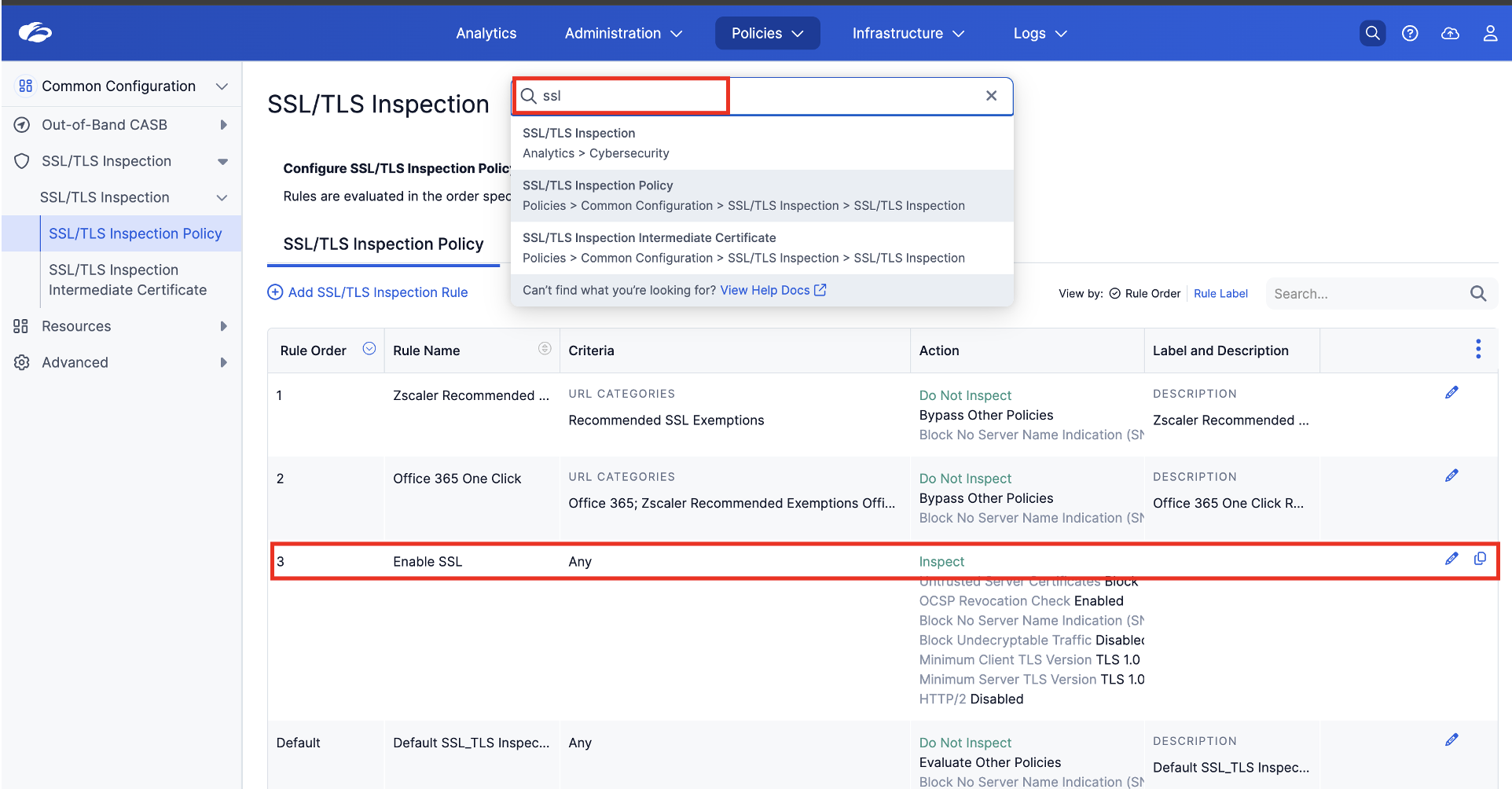
SSL inspection must be enabled for the lab's HTTPS traffic so that inline DLP can inspect its content. Without it, the traffic will not be inspected as expected and the DLP tests may not produce the expected results. If the inspection rule is missing or not applicable, check with your facilitator before continuing.
Step 6 — Navigate to Forwarding Profiles
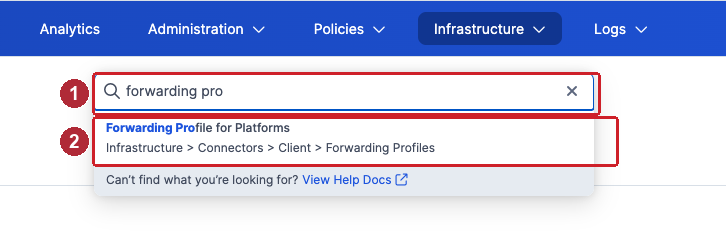
Click the search bar at the top of the admin console and type forwarding profile (1). Select Forwarding Profile for Platforms from the results (2):
Step 7 — Add Forwarding Profile
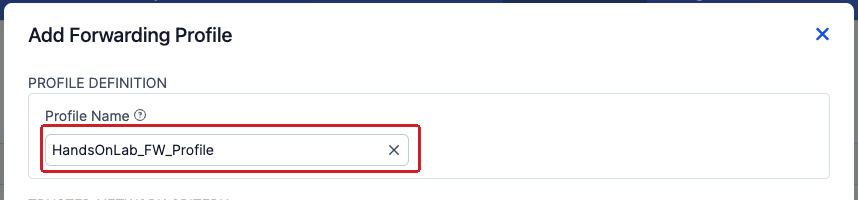
Click Add Forwarding Profile and configure:
- Profile Name:
HandsOnLab_FW_Profile
Step 8 — Configure Windows Driver and ZIA Tunnel Settings
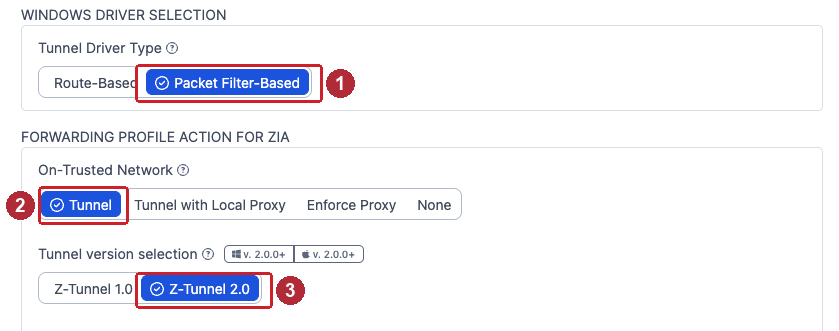
In the WINDOWS DRIVER SELECTION section, then the FORWARDING PROFILE ACTION FOR ZIA section:
- Tunnel Driver Type: Packet Filter-Based (1)
- On-Trusted Network: Tunnel (2)
- Tunnel version selection: Z-Tunnel 2.0 (3)
Step 9 — Configure VPN, Off-Trusted Network, and ZPA
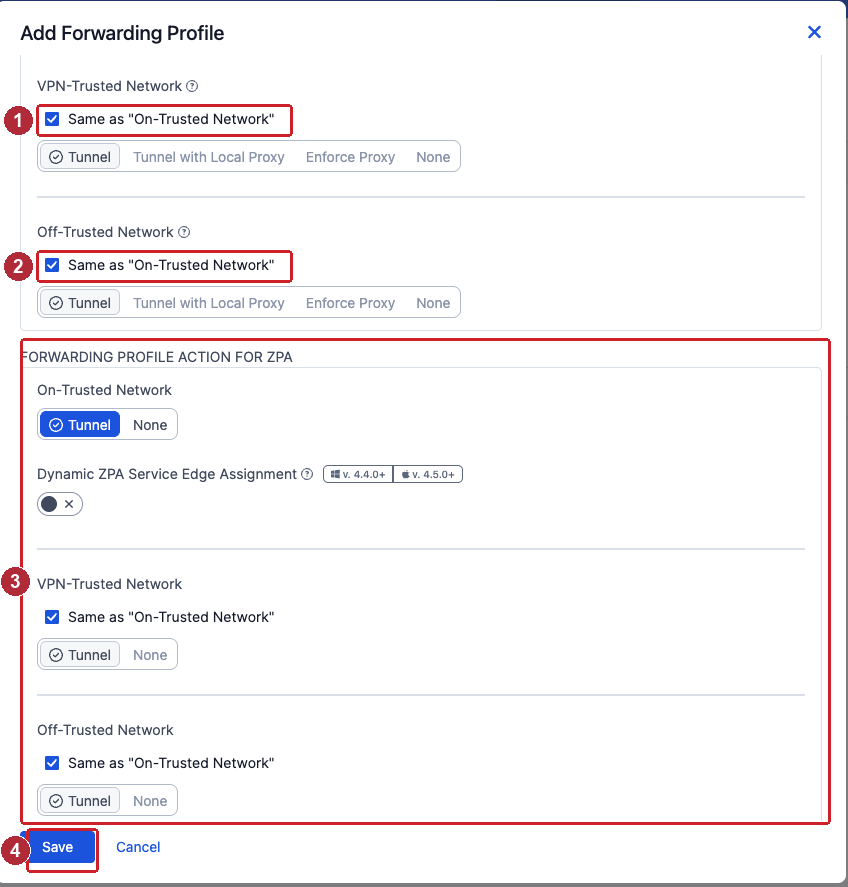
Still in the ZIA section, tick the checkboxes:
- VPN-Trusted Network: Check Same as "On-Trusted Network" (1)
- Off-Trusted Network: Check Same as "On-Trusted Network" (2)
Then, in the FORWARDING PROFILE ACTION FOR ZPA section (3):
- On-Trusted Network: Tunnel
- VPN-Trusted Network: Same as "On-Trusted Network"
- Off-Trusted Network: Same as "On-Trusted Network"
Click Save (4).
Step 10 — Navigate to Windows Platform Settings
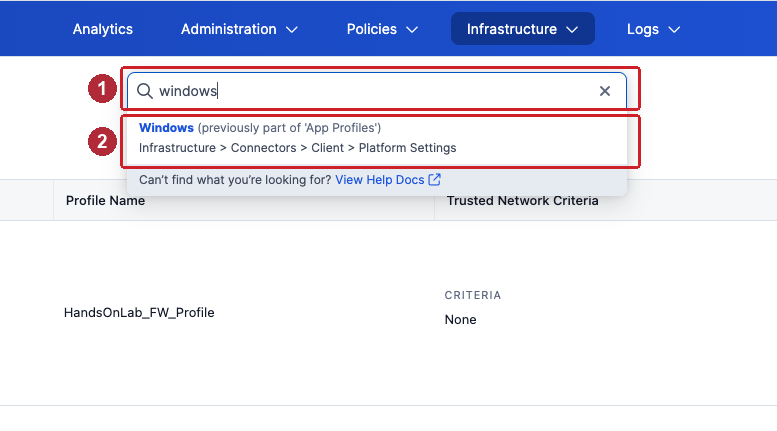
Click the search bar and type windows (1). Select Windows (previously part of 'App Profiles') from the results (2):
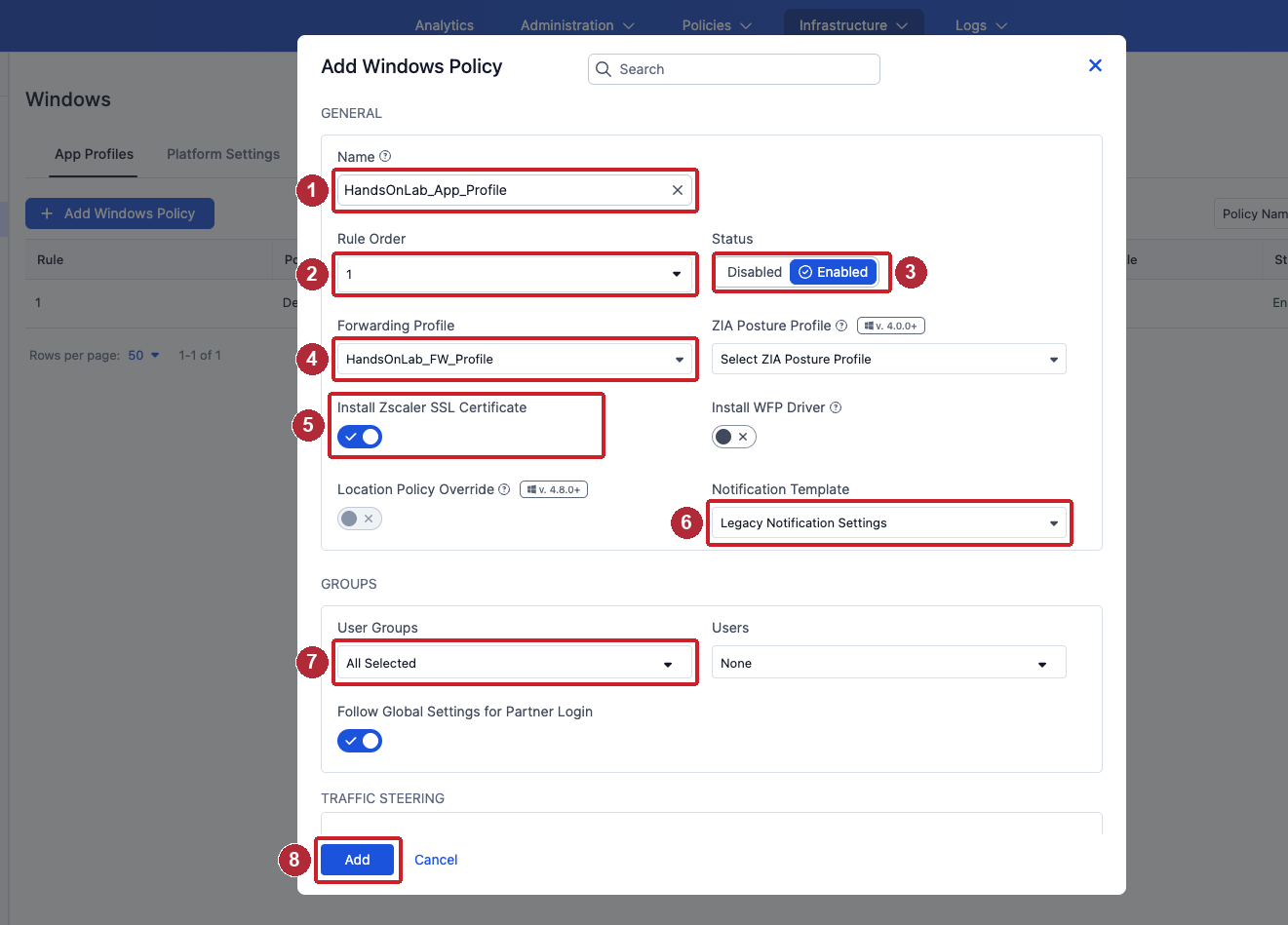
Step 11 — Add Windows App Policy
Click + Add Windows Policy and configure:
- Name:
HandsOnLab_App_Profile(1) - Rule Order: 1 (2)
- Status: Enabled (3)
- Forwarding Profile:
HandsOnLab_FW_Profile(4) - Install Zscaler SSL Certificate: On (5)
- Notification Template: Legacy Notification Settings (6)
- User Groups: All Selected (7)
Leave all other settings at their defaults. Don't click Add (8) yet — first complete Step 12 in the same dialog.
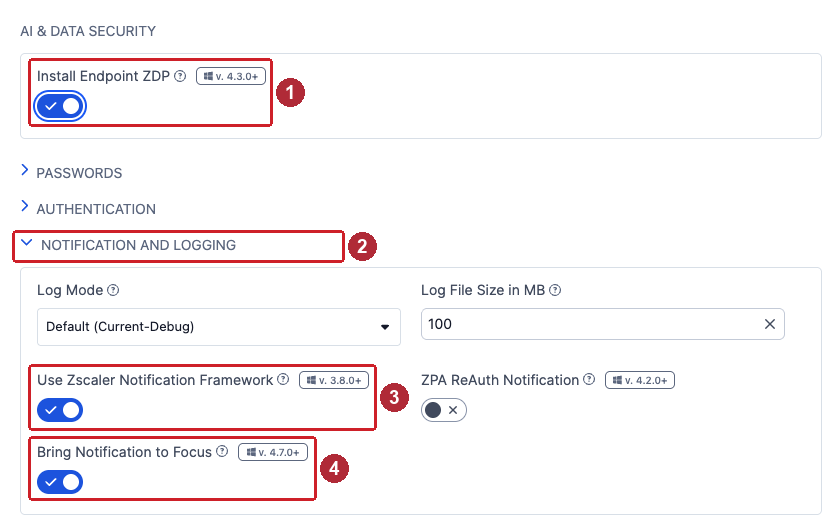
Step 12 — Enable Data Protection / Endpoint DLP
Scroll down in the same Add Windows Policy dialog:
- In the AI & DATA SECURITY section — Install Endpoint ZDP: On (1)
- Expand NOTIFICATION AND LOGGING (2):
- Use Zscaler Notification Framework: On (3)
- Bring Notification to Focus: On (4)
Then click Add to save the policy.
Part 3 — Setup VM and Login to Zscaler Client Connector (ZCC)
Step 1 — Login to the VM
Return to the Windows VM tab in your assigned CloudShare environment. If a Windows sign-in is required, use the VM credentials supplied for your environment.
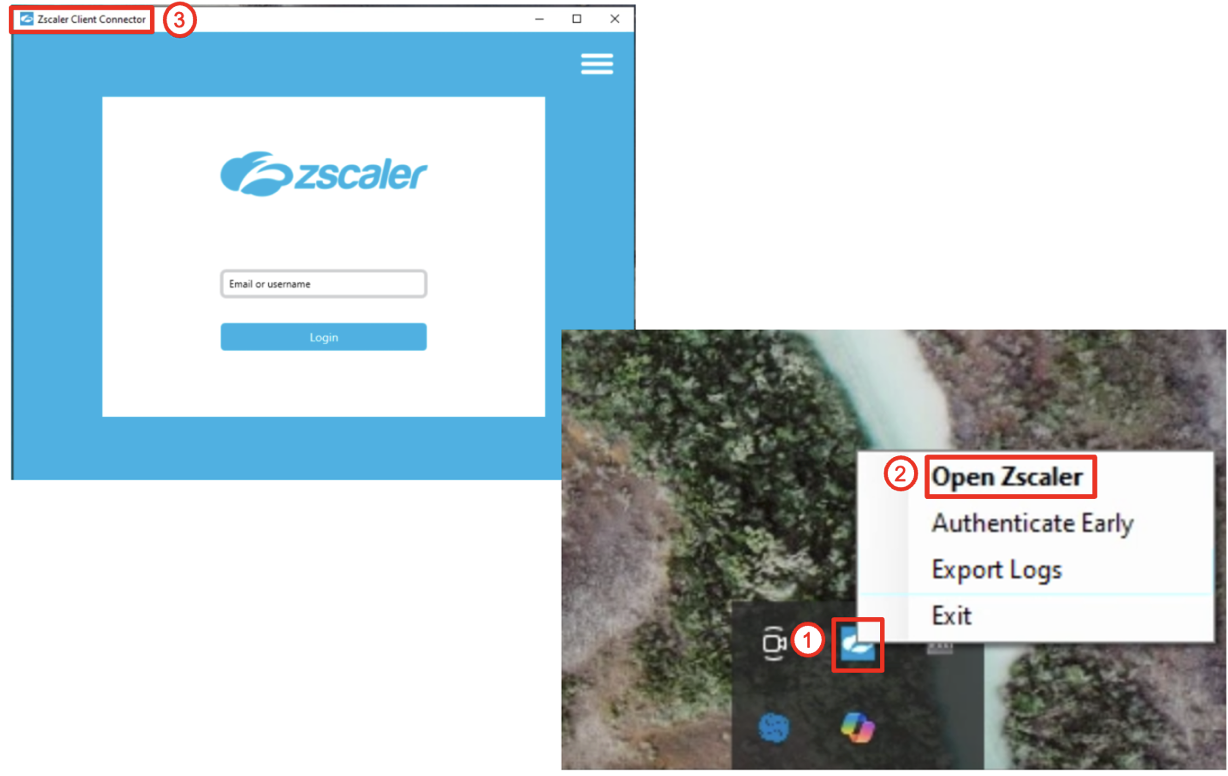
Step 2 — Open and Login to Zscaler Client Connector
Locate the ZCC icon in the system tray (bottom right of the taskbar) ①, right-click it, and select Open Zscaler ②. The Zscaler Client Connector window opens ③.
Use your Lab Tenant Student Admin username from Part 1, Step 3 and its current password to log in. If you changed the one-time password, use your updated password here.
Tip — Copy/Paste: If direct paste does not work, use the clipboard controls available in your VM console, or enter the credentials manually.
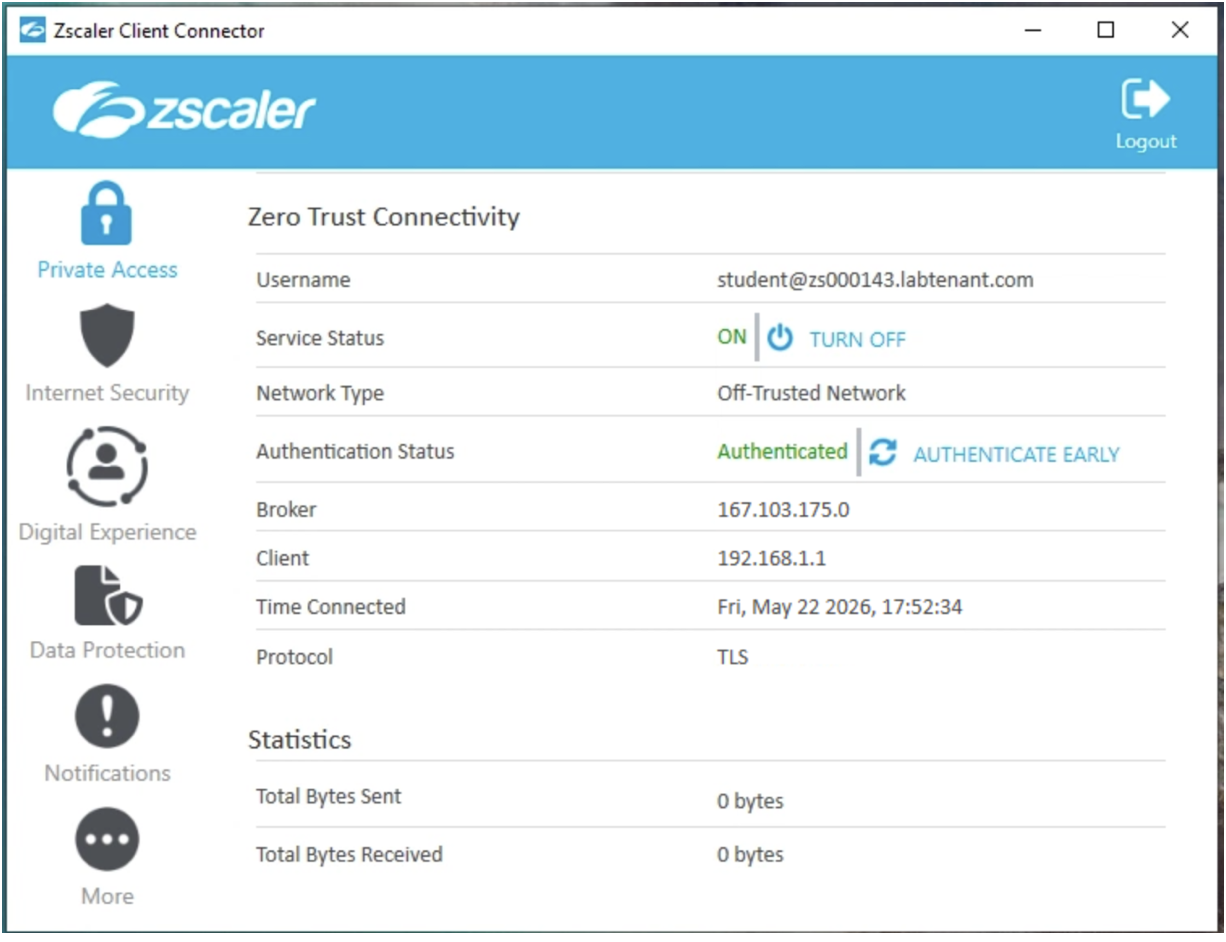
Step 3 — Verify All Modules Are Active
Once logged in, the ZCC dashboard opens. Confirm the following:
- Authentication Status: Authenticated (green)
- Service Status: ON
- All modules (Private Access, Internet Security, Digital Experience, Data Protection) are visible and active
Step 4 — Verify Traffic Is Being Steered to Zscaler
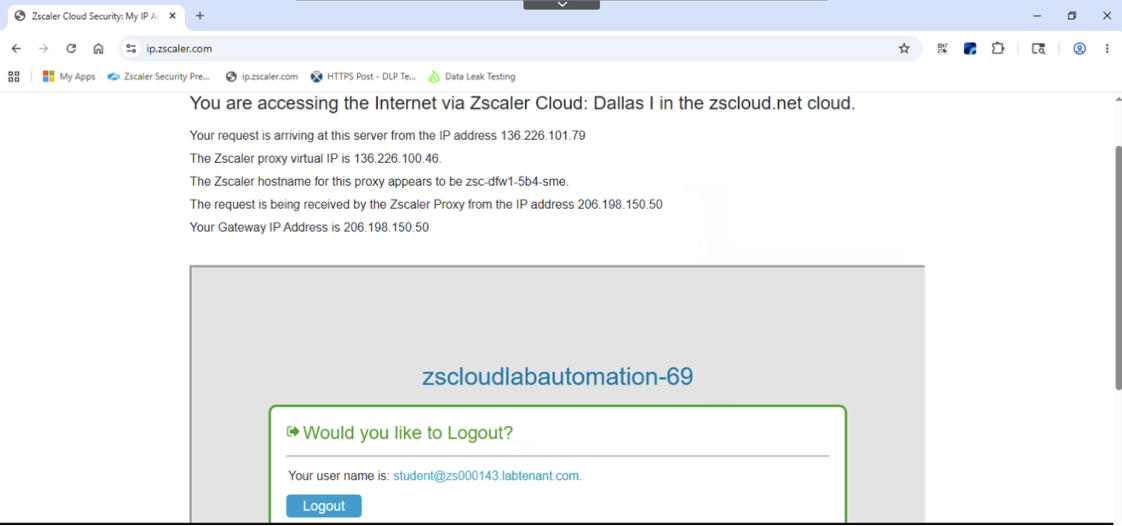
Open a browser inside the VM and navigate to https://ip.zscaler.com. The page should confirm your traffic is passing through the Zscaler Zero Trust Exchange and display your Zscaler proxy details.
Notepad++ is pre-installed on the VM — no installation needed. It is ready to use for Lab 7.
Quick Reference — All Credentials
| What | URL / Access | Username | Password |
|---|---|---|---|
| Enterprise Tenant (Admin) | https://sdc.zslogin.net/ | CloudShare → Credentials → SDC Credentials → Admin Username | Password in SDC Credentials |
| Lab Tenant | https://console.zscaler.com | CloudShare → Credentials → Zscaler Tenant → Student Admin Username | One Time Password for initial login; updated password after changing it |
| Browser DLP Extension (Lab 8) | https://enterprise.onsqrx.com/ → tenant: dlpdemo | SDC Admin Username from CloudShare | SDC Admin password |
| Lab VM | Windows VM tab in CloudShare | VM credentials supplied for your environment, if requested | VM credentials supplied for your environment, if requested |
| Zscaler Client Connector (VM) | N/A | Same as Lab Tenant Student Admin username | Current Lab Tenant password |
Tenant identifiers and usernames may differ from the screenshots. Use the credentials in your assigned CloudShare environment.