Lab 7 – Stopping Data Exfiltration with Endpoint DLP
Kevin's file upload to ChatGPT was blocked in Lab 6 by Inline Web DLP. Undeterred, he decides to try a completely different approach — one that bypasses the network proxy entirely. First he tries to open the sensitive file directly in Notepad++. Then, when that fails, he opens it in Word and tries to copy and paste the content instead. Neither the proxy nor the browser can stop these OS-level actions. Only Endpoint DLP can.
Kevin's new attempts happen entirely on the endpoint — no network request, no HTTP POST, no file transfer. The controls that cannot catch these actions are:
| Control | Why it misses |
|---|---|
| Inline Web DLP (Lab 6) | No network traffic — file access and clipboard never leave the OS |
| Browser DLP (Lab 8) | Only covers actions inside the browser |
| Proxy inspection | Proxy can inspect archive files up to 5 levels — but these actions never reach the network |
Endpoint DLP operates at the OS layer — intercepting file read attempts and clipboard operations before any data can be extracted, regardless of protocol, application, or network path.
Prerequisite — Verify Notepad++ on the Lab VM
Notepad++ is pre-installed on the CloudShare VM, as described in Pre-Requisites for Module 2. Confirm it is available before Task 1. If it is missing, ask your facilitator to check the VM setup.
Complete Lab 5 first: both rules in this lab use the DP Project Code engine.
Task 1 — Block Application File Access to Sensitive Documents
Configure an Application File Access rule, verify the Notepad++ application definition in DLP Resources, push the policy to the endpoint, then confirm Kevin's file open attempt is blocked and logged.
Step 1 — Navigate to Endpoint DLP Policy
Navigate to the Endpoint DLP policy page:
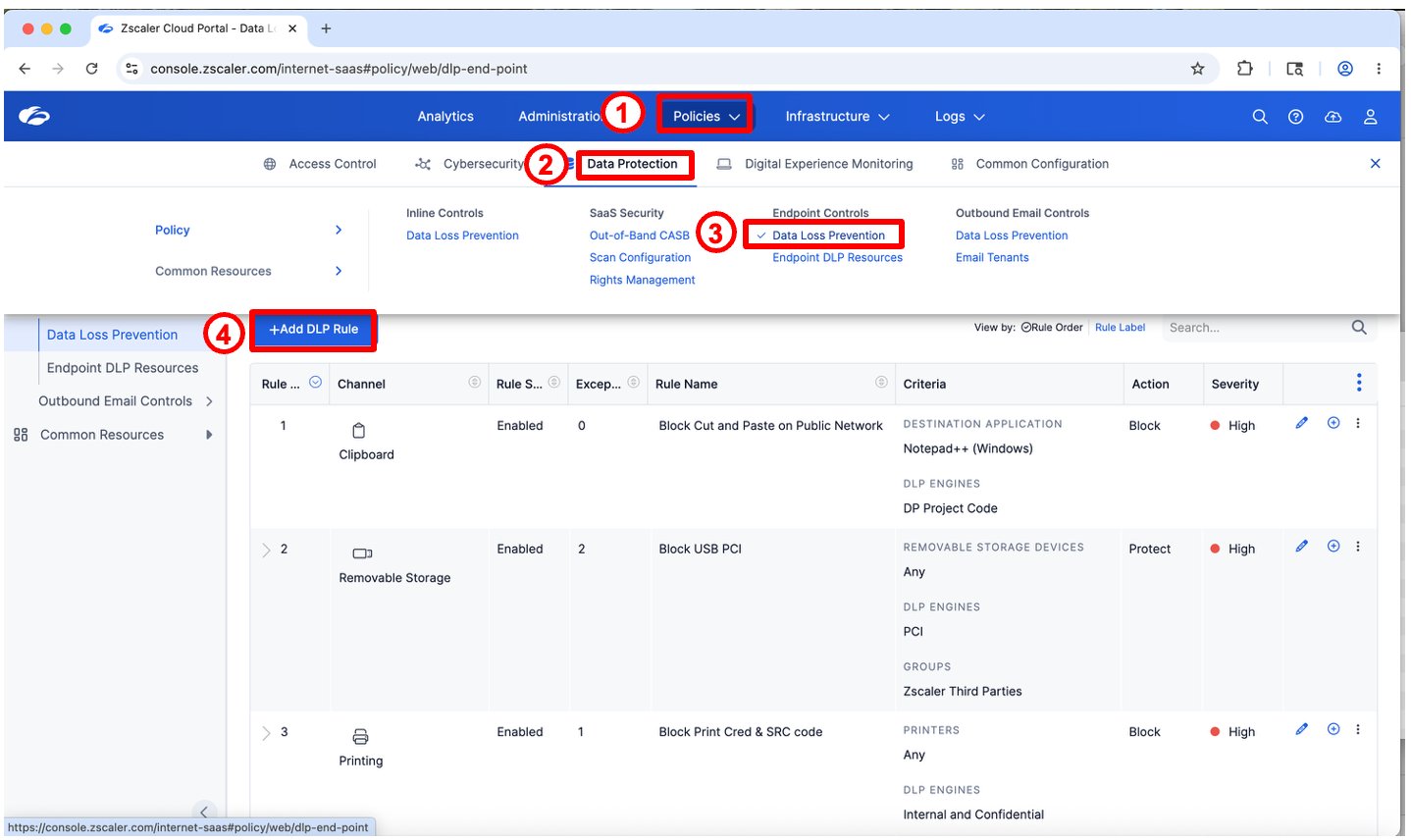
Review the policy list. You will create the Application File Access rule below. If your assigned tenant already contains the same lab rule, review and update it rather than creating a duplicate.
Step 2 — Navigate to Endpoint DLP Resources
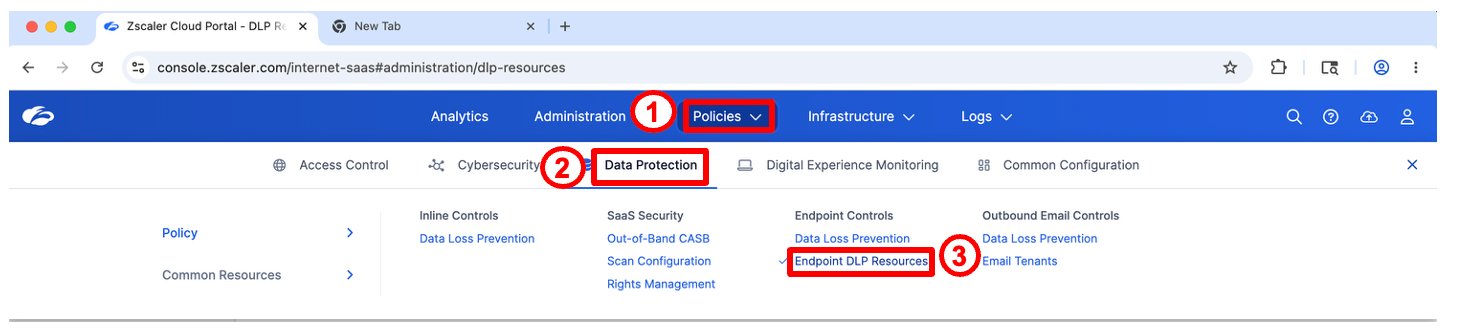
Before creating the AFA rule, review how applications are defined. Navigate to:
Step 3 — Review the Notepad++ Application Definition
In DLP Resources, click the Applications tab and search for notepad. Click the eye icon to view the Notepad++ (Windows) definition.
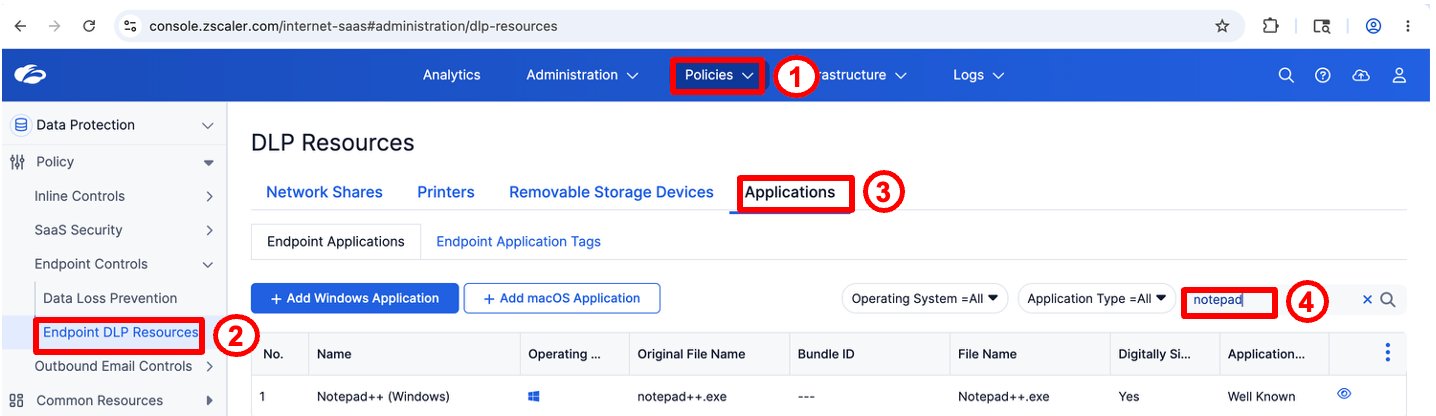
| Field | Value |
|---|---|
| Name | Notepad++ (Windows) |
| Original File Name | notepad++.exe |
| File Name | Notepad++.exe |
| Digitally Signed | Yes |
| Application Type | Well Known |
Application definitions use Original File Name + File Name + Digital Signature to uniquely identify an application. The digital signature check ensures the policy applies to the genuine Notepad++ binary — a renamed or unsigned copy would not match.
Step 4 — Create the Application File Access Rule
Navigate back to Endpoint DLP Policy and click + Add DLP Rule:
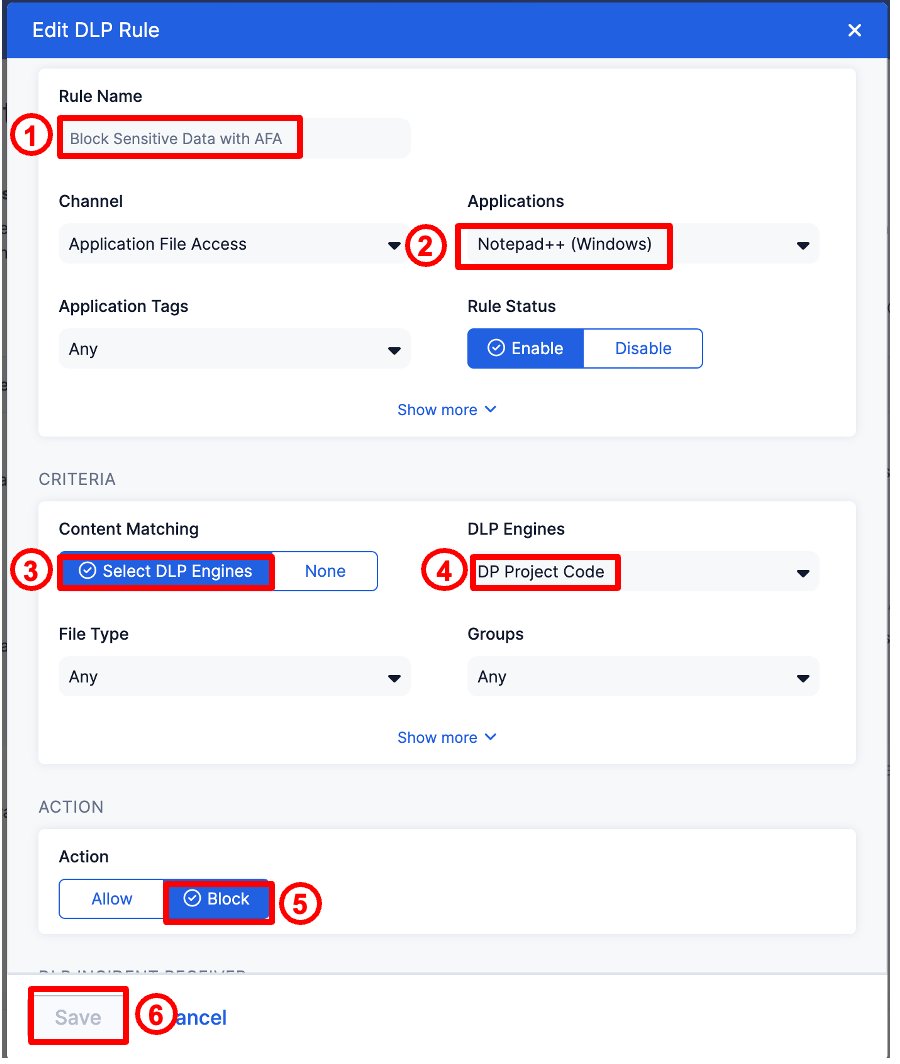
| Field | Value |
|---|---|
| Rule Name | Block Sensitive Data with AFA |
| Channel | Application File Access |
| Applications | Notepad++ (Windows) |
| DLP Engines | DP Project Code |
| Action | Block |
| Rule Status | Enable |
Callout 1 — Rule Name:
Block Sensitive Data with AFACallout 2 — Channel: Application File Access Callout 3 — Content Matching: Select DLP Engines Callout 4 — DLP Engines: DP Project Code — same engine from Lab 5 Callout 5 — Action: Block Callout 6 — Click Save
Step 5 — Push the Updated Policy to the Endpoint
After saving the rule, the policy must be pushed to the endpoint agent. On the lab VM:
- Right-click the Zscaler icon in the system tray
- Click Open Zscaler
- Navigate to Data Protection
- Click Update DLP Policy
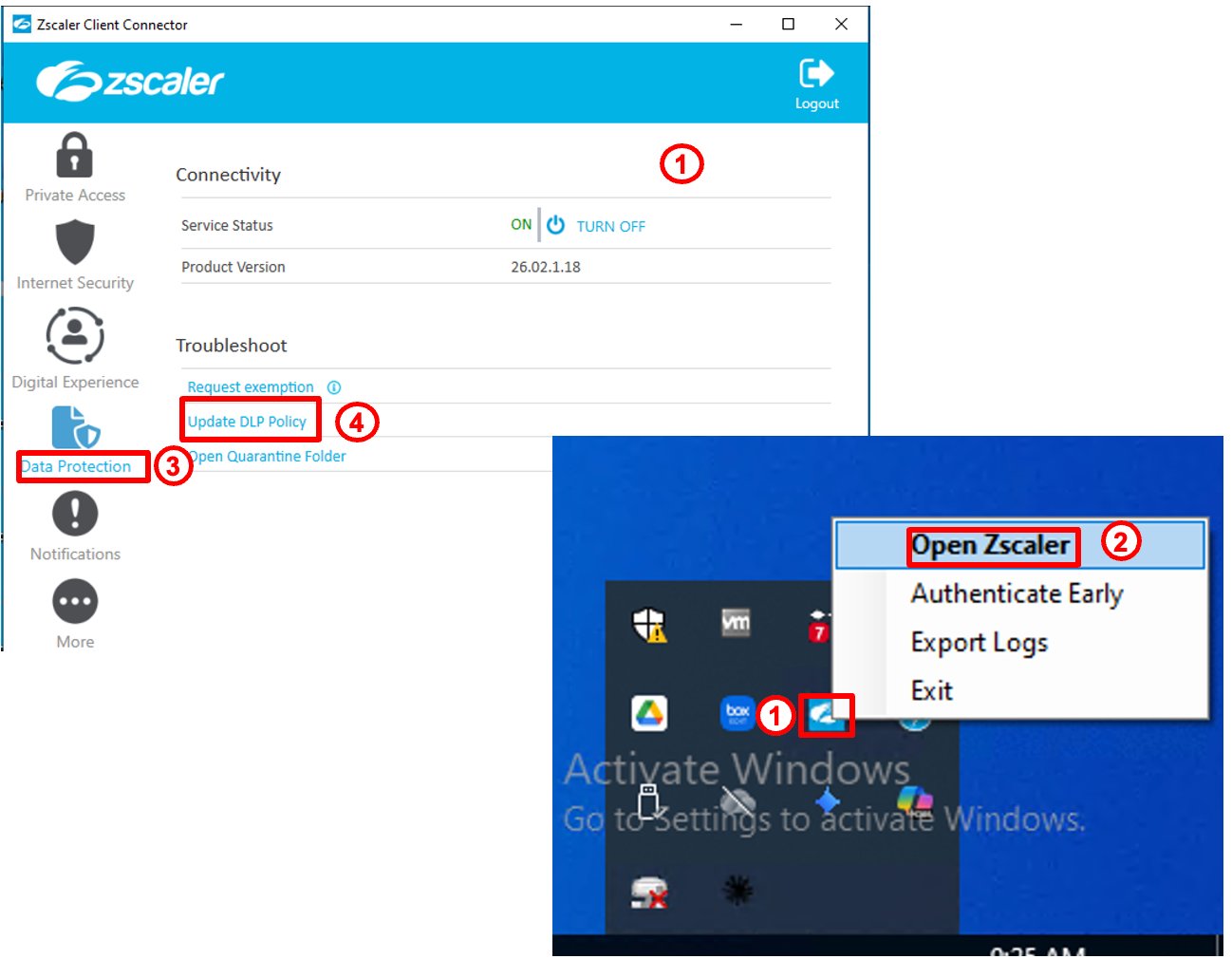
Callout 1 — ZCC Connectivity: Service Status ON Callout 2 — Right-click ZCC tray icon → Open Zscaler Callout 3 — Click Data Protection Callout 4 — Click Update DLP Policy
Step 6 — Kevin Attempts to Open the File in Notepad++
Kevin right-clicks Dataparity_Q2_2025_Workforce_Financial_Summary.docx on the desktop and selects Edit with Notepad++.
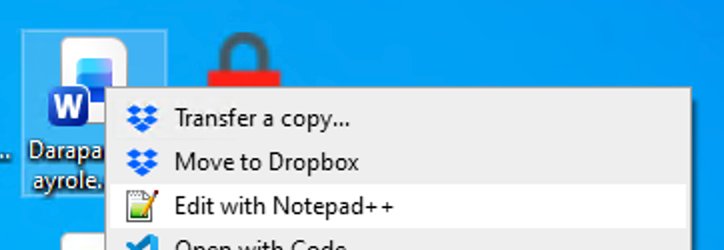
The moment Notepad++ attempts to read the file, Application File Access intercepts at the OS layer — before any data reaches the application.
Step 7 — Endpoint DLP Blocks the File Read
Kevin sees two simultaneous events:
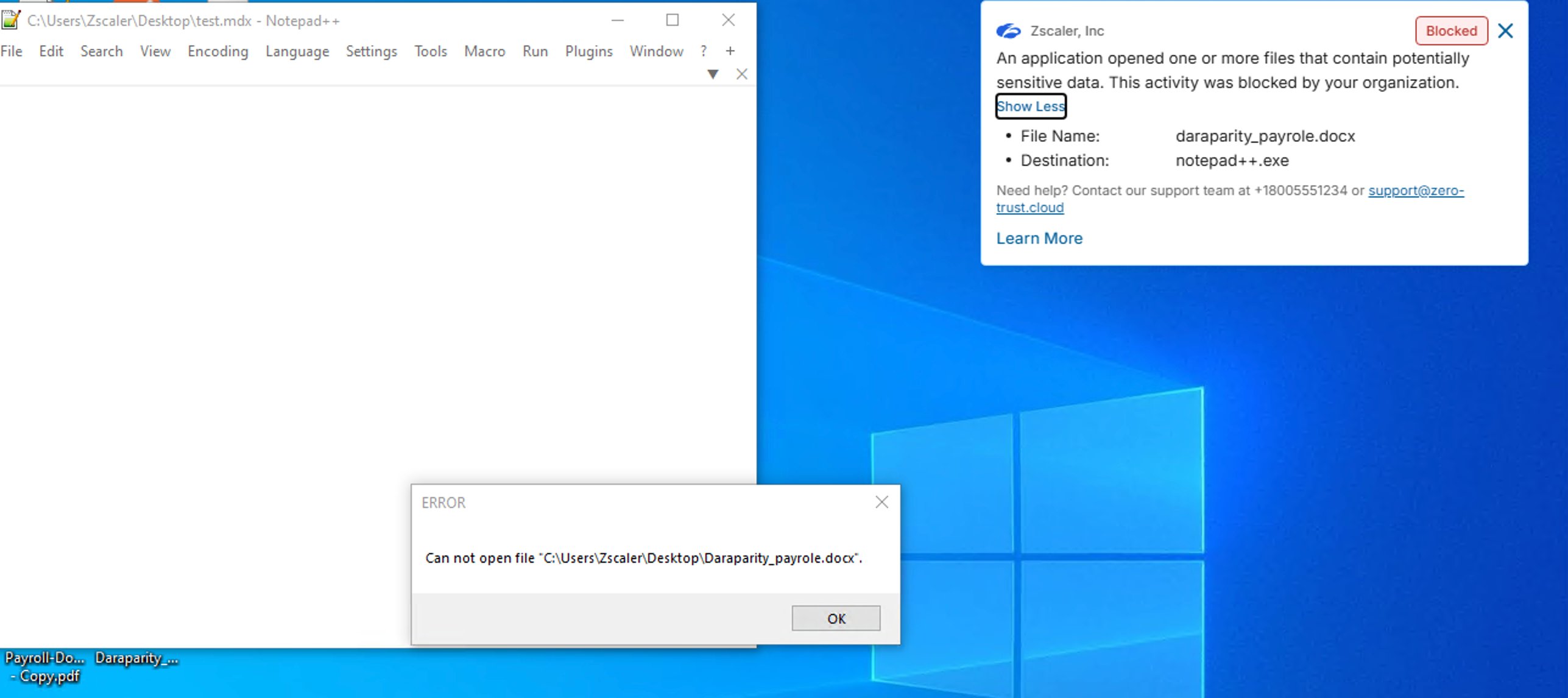
Zscaler block notification:
Blocked An application opened one or more files that contain potentially sensitive data. This activity was blocked by your organization.
- File Name: Dataparity_Q2_2025_Workforce_Financial_Summary.docx
- Destination: notepad++.exe
Notepad++ error dialog:
ERROR — Can not open file
C:\Users\Zscaler\Desktop\Dataparity_Q2_2025_Workforce_Financial_Summary.docx
Notepad++ never displayed a single byte. The OS-level block happened before the application received any data.
Step 8 — Navigate to Endpoint DLP Insights
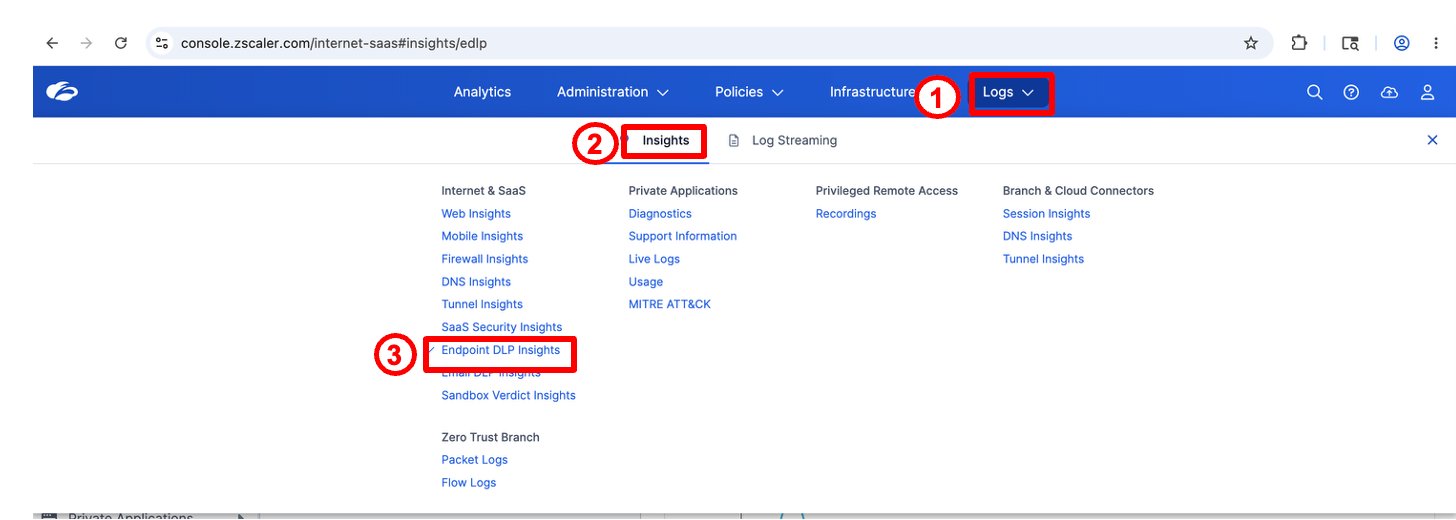
Callout 1 — Click Logs in the top nav Callout 2 — Select Insights Callout 3 — Click Endpoint DLP Insights
Step 9 — Review the AFA Violation Log
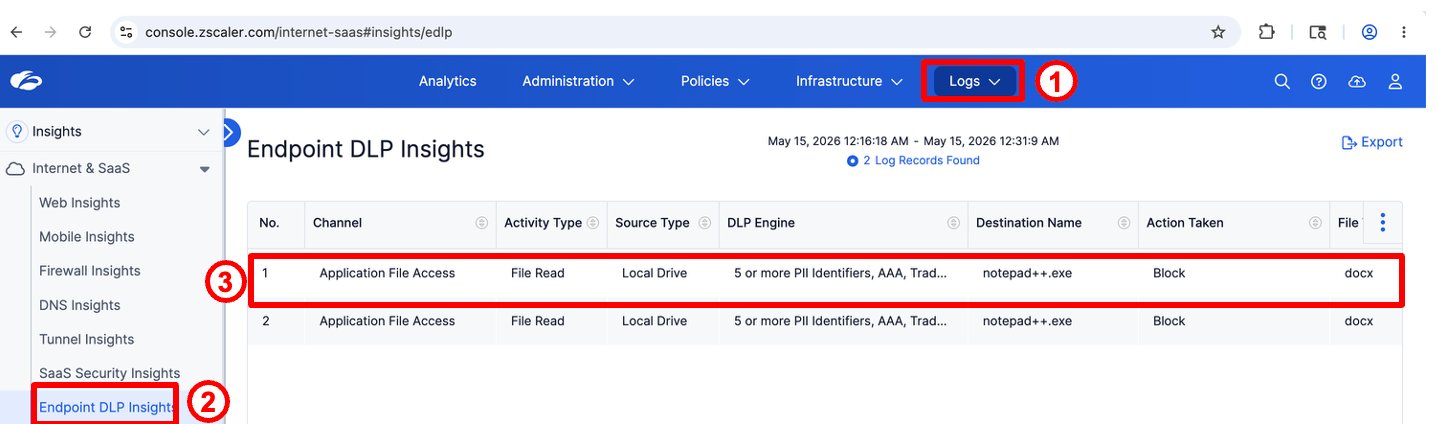
Locate the Application File Access event for your test. Screenshot counts and engine labels may differ; verify your event against the rule you configured:
| Field | Expected value for your test |
|---|---|
| Channel | Application File Access |
| Activity Type | File Read |
| Source Type | Local Drive |
| DLP Engine | DP Project Code |
| Destination Name | notepad++.exe |
| Action Taken | Block |
| File Type | docx |
Activity Type: File Read is the key differentiator from the Clipboard channel. This tells Alex exactly what Kevin attempted — a direct file read by an unauthorized application — not a network upload or clipboard operation.
Task 2 — Block Clipboard Exfiltration to Local Applications
Demonstrate that even when Kevin uses a legitimate application to access the file, Endpoint DLP Clipboard control blocks the paste into an unauthorized destination.
Kevin's reasoning: "Zscaler blocked Notepad++ from reading the file directly. But Word is allowed to open it — it's the legitimate app for .docx files. If I open it in Word, copy the content, and paste it into Notepad++, maybe the endpoint agent won't catch it."
He's right that Word can open the file — Application File Access doesn't block sanctioned applications. But the Clipboard channel catches the copy/paste at the OS clipboard layer, regardless of which application the content came from.
This task must be performed from the lab VM machine. Ensure the Zscaler Client Connector is running before proceeding.
Step 1 — Navigate to Endpoint DLP Policy
As Alex, open the Endpoint DLP policy page:
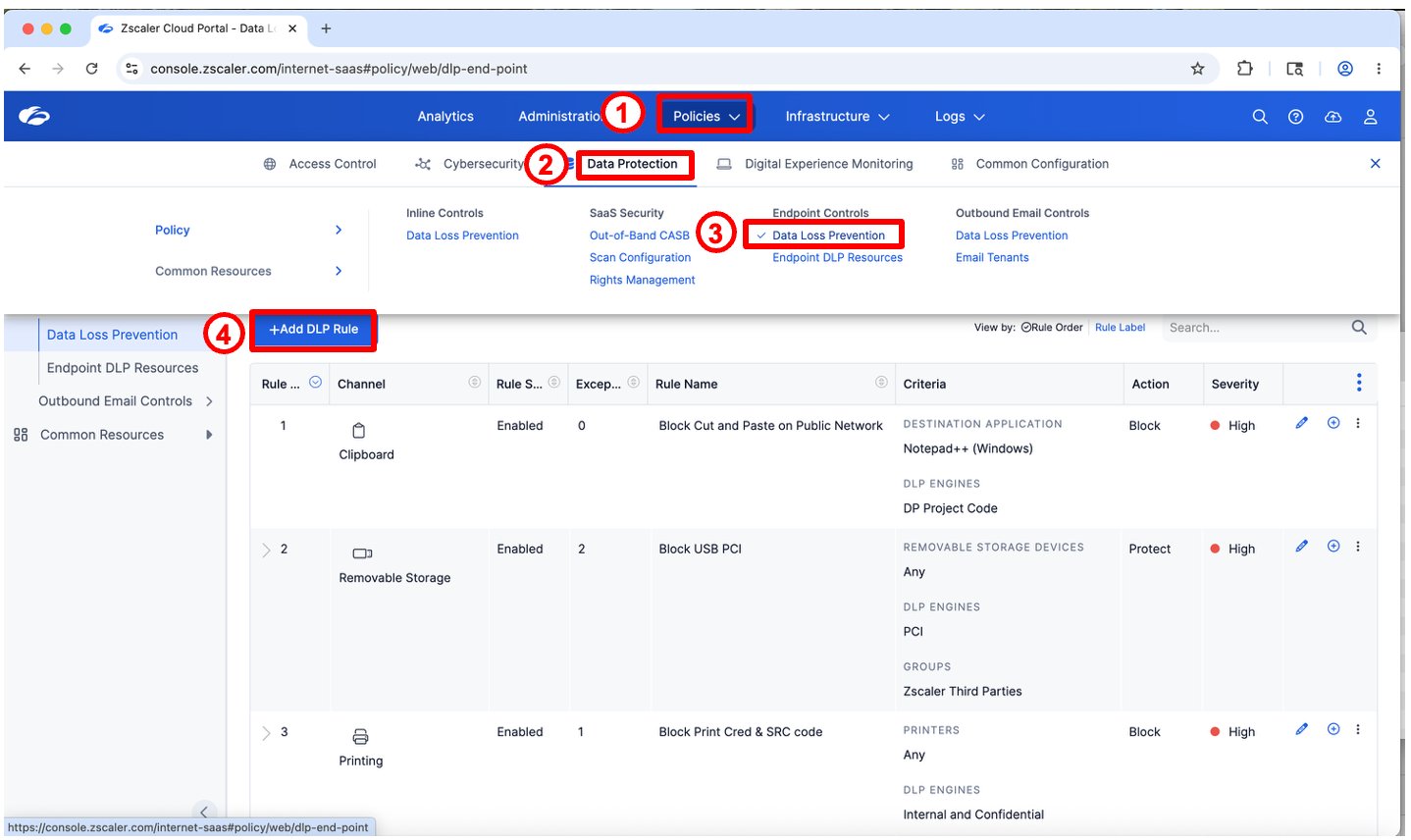
The screenshot shows an existing Clipboard rule. Rule names and order may differ in your tenant.
Step 2 — Configure the Clipboard DLP Rule
Click + Add DLP Rule and configure Block Cut_n_Paste Sensitive Data below. If that lab rule already exists, edit it instead.
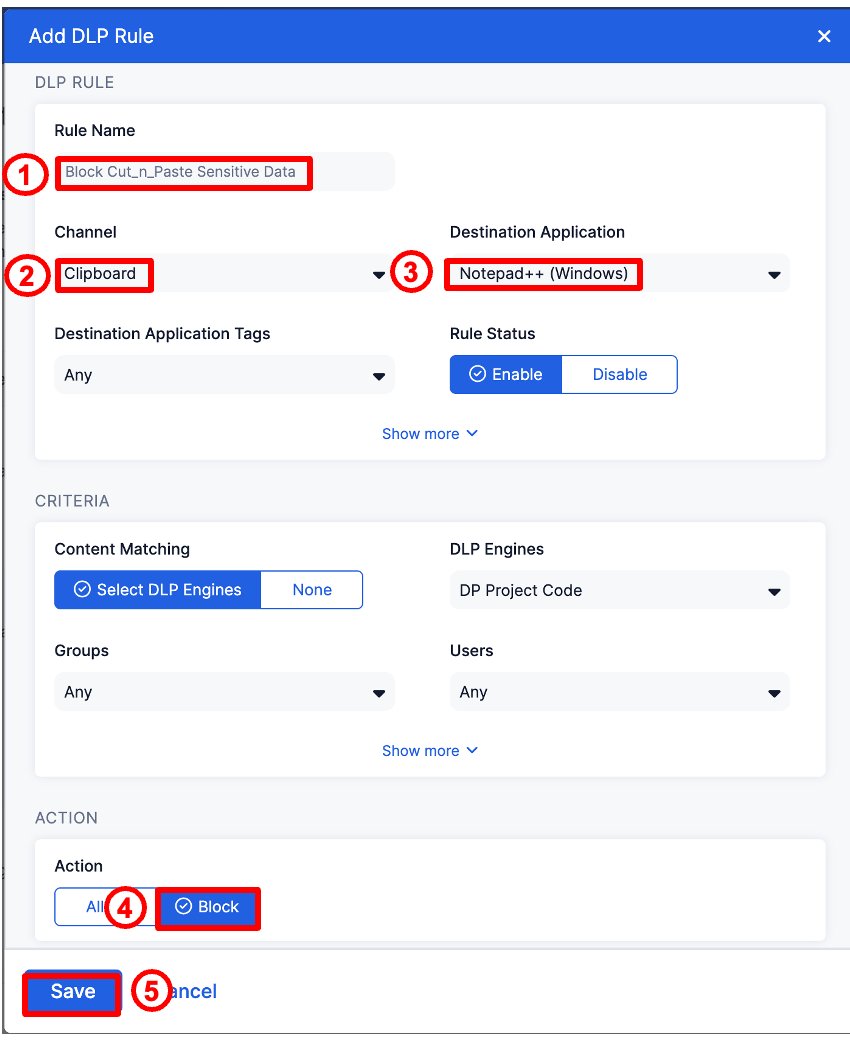
| Field | Value |
|---|---|
| Rule Name | Block Cut_n_Paste Sensitive Data |
| Channel | Clipboard |
| Destination Application | Notepad++ (Windows) |
| DLP Engines | DP Project Code |
| Rule Status | Enable |
| Action | Block |
Click Save.
The Clipboard rule is scoped to Notepad++ (Windows) as the destination. This means paste of sensitive content is blocked specifically when the destination is Notepad++. Setting the destination to Any would block paste of sensitive content into any application on the endpoint — email clients, chat tools, IDE editors, or any other process.
Scoping to a specific application allows a graduated rollout — start with the highest-risk destinations, then expand once the policy is tuned.
Step 3 — Push Updated Policy to Endpoint
After saving the Clipboard rule, push the policy to the endpoint:
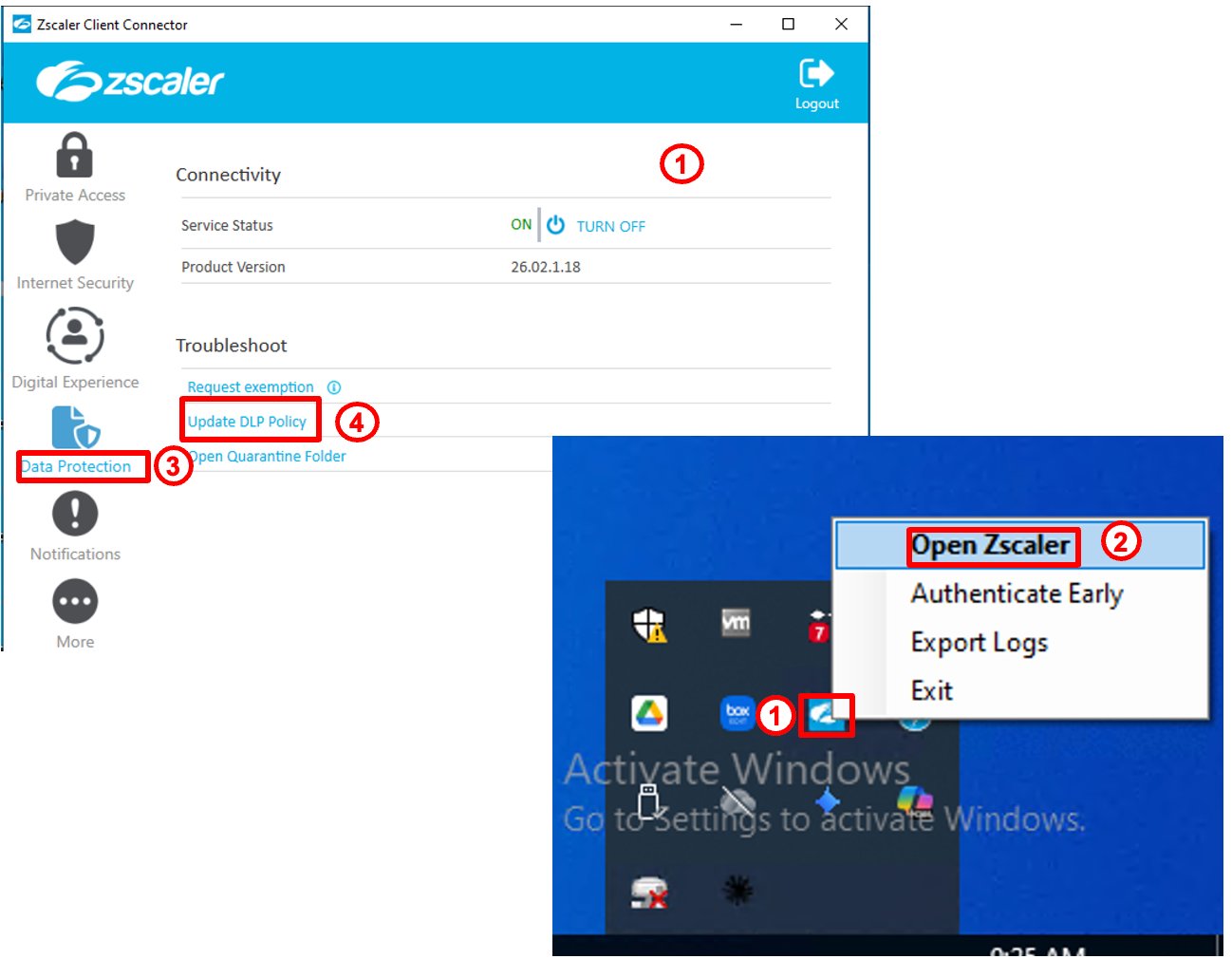
Right-click ZCC tray icon → Open Zscaler → Data Protection → Update DLP Policy
Step 4 — Kevin Opens the Document in Word and Selects Sensitive Content
Kevin opens Dataparity_Q2_2025_Workforce_Financial_Summary.docx in Microsoft Word — which is allowed, as Word is a sanctioned application. He selects the entire document so that the Credit Cards, ABA Bank Routing Number, and DP Project Code signals required by the engine are included.
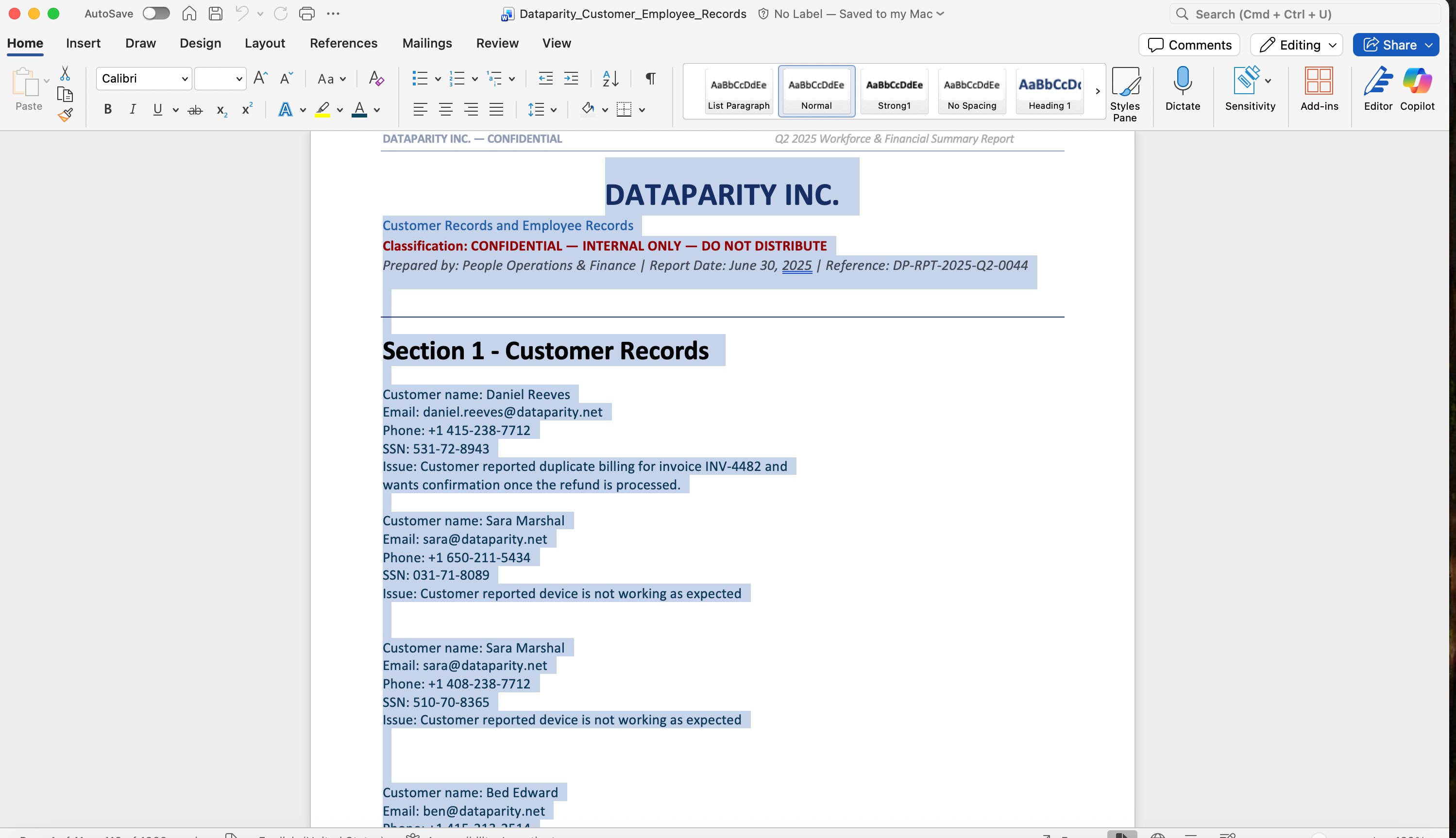
Kevin presses Ctrl+C to copy. He then opens Notepad++ and attempts Ctrl+V to paste.
Step 5 — Endpoint DLP Blocks the Paste
Instead of pasting, Kevin sees a Zscaler block notification:
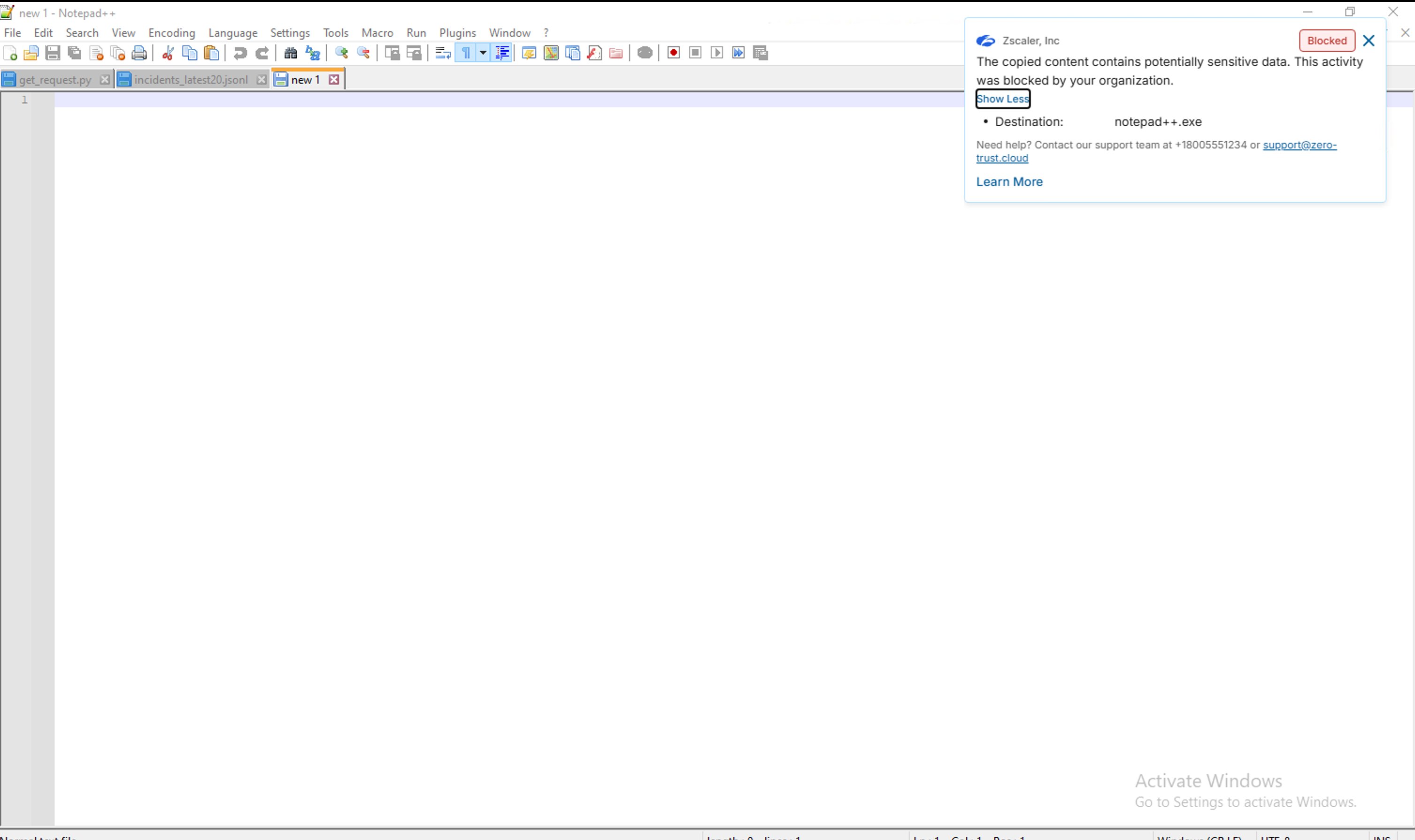
Blocked The copied content contains potentially sensitive data. This activity was blocked by your organization.
- Destination: notepad++.exe
Notepad++ remains empty — not a single character was pasted.
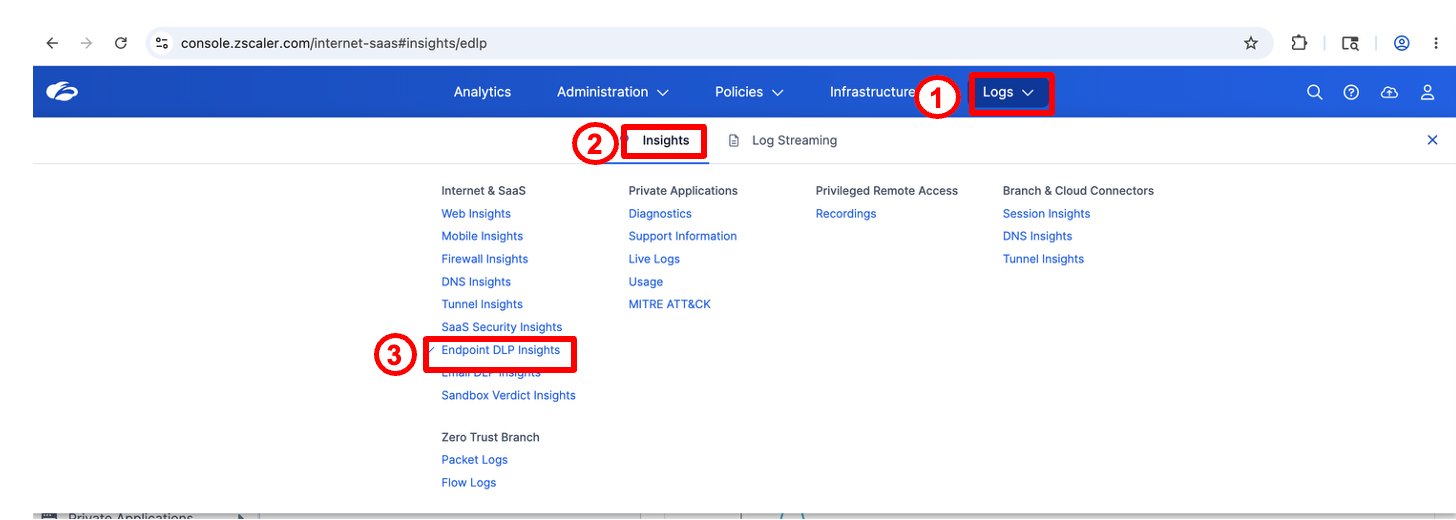
Step 6 — Navigate to Endpoint DLP Insights
Step 7 — Review the Clipboard Violation Log
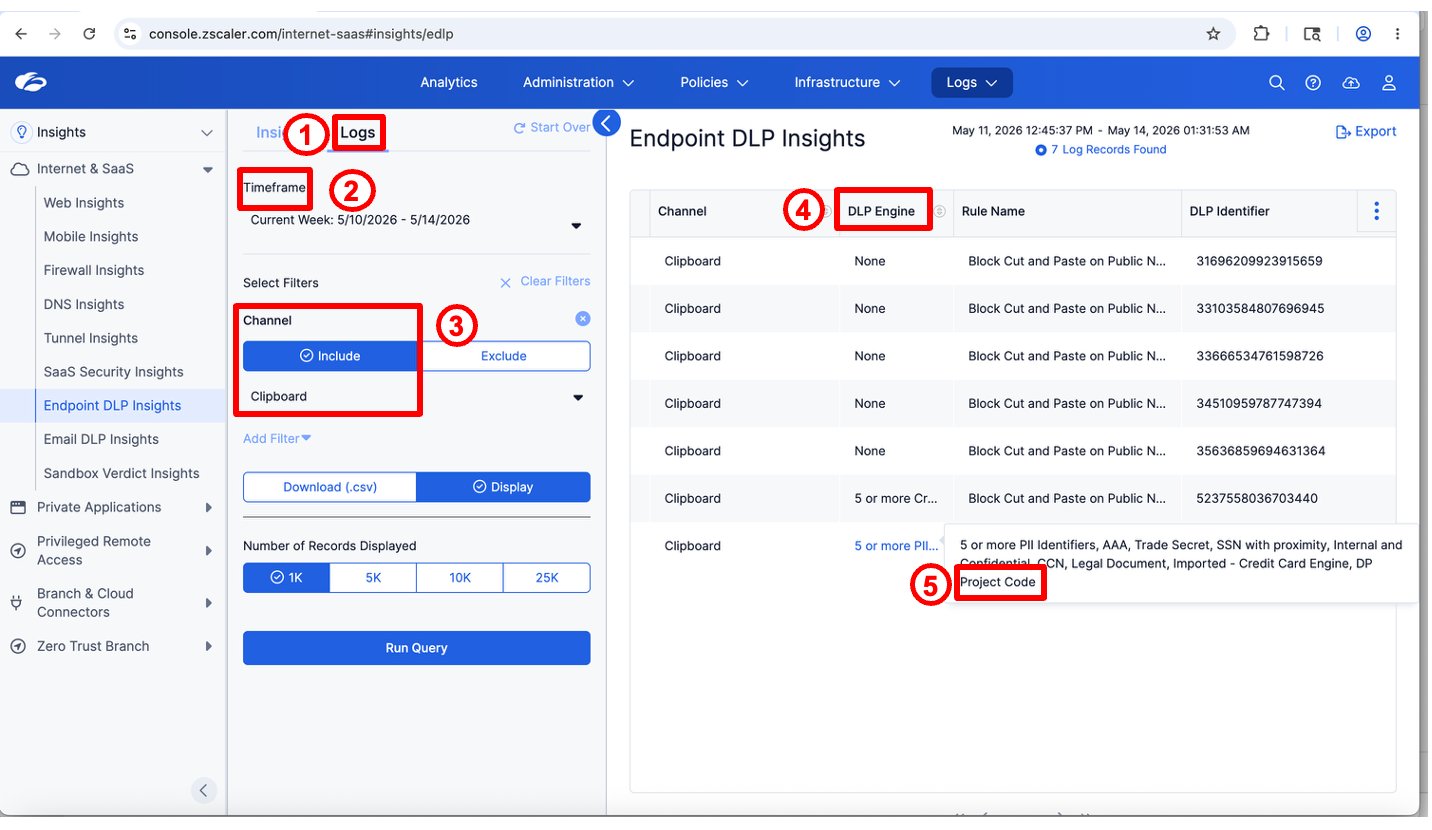
Apply filter: Channel = Clipboard → Run Query
| Field | Value |
|---|---|
| Channel | Clipboard |
| Activity Type | Paste Text |
| DLP Engine | DP Project Code |
| Rule Name | Block Cut_n_Paste Sensitive Data (or the existing lab rule you updated) |
| Action Taken | Block |
Compare Activity Type: Paste Text (Task 2) vs Activity Type: File Read (Task 1). Two distinct OS-level events, two different channels, one unified Endpoint DLP Insights log — giving Alex a precise audit trail of exactly what Kevin attempted at each layer.
Kevin tried two OS-level evasion techniques after his network upload was blocked in Lab 6:
- Application File Access (Task 1) — tried to open the file directly in Notepad++. Blocked at the file read layer before any data reached the application.
- Clipboard (Task 2) — opened in Word (allowed), copied content, tried to paste into Notepad++. Blocked at the clipboard paste layer.
Neither attempt generated network traffic. Neither was visible to the proxy. Only Endpoint DLP — running at the OS layer — could intercept them.
Lab 8 moves to browser interactions using preconfigured Browser DLP policies. The Notepad++-scoped rules tested here do not cover every browser destination; Lab 8 demonstrates masking, sensitive-download blocking, and watermarking inside Chrome.
Lab Summary
In this lab:
- Alex reviewed the Notepad++ application definition in DLP Resources
- Alex created an Application File Access rule using the DP Project Code engine
- Alex pushed the updated policy to the endpoint via ZCC → Update DLP Policy
- Kevin right-clicked
Dataparity_Q2_2025_Workforce_Financial_Summary.docx→ Edit with Notepad++ → blocked at OS file read layer - Alex confirmed Activity Type: File Read in Endpoint DLP Insights
- Kevin opened the file in Word (allowed), copied sensitive content, attempted to paste into Notepad++ → blocked at OS clipboard layer
- Alex confirmed Activity Type: Paste Text in Endpoint DLP Insights — two distinct channels, one unified log
Key Takeaway: Endpoint DLP closes the OS-layer gaps that proxy and browser DLP cannot cover. Application File Access and Clipboard are two complementary channels that together prevent both direct file extraction and content copy/paste exfiltration — entirely off-network.