Lab 3 — Data Security Posture Management (DSPM)
Discover and classify sensitive data across cloud and on-premises stores, understand entitlements and risky access paths, and explore compliance reporting.
Task 1 — Data Discovery and Classification
Gain visibility into the data stored across your clouds and data centers. Explore the types of data your teams are storing and their whereabouts.
Step 1 — Navigate to Data Discovery
Log in to the Experience Center and go to Analytics.
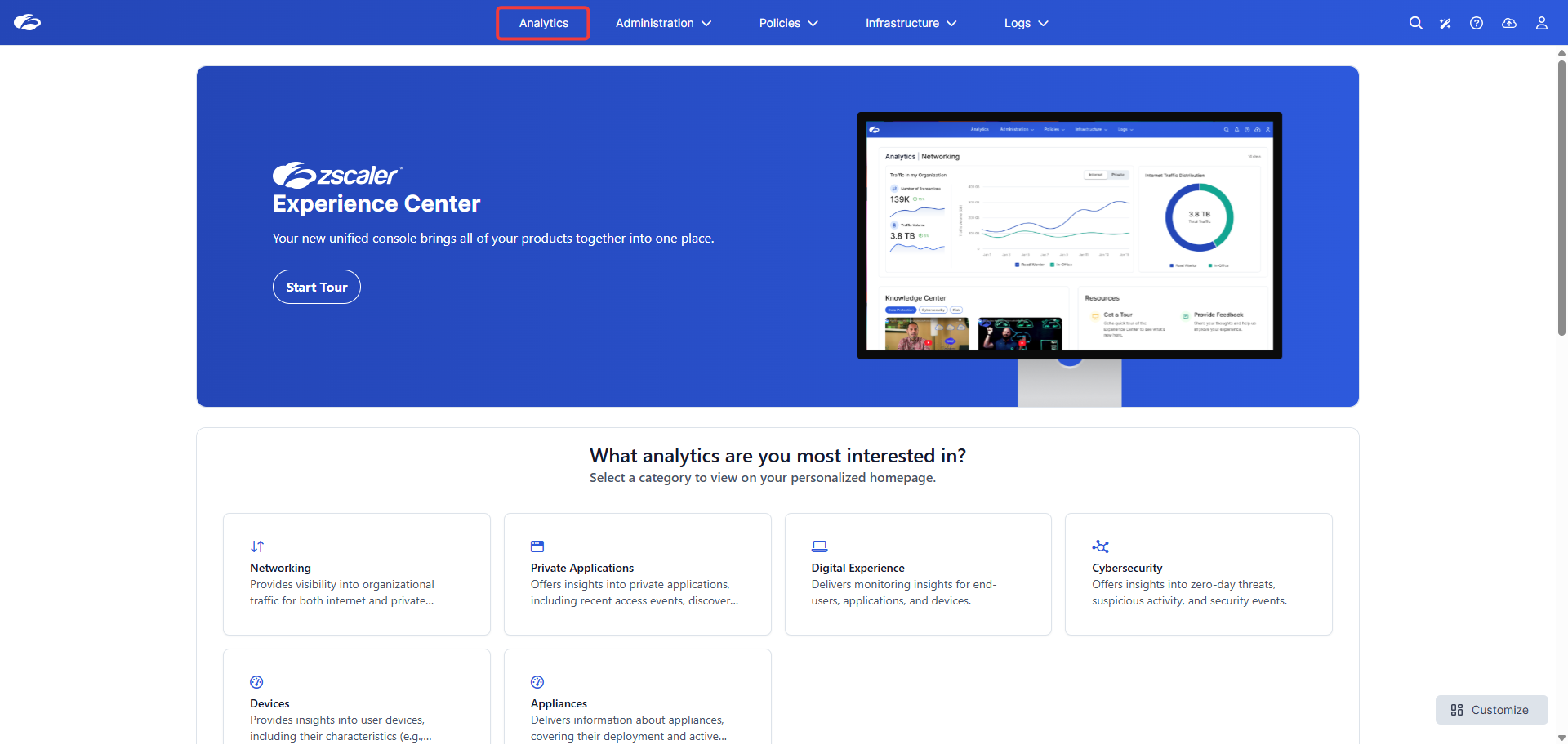
Zscaler is actively unifying Data Security from the legacy ZIA platform into the new Experience Center. Most analytics reports (Shadow IT, Instance Discovery, Data Discovery) originated in ZIA and have been ported to the Experience Center. These ported reports are accessible by turning the "Switch to Existing Reports" toggle ON.
DSPM is the exception. It was purpose-built as part of the new Unified Data Security Dashboard from day one — it is not a ported report. DSPM is only visible when the toggle is OFF. Turning it ON hides DSPM and shows the legacy report set instead.
| Toggle State | What You See | Used In |
|---|---|---|
| ON | Legacy ZIA reports ported to Experience Center | Labs 1, 2, 4 |
| OFF | Unified Data Security Dashboard (including DSPM) | Lab 3 only |
⚠️ For Lab 3: ensure the toggle is OFF before proceeding. If the DSPM option is not visible in the left menu, this is almost always the cause.
From the left menu, select Data Security → DSPM → Data Discovery.
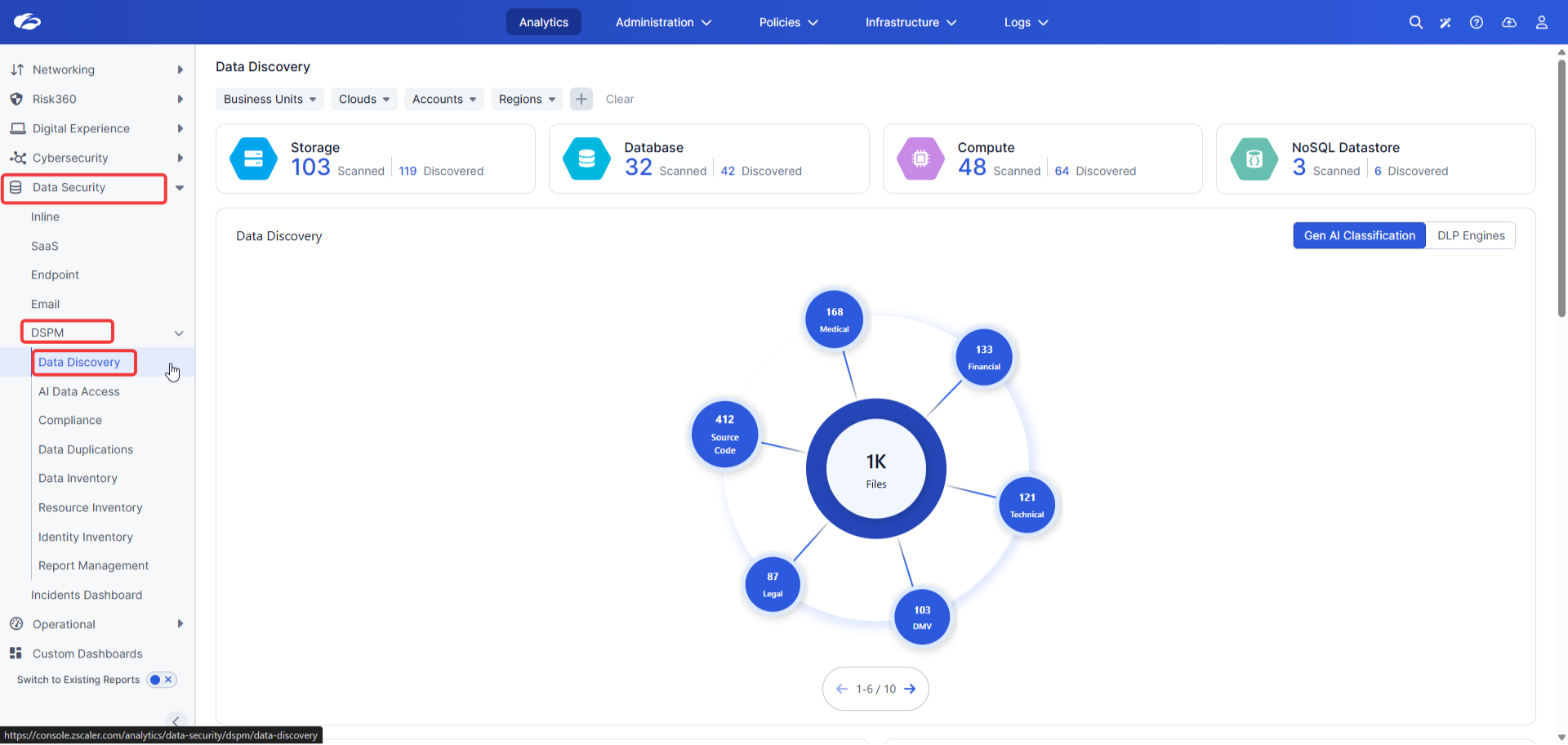
The Data Discovery dashboard is your first top-level investigation view, allowing broad data exploration.
Step 2 — Explore GenAI Classification
Note the two classification techniques available: DLP Engines and Gen AI Classification. Start with Gen AI Classification.
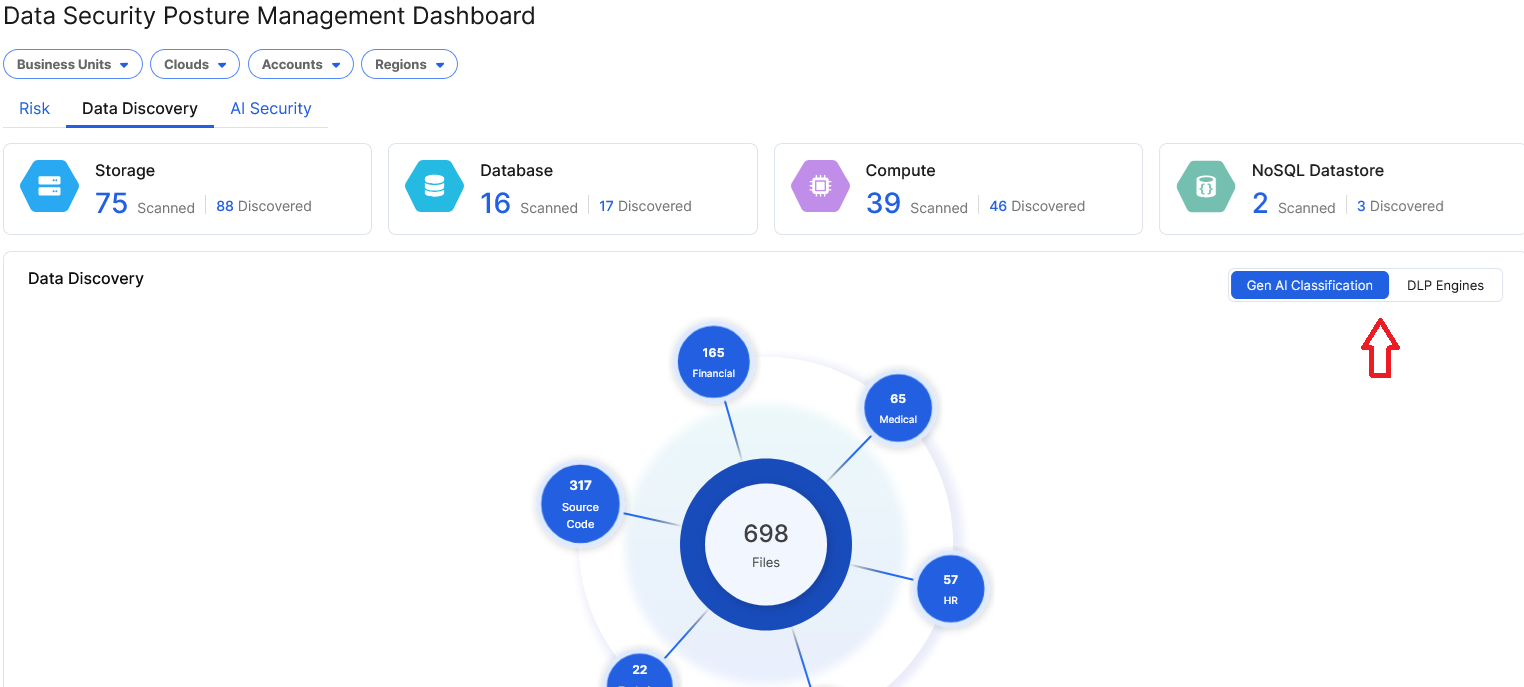
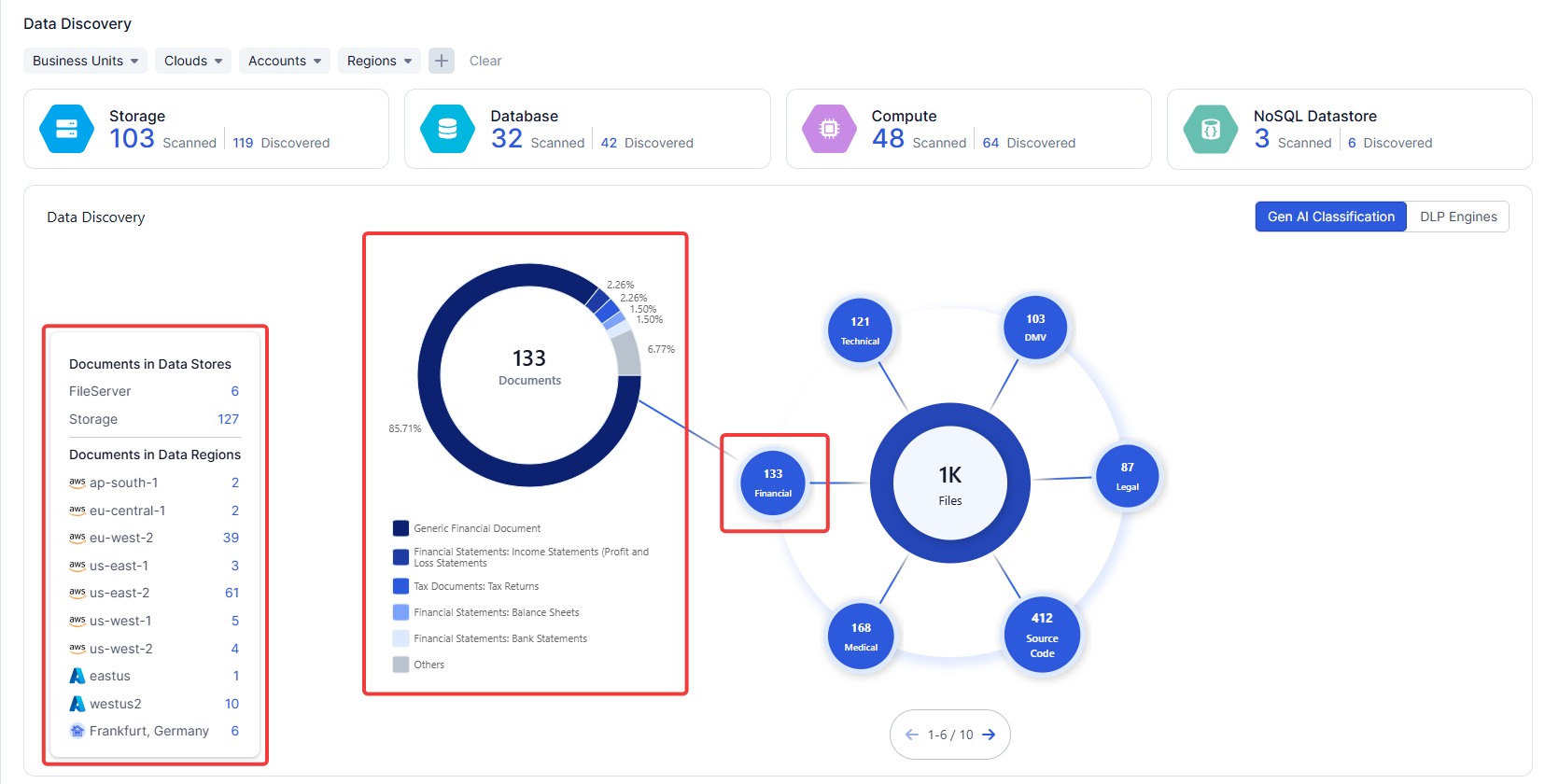
Expand one of the categories (e.g., Financial) and inspect the results. Note the following:
- The main sun chart shows document categories. Use the pagination arrows to scroll through detected data categories.
- Clicking on a category reveals the document types breakdown.
- The bottom-left details view provides a breakdown by data store type and geographic location.
Step 3 — Switch to DLP Engines
Explore different data types, then click the DLP Engines selector and perform a similar analysis using privacy data classifiers.
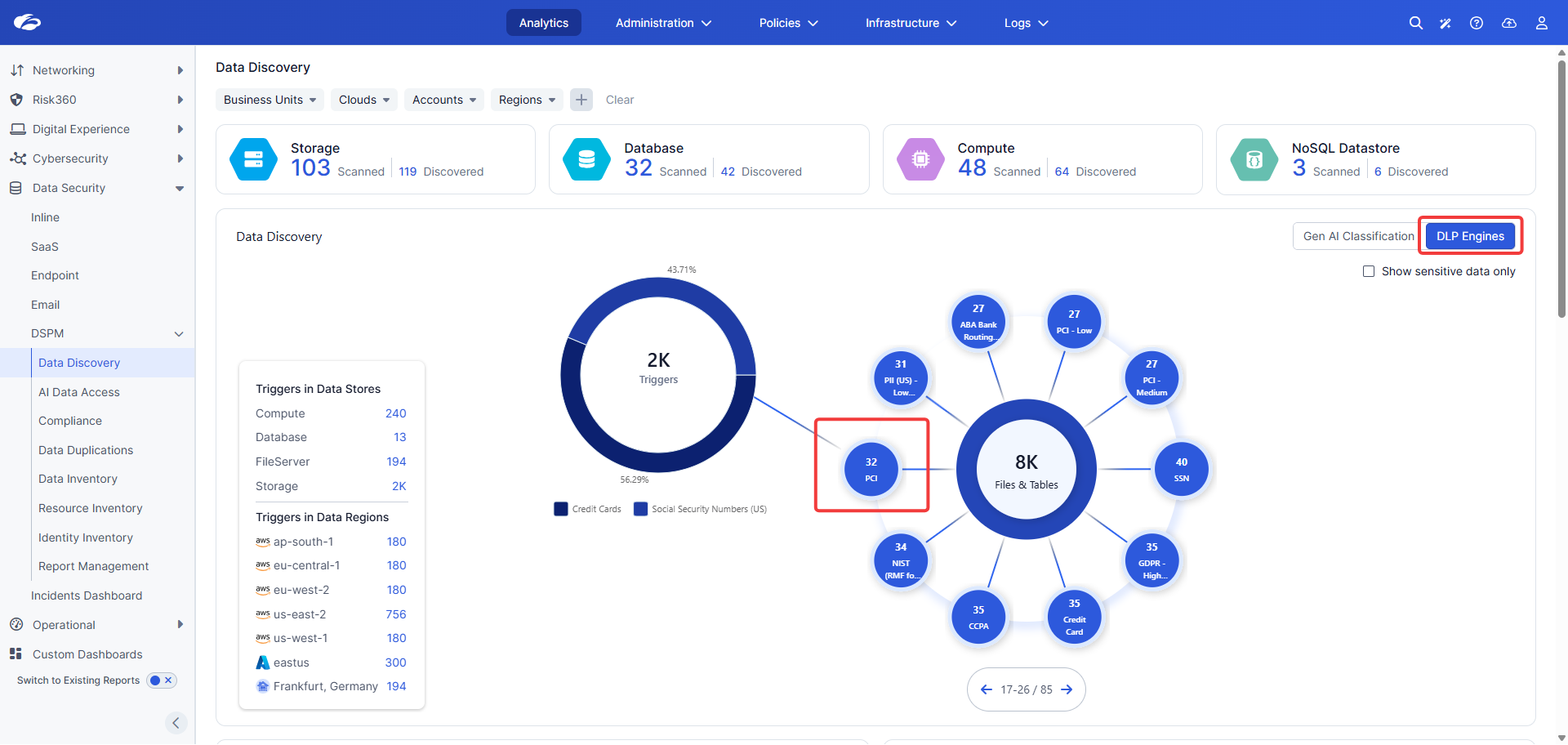
Step 4 — Drill into PCI Data in eu-west-2
Filter to explore data containing PCI records stored in eu-west-2.
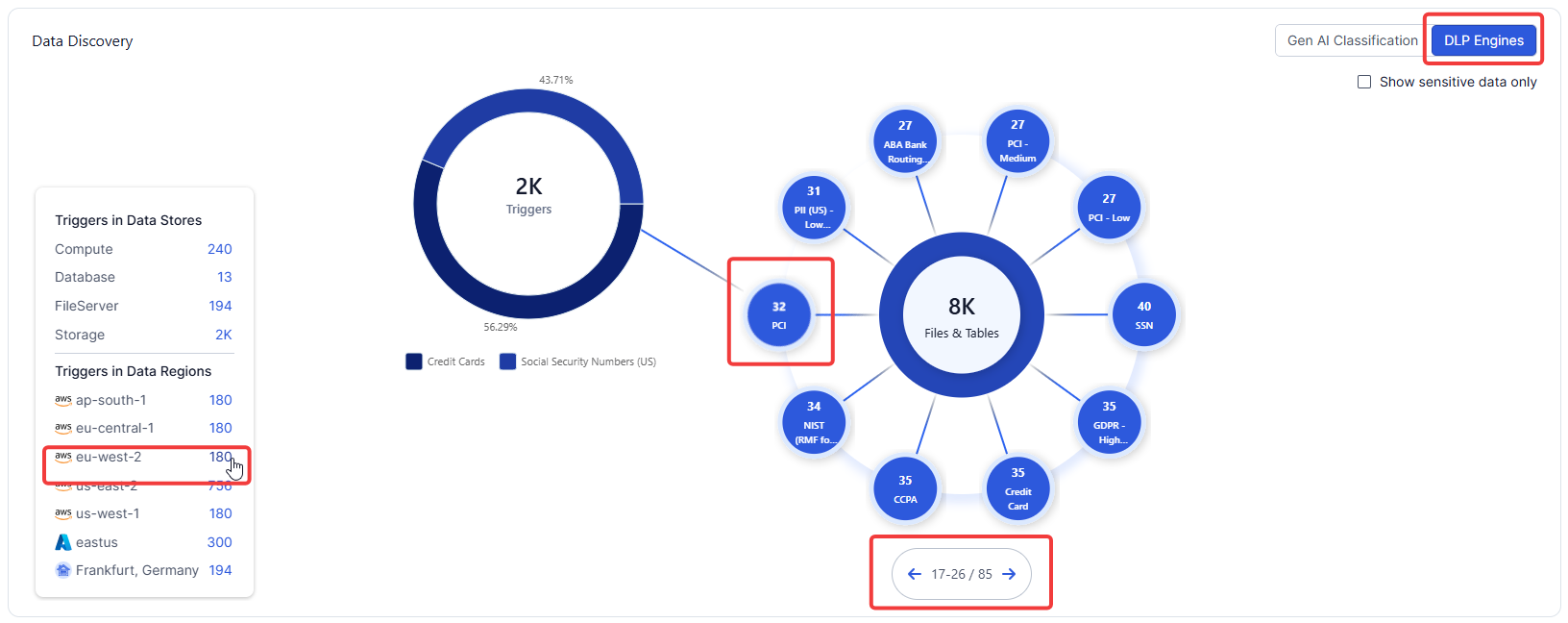
You can see one data store — an AWS S3 bucket — with critical security issues. Click on the bucket.
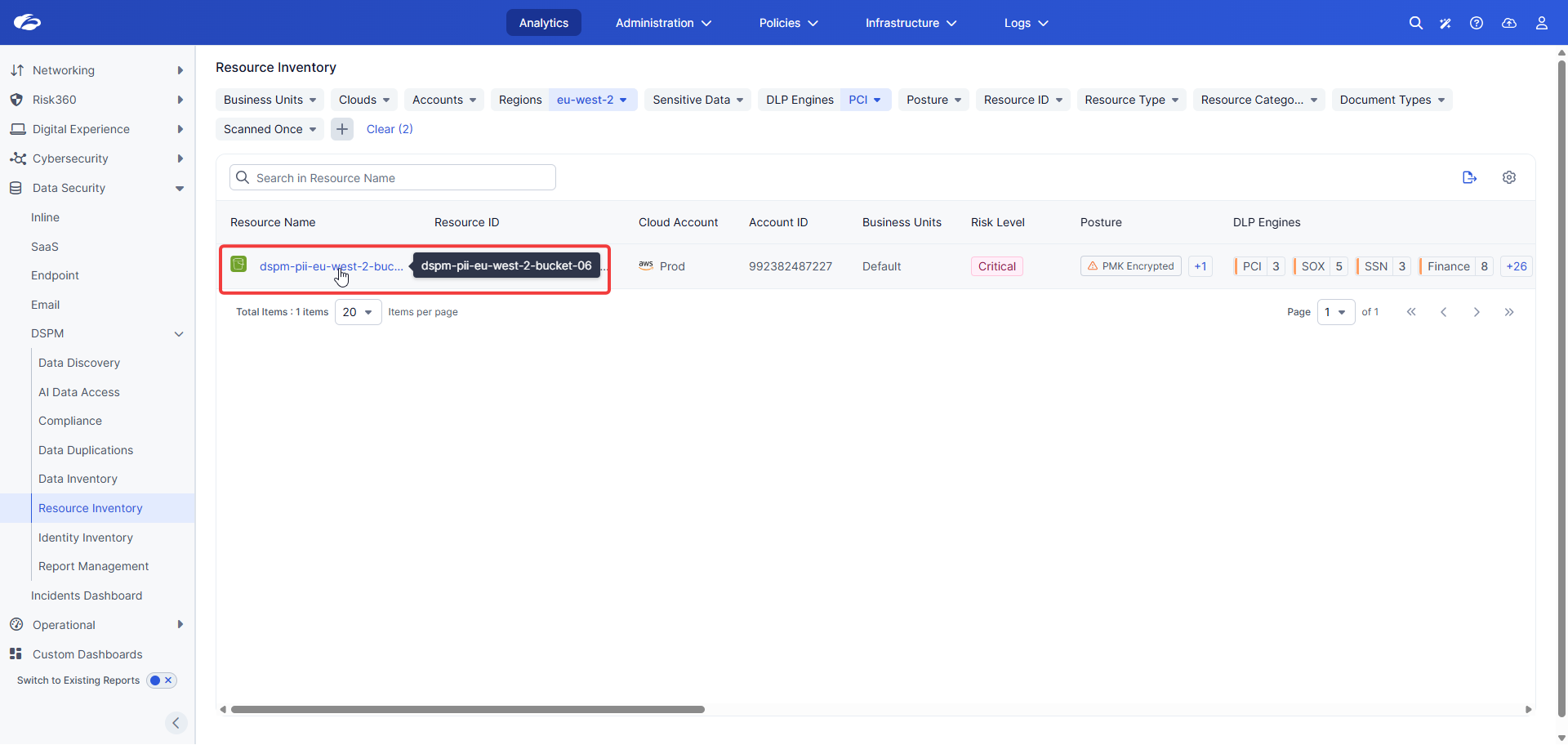
Step 5 — Explore the Resource Risk Explorer
The Resource Risk Explorer provides a diagram showing who can access the resource and what data it contains.
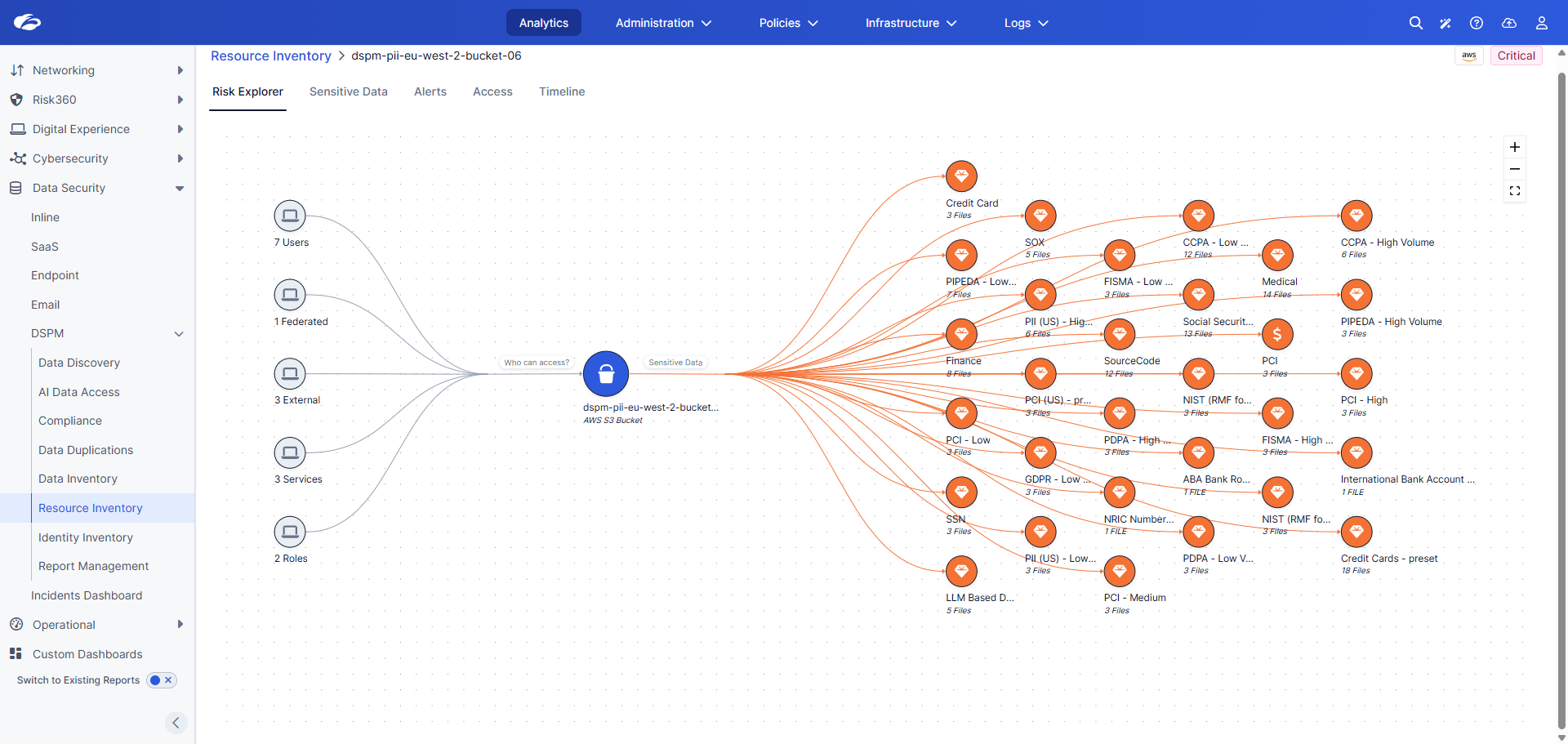
Click on each icon to get more details. Try the Bucket icon, then explore the different users and data types. Click on PCI.
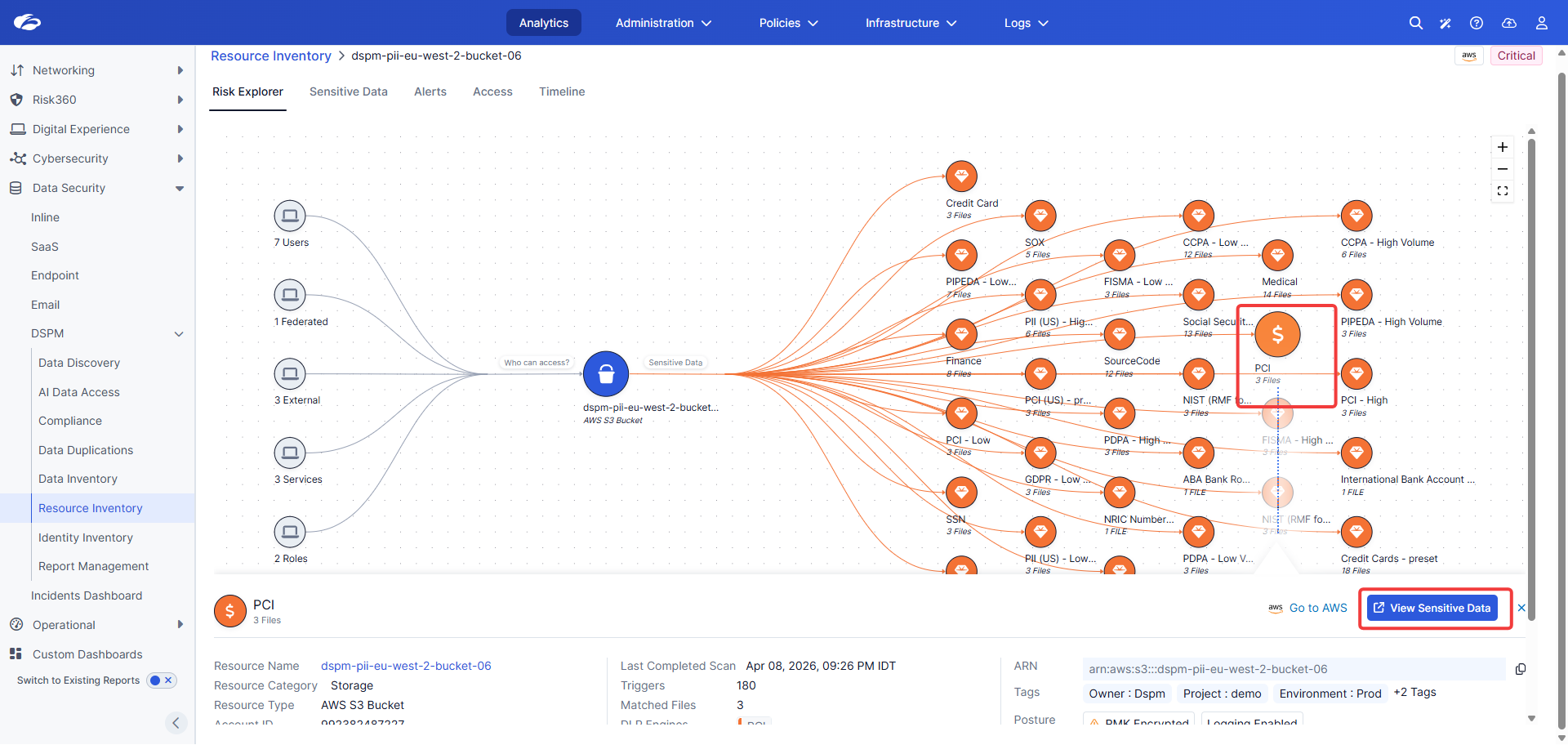
In the menu that appears, click View Sensitive Data. Inspect the sensitive data and click on the detected files to explore their details.
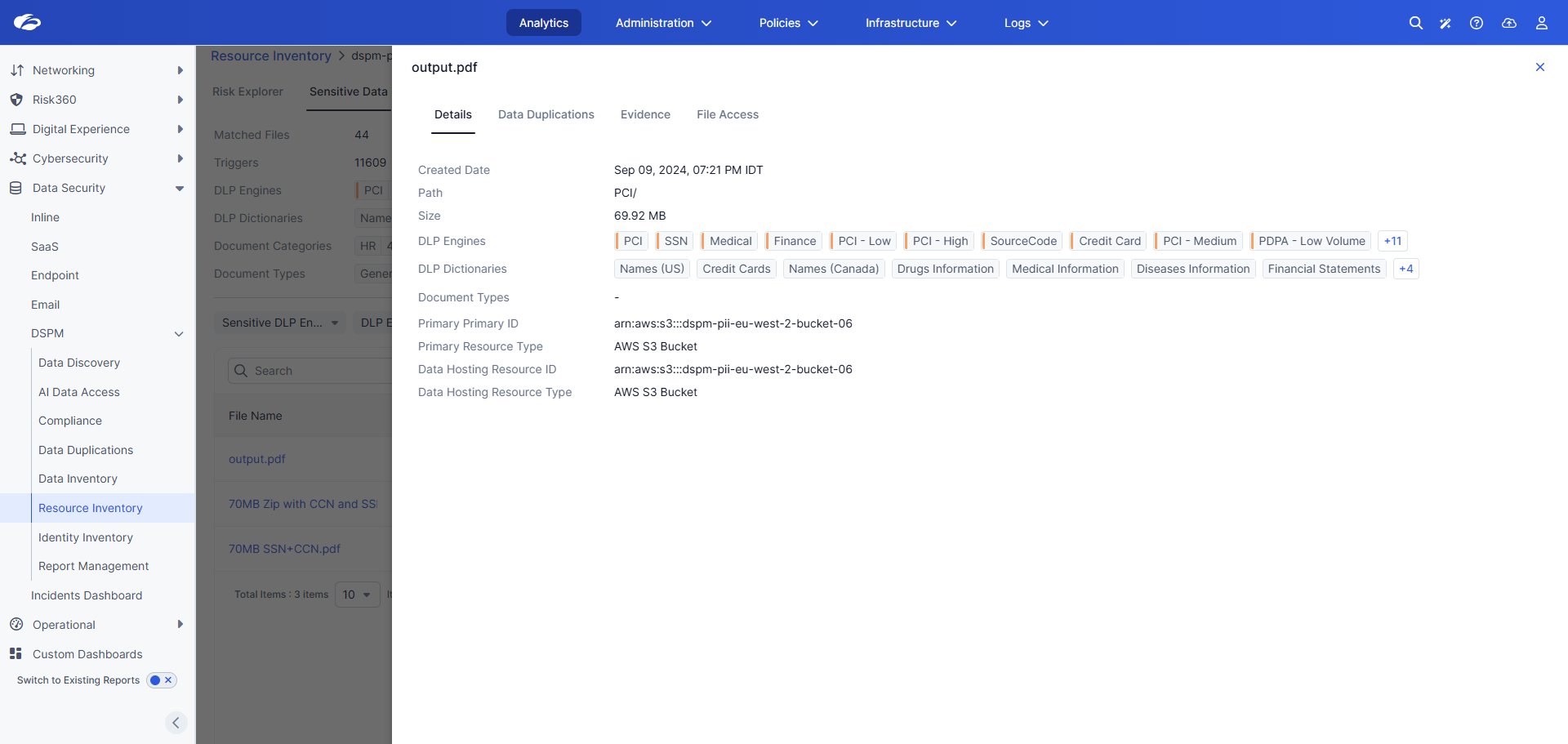
In this task we identified the different data types tracked by DSPM, learned what data exists and where, focused on specific data types, and drilled all the way down to the individual file level to explore its content.
Task 2 — Understanding Entitlements and Data Access
Who can access sensitive data is one of the key concerns for data security admins. Explore entitlements and learn how to identify what permissions users have and how to restrict them.
Step 1 — Open the DSPM Dashboard
Navigate to Analytics → Data Security → DSPM from the top menu.
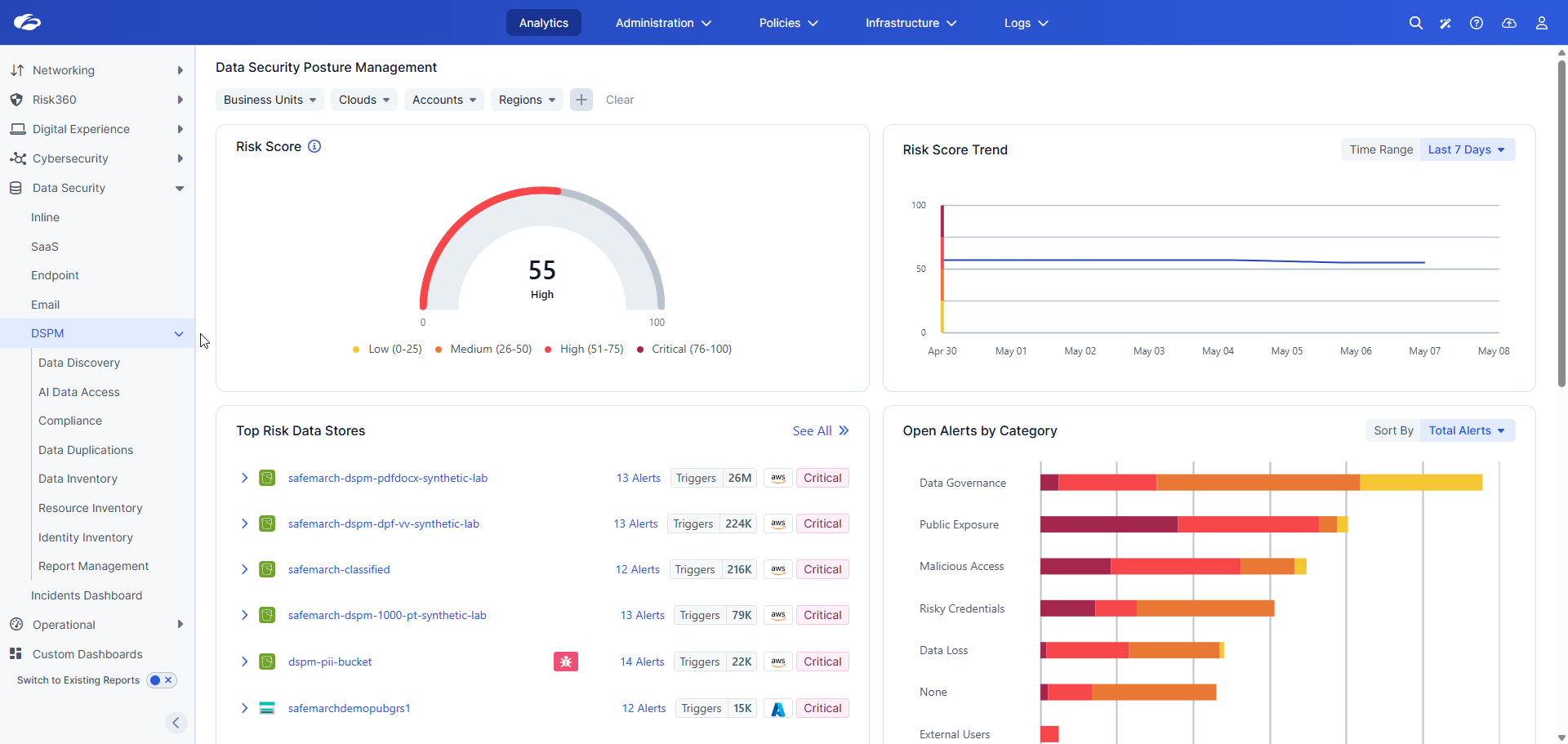
The DSPM Dashboard provides top-level visibility into the different risks your sensitive data is facing. These risks are identified automatically based on over 500 out-of-the-box policies capable of detecting hundreds of data attack vectors.
Step 2 — Investigate a Top Risk Data Store
Locate the Top Risk Data Stores section. Select the Azure storage account and expand that node.
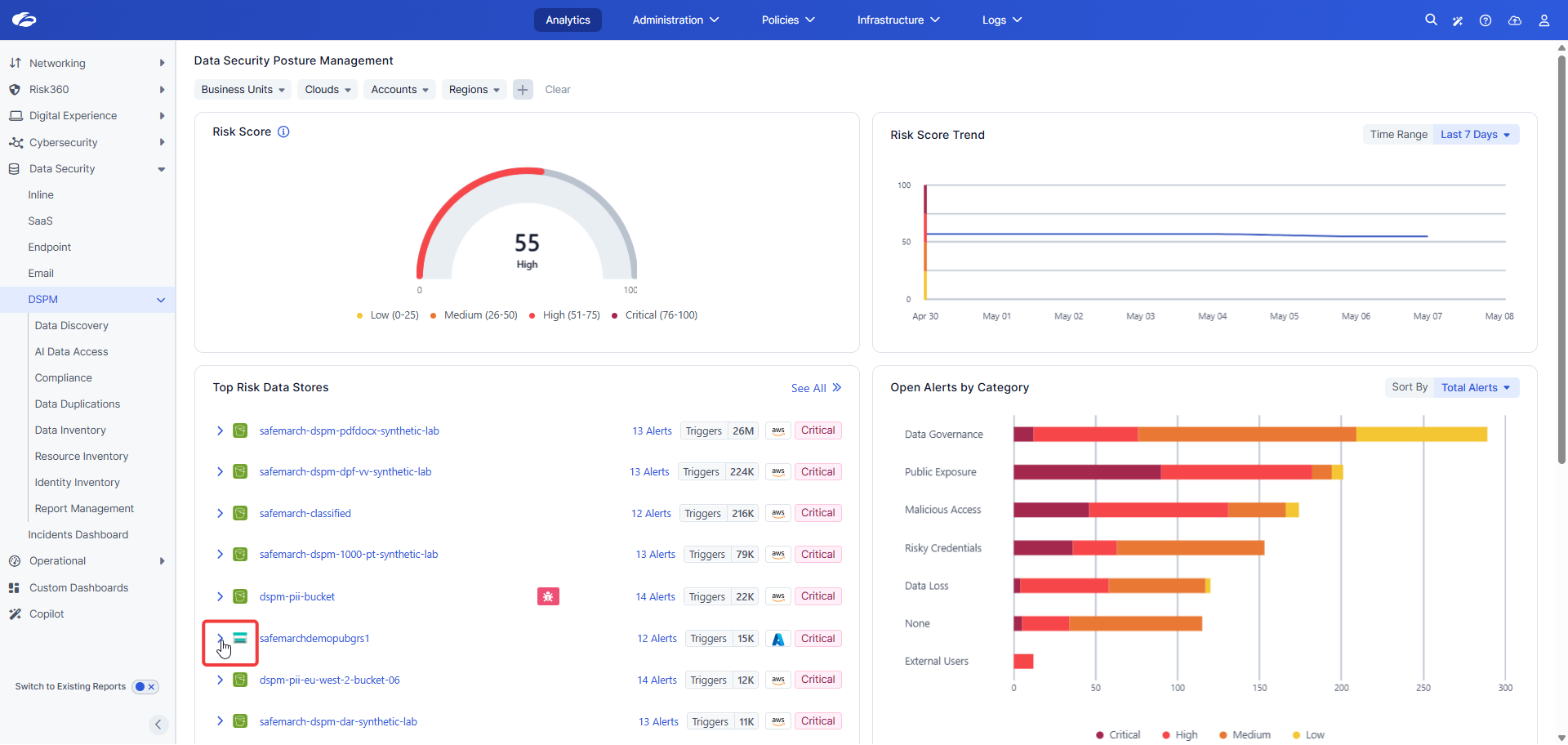
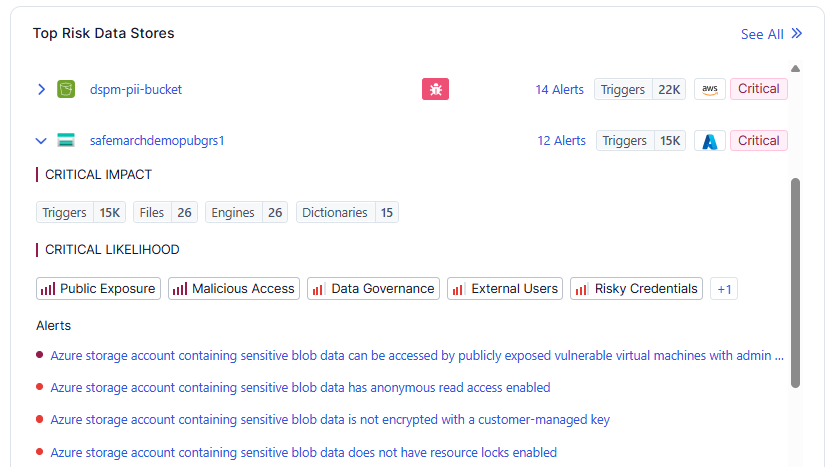
Step 3 — Explore the Alert
Click on the first alert to explore it.
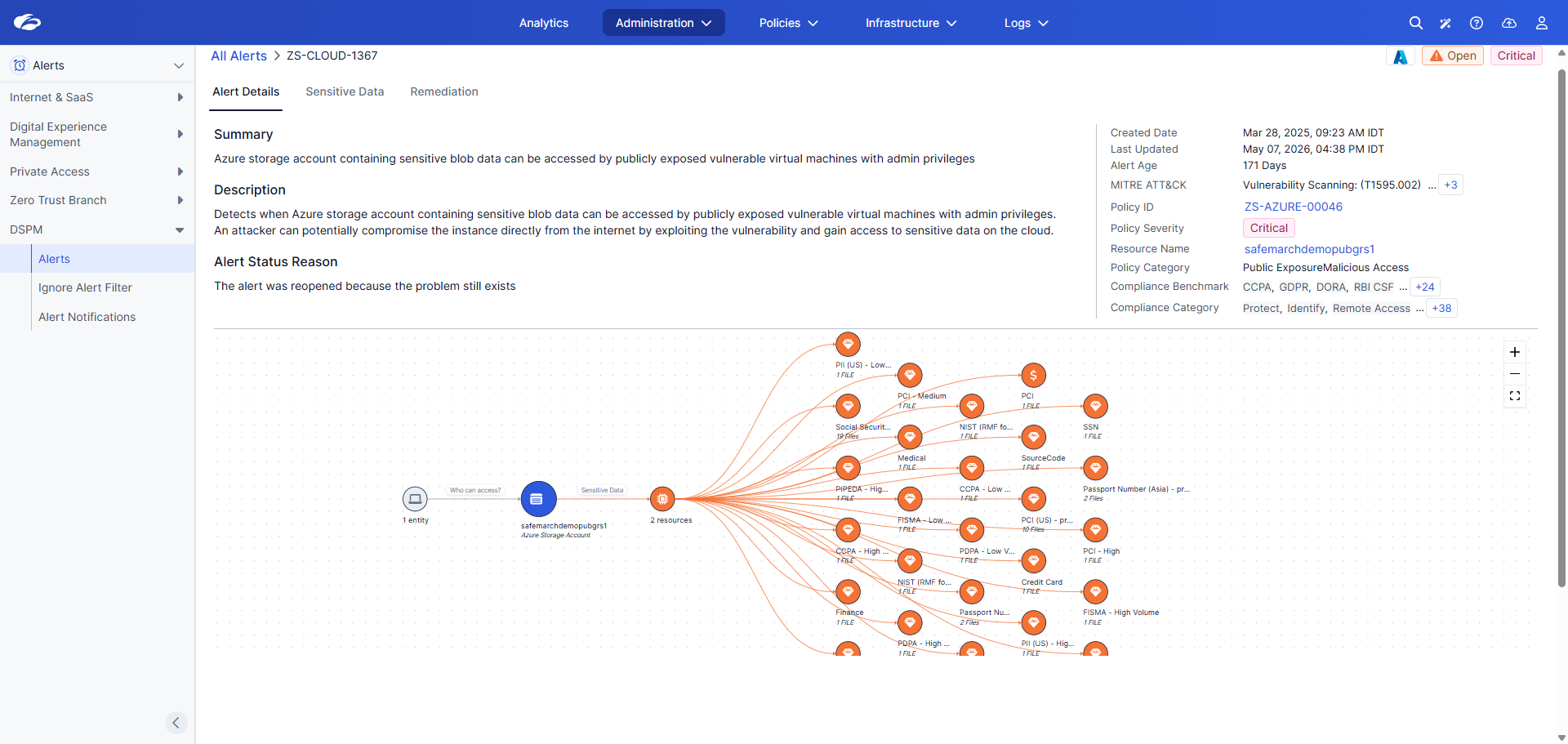
This alert correlates several factors:
- A storage account that contains sensitive data
- That storage account is accessible from a VM
- The VM is exposed to the internet and running packages with critical vulnerabilities (CVEs)
The attack vector is clear: a malicious actor could exploit a VM vulnerability and automatically inherit access to the sensitive data in the blob.
Step 4 — Inspect the VM Entity
Click the 1 entity icon, then click the VM name to open its details.
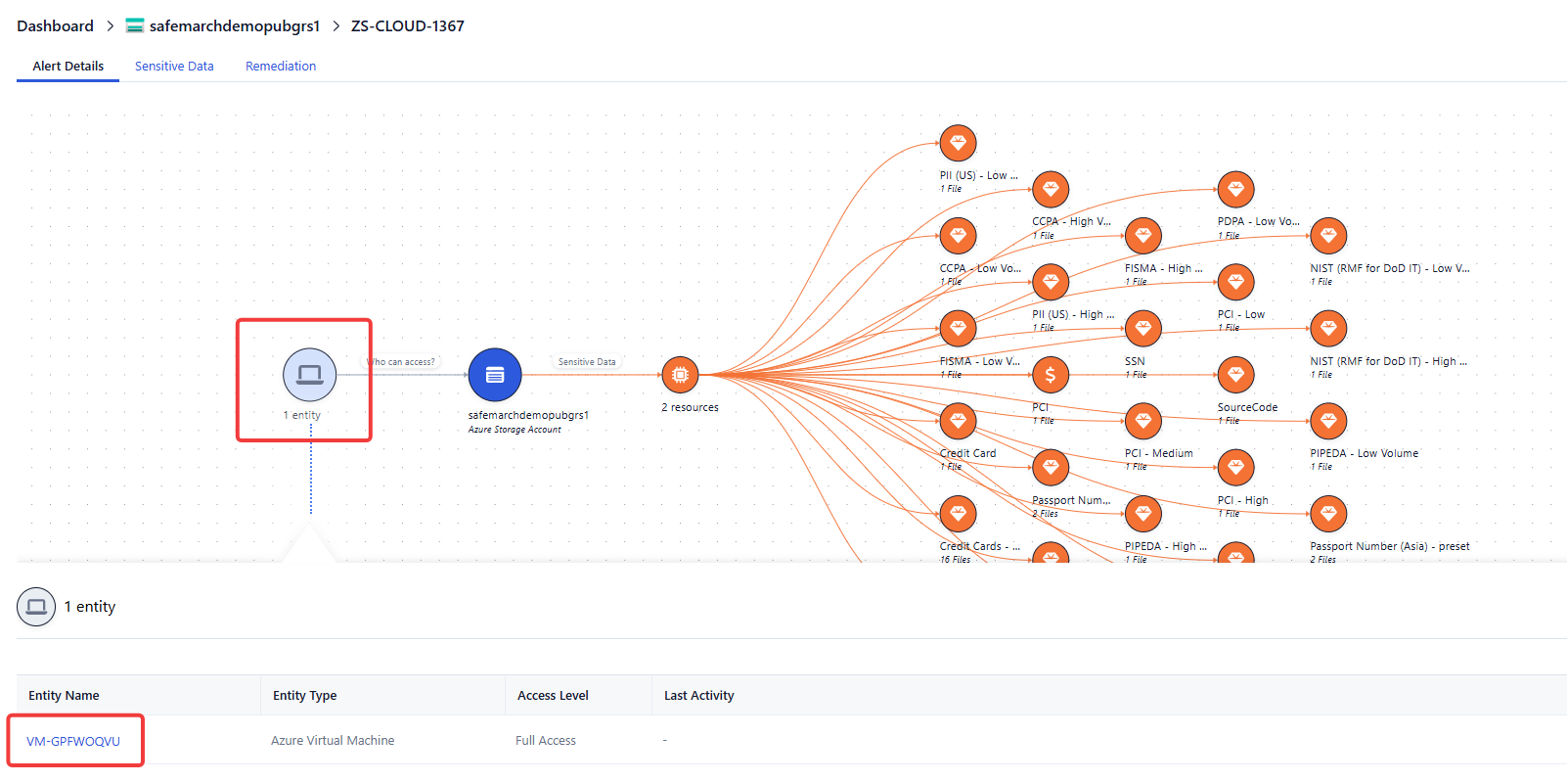
To understand the entitlements of this VM, click Investigate Paths and select Access Path.
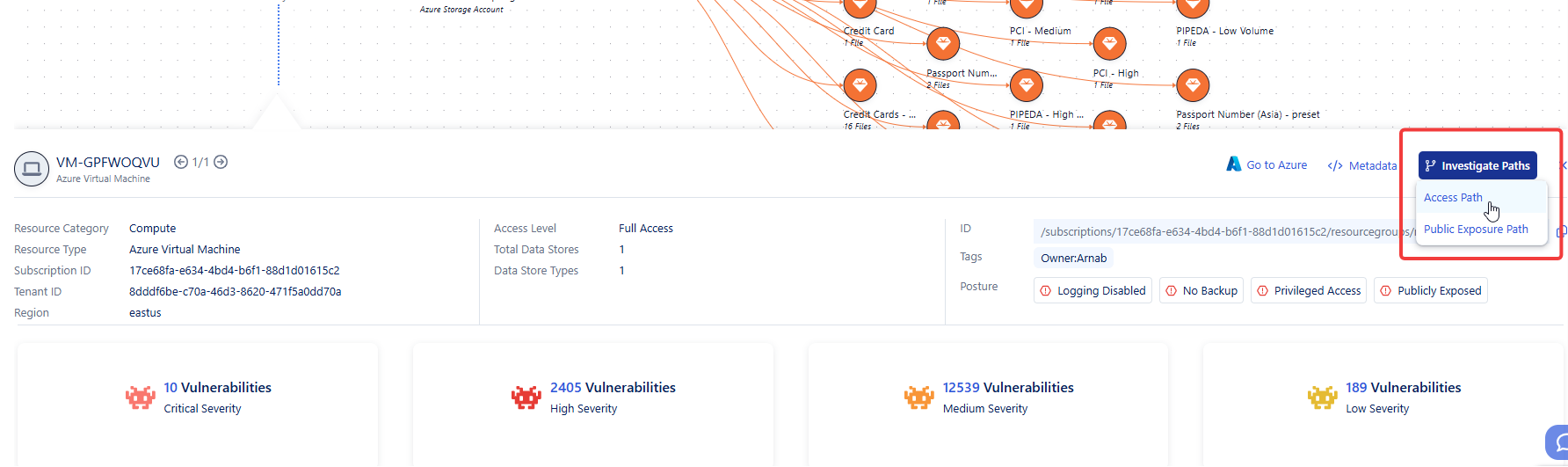
Step 5 — Review the Access Path Graph
The Access Path graph provides complete visualization of how this VM can access the blob storage.
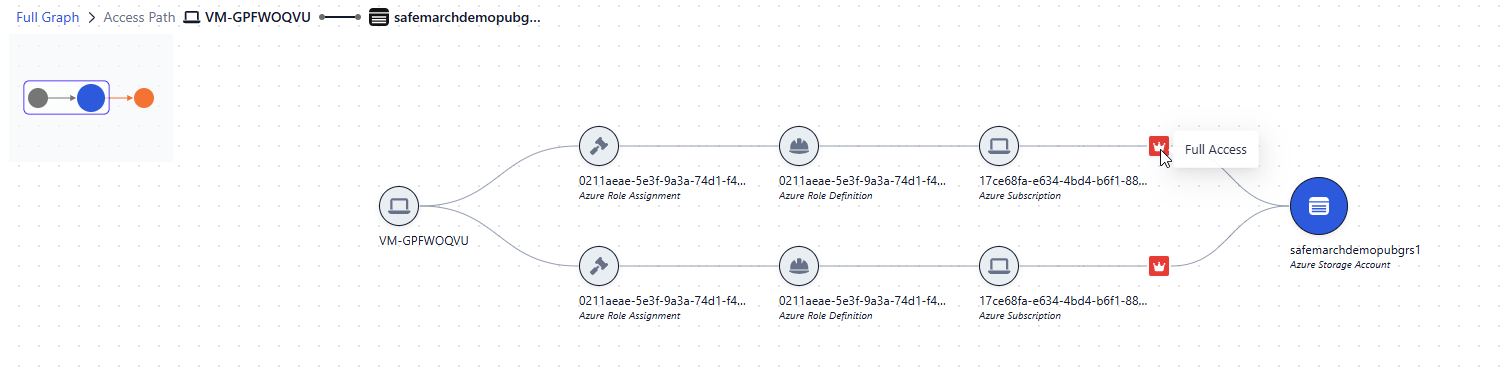
Click the different role icons and review the metadata to understand how this VM obtained full access to the blob.
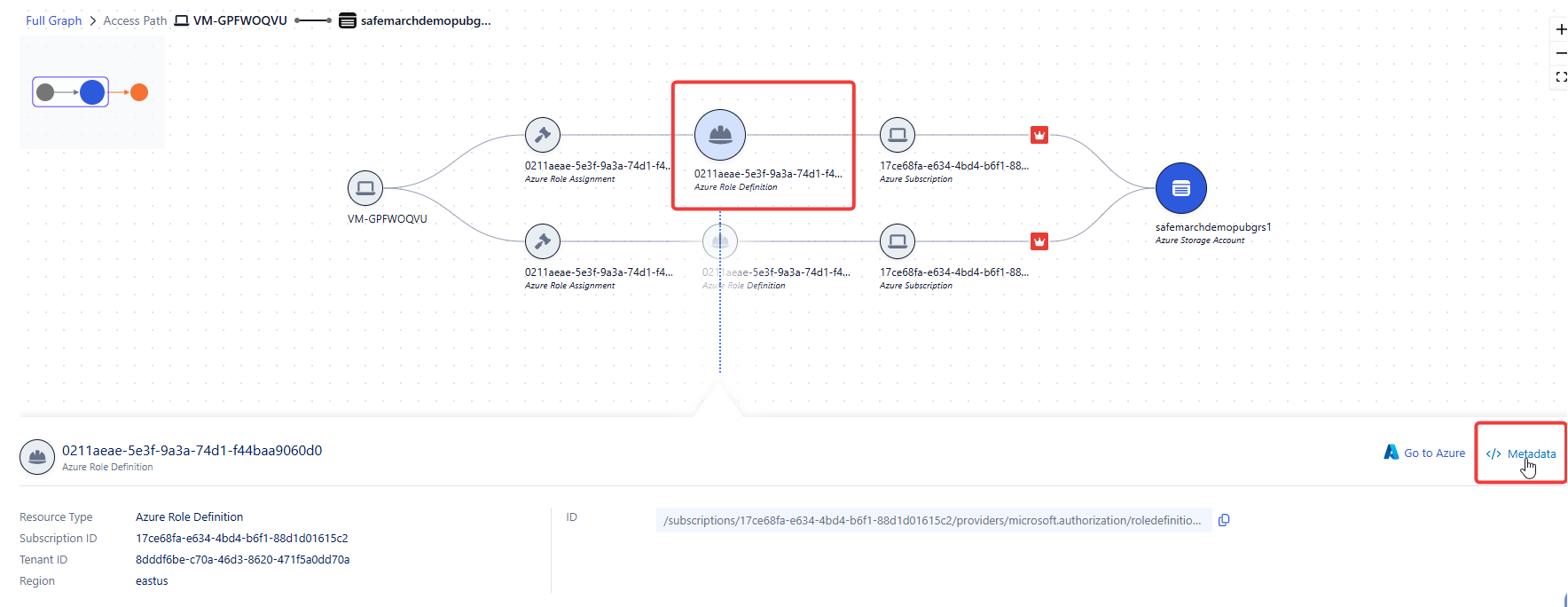
Step 6 — Identity Inventory
DSPM also provides a complete Identity Inventory. Use the filters to identify AWS external users and review what data they have access to.
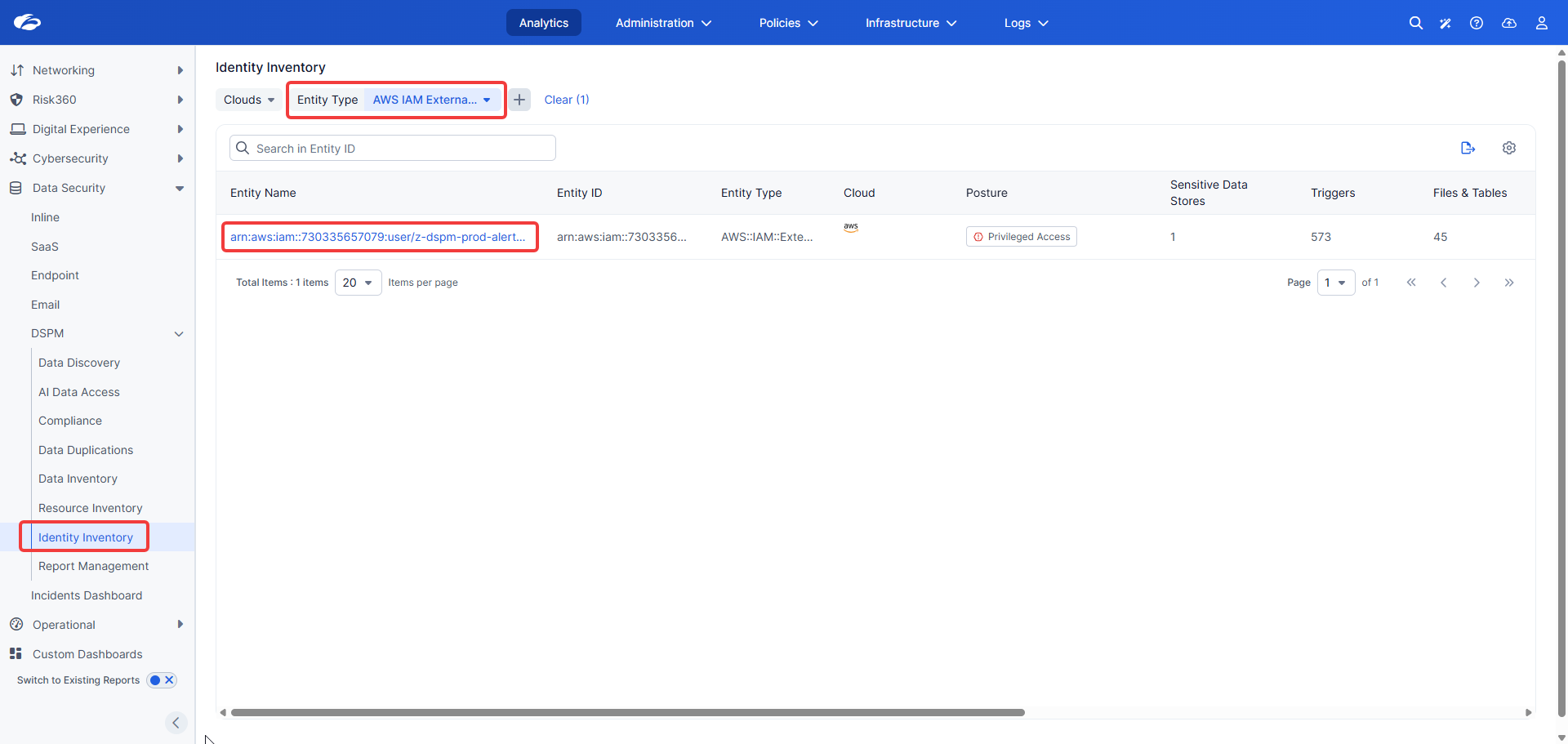
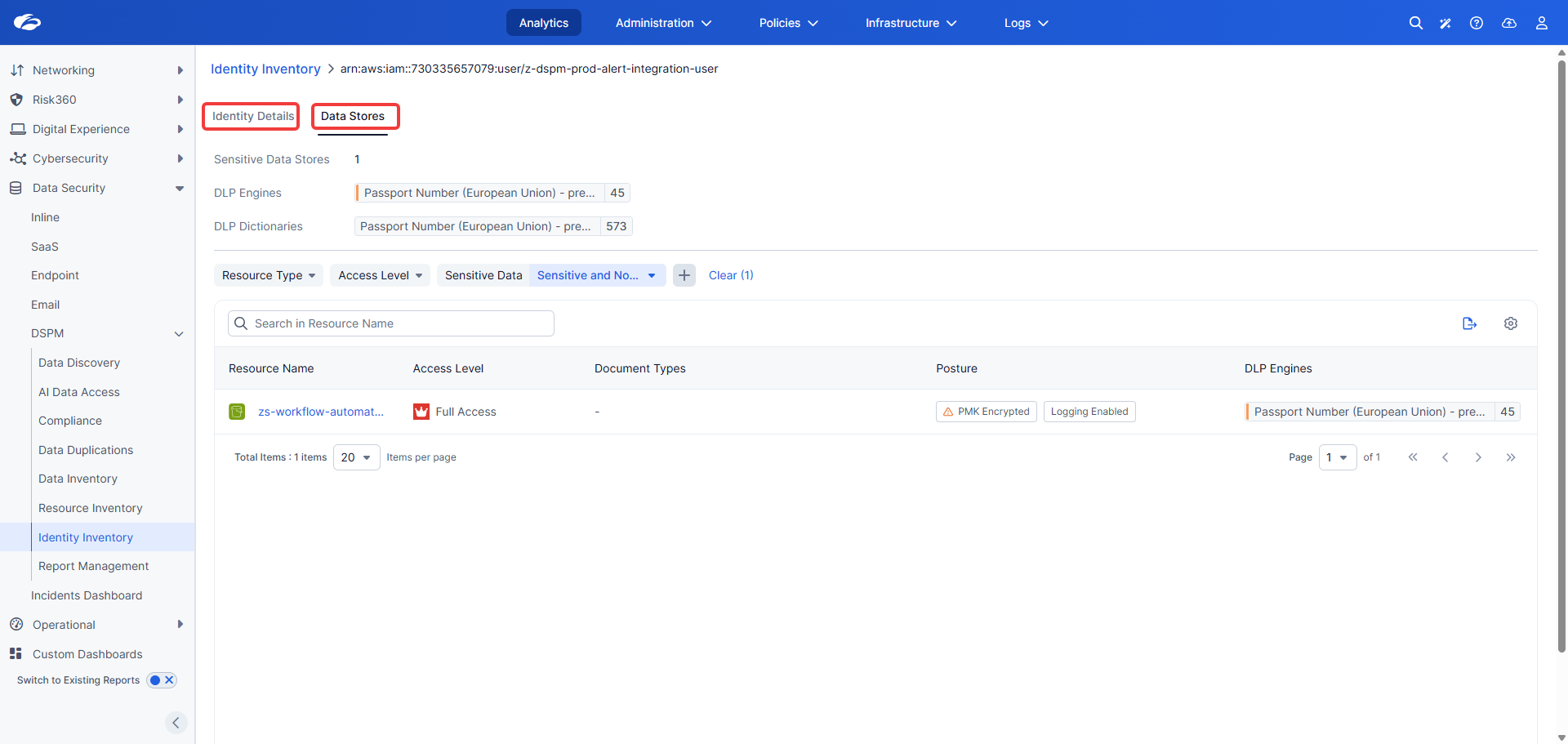
In this task we explored data access and entitlements using a real alert as the entry point. We saw how DSPM identifies the different identities with access to sensitive data, alongside their permission levels and potential exposure posture.
Task 3 — Data Management & Compliance
Get a glimpse into duplicated data as part of the data management capabilities. Explore the compliance tools you can use to keep your data secure.
Step 1 — Explore Data Duplications
From the Analytics menu, select Data Duplications.
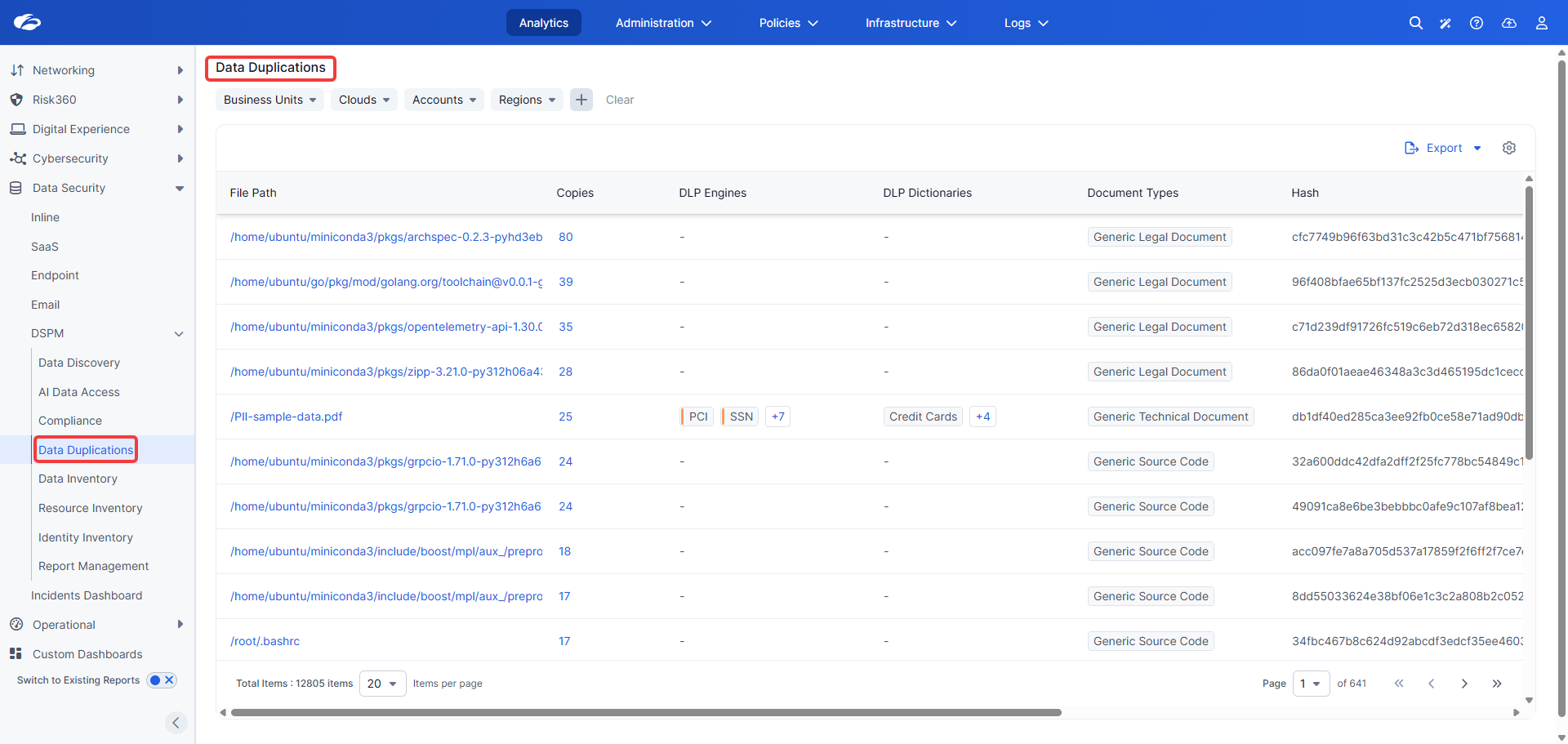
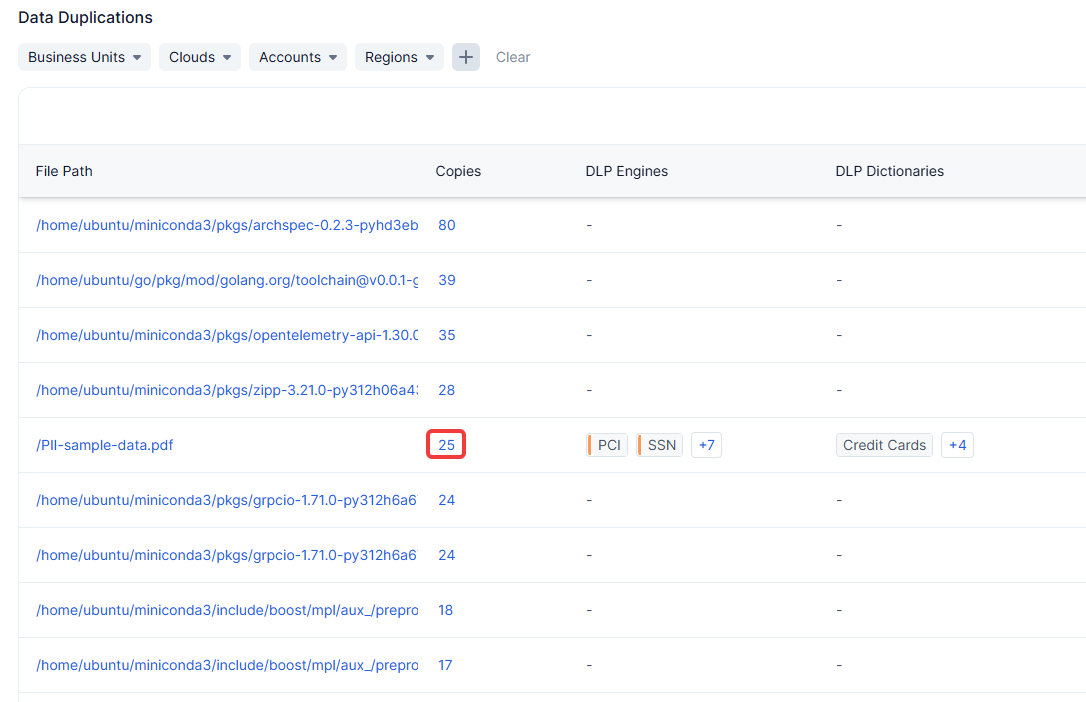
Click on the number of duplications next to one of the files.
Explore all instances of the file across different resources in clouds and data centers.
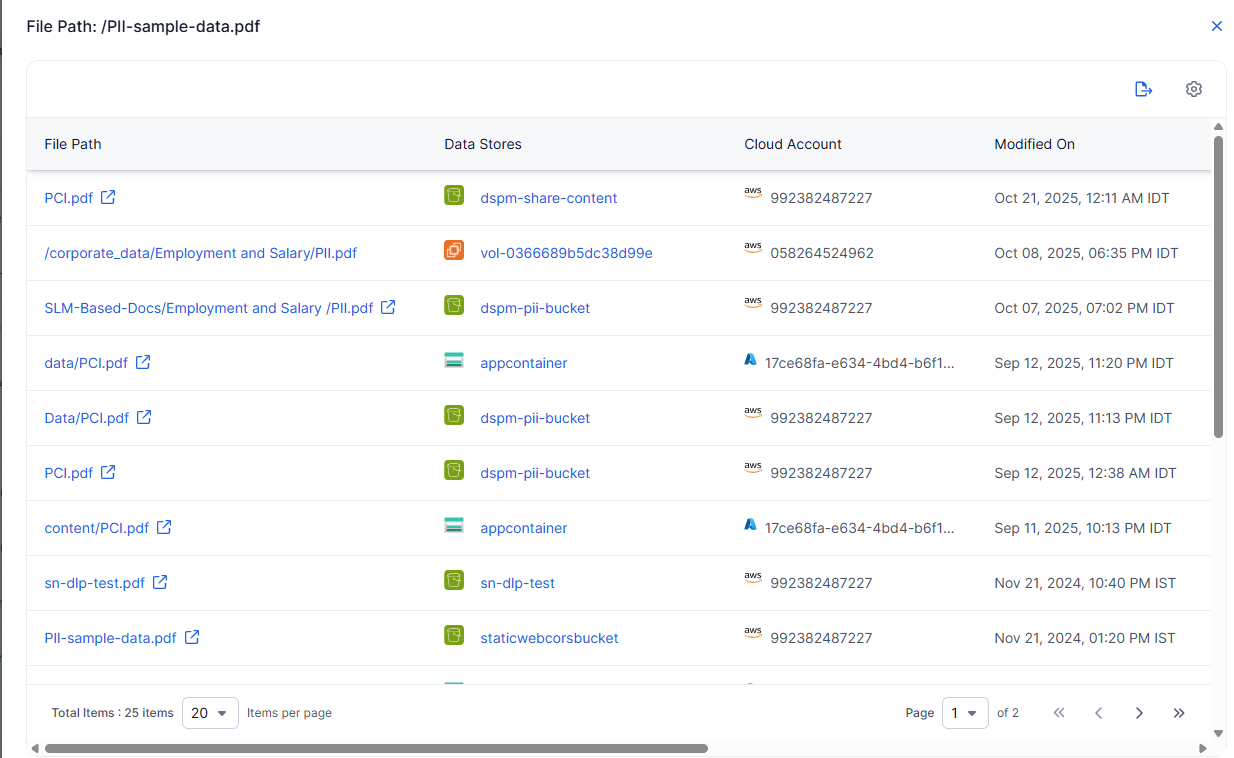
Click on any of the copies, or use the Export option to get a comprehensive list as a task list for de-duplication remediation.
Step 2 — Generate a Compliance Report
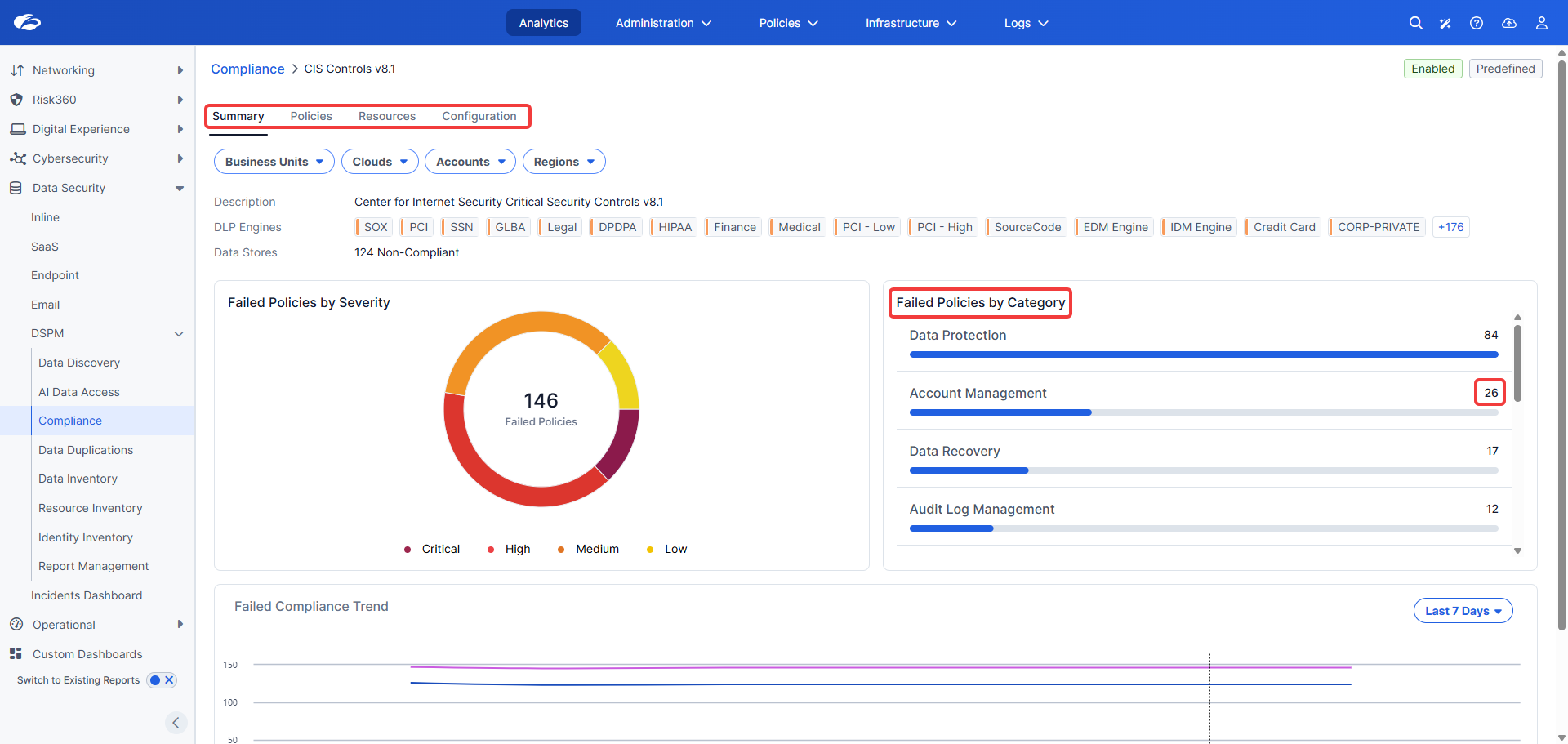
Many organizations must demonstrate compliance with industry standards (e.g., PCI-DSS) and government regulations (e.g., GDPR). Zscaler DSPM allows you to generate compliance reports on demand and create custom frameworks from scratch.
From the Analytics menu, select Compliance Report.
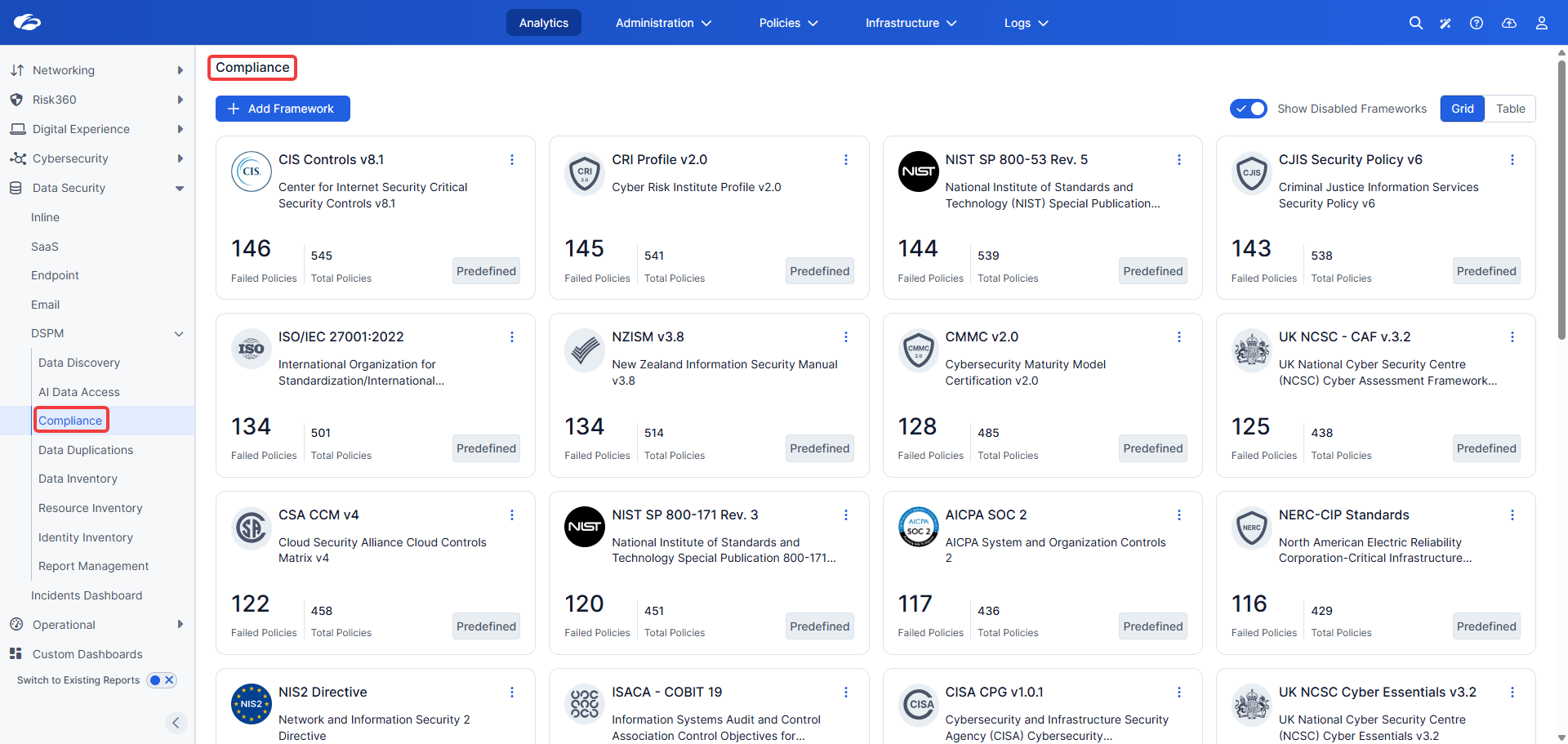
Pick any regulation or framework, explore the regulation categories and matching issues. Review the associated policies and alerts to understand the compliance gaps requiring remediation.
Zscaler DSPM discovers data across cloud and on-premises stores, classifies it, determines who can access it (human / machine / AI model), assesses risk levels, and generates compliance reports. Data governance concerns such as backup, retention, and data minimization are addressed by the same platform.
You have completed Lab 3 – DSPM. Continue to Lab 4 – Copilot Readiness.