Lab 1 — Visibility into Shadow IT and SaaS Usage
Log Into the Enterprise Tenant
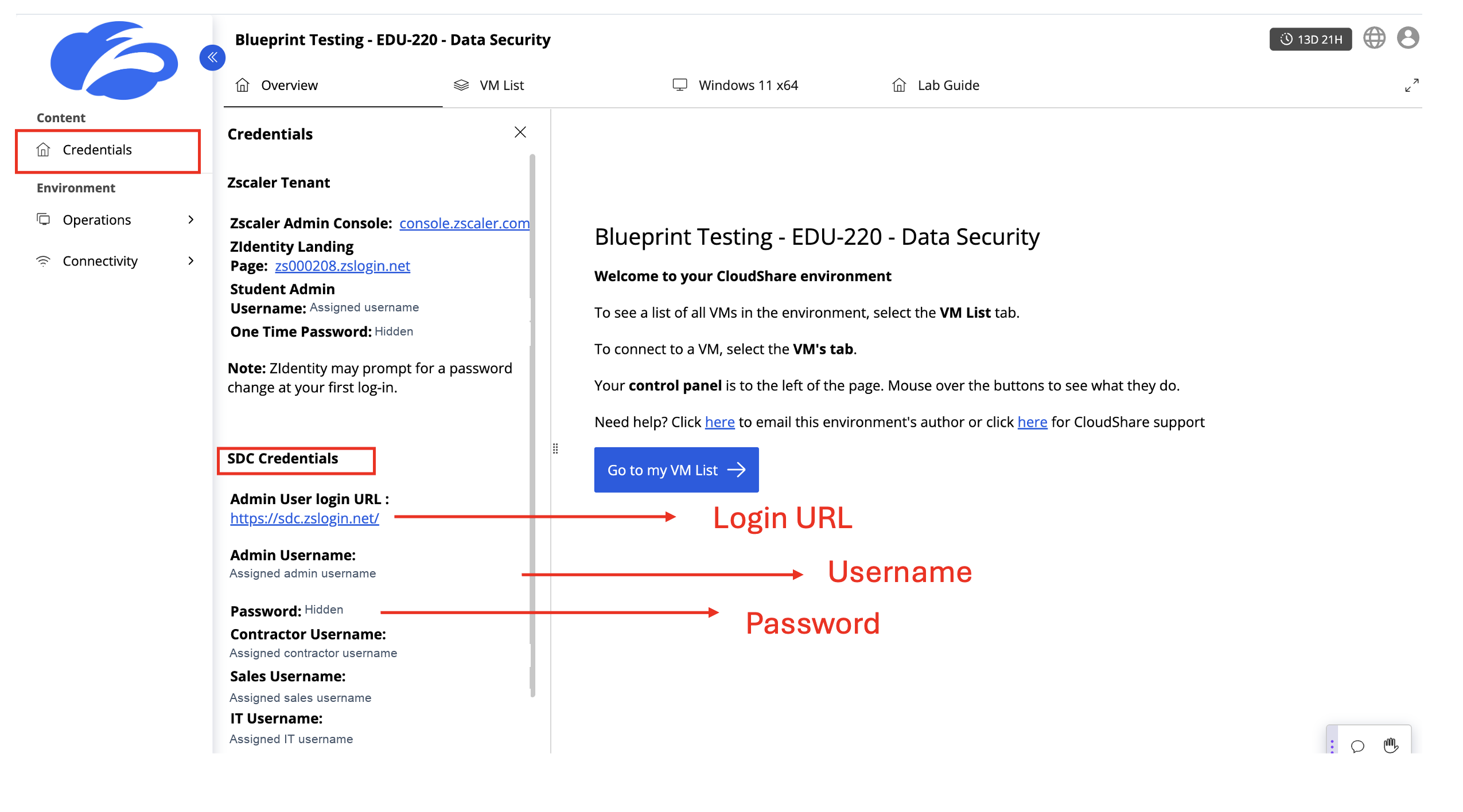
- Open your assigned CloudShare environment and select Credentials in the left menu.
- Scroll to SDC Credentials. Locate the Admin User login URL, Admin Username, and Password.
- Open sdc.zslogin.net in your browser and sign in to the Solution Demo Centre using those SDC Admin credentials.
Use the SDC Credentials section, not the Zscaler Tenant / Student Admin credentials above it.
Use Experience Center Nav 1.0
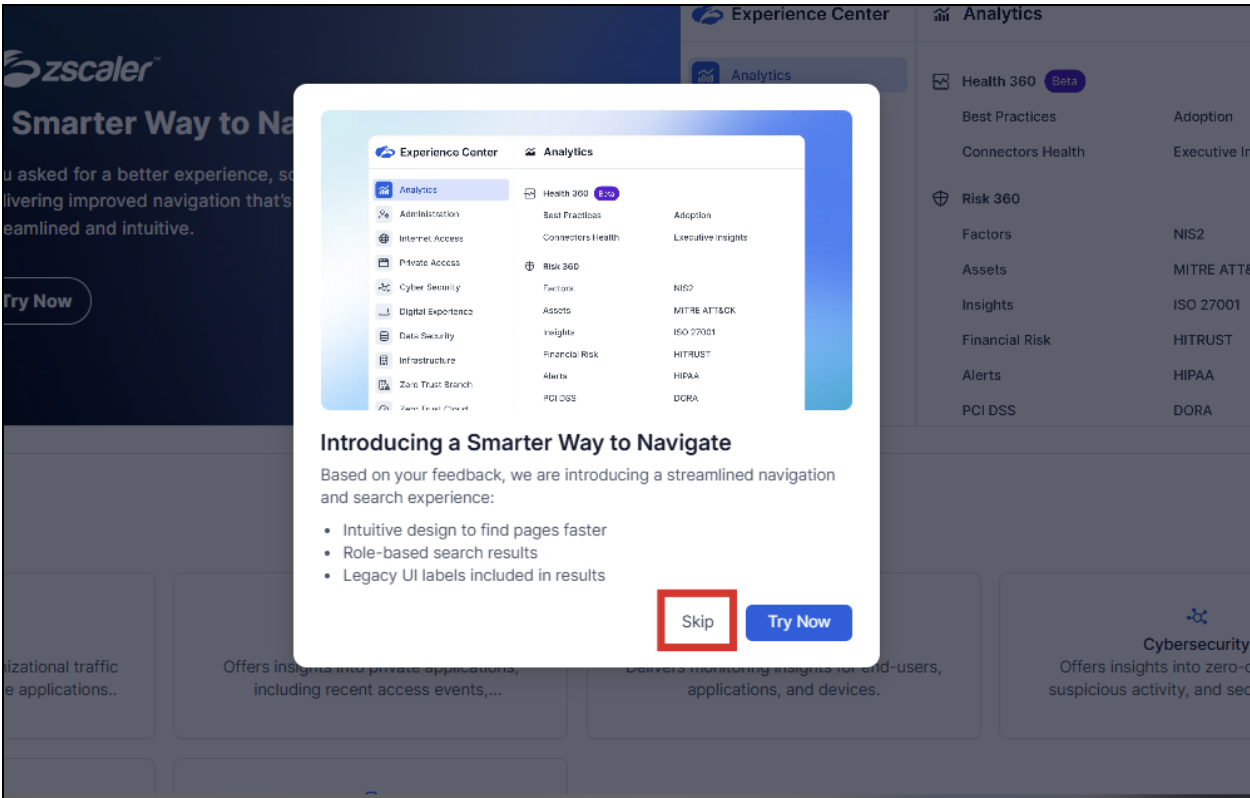
After logging in to your assigned Zscaler Lab tenant / Solutions Demo Center tenant, you should be presented with the Experience Center Nav 1.0 user interface.
Skip the pop-up to try the new navigation.
Task 1: Discover Shadow IT using the SaaS Security Report
Identify unsanctioned cloud applications and understand their potential risk to the organization.
Analytics → Experience Center
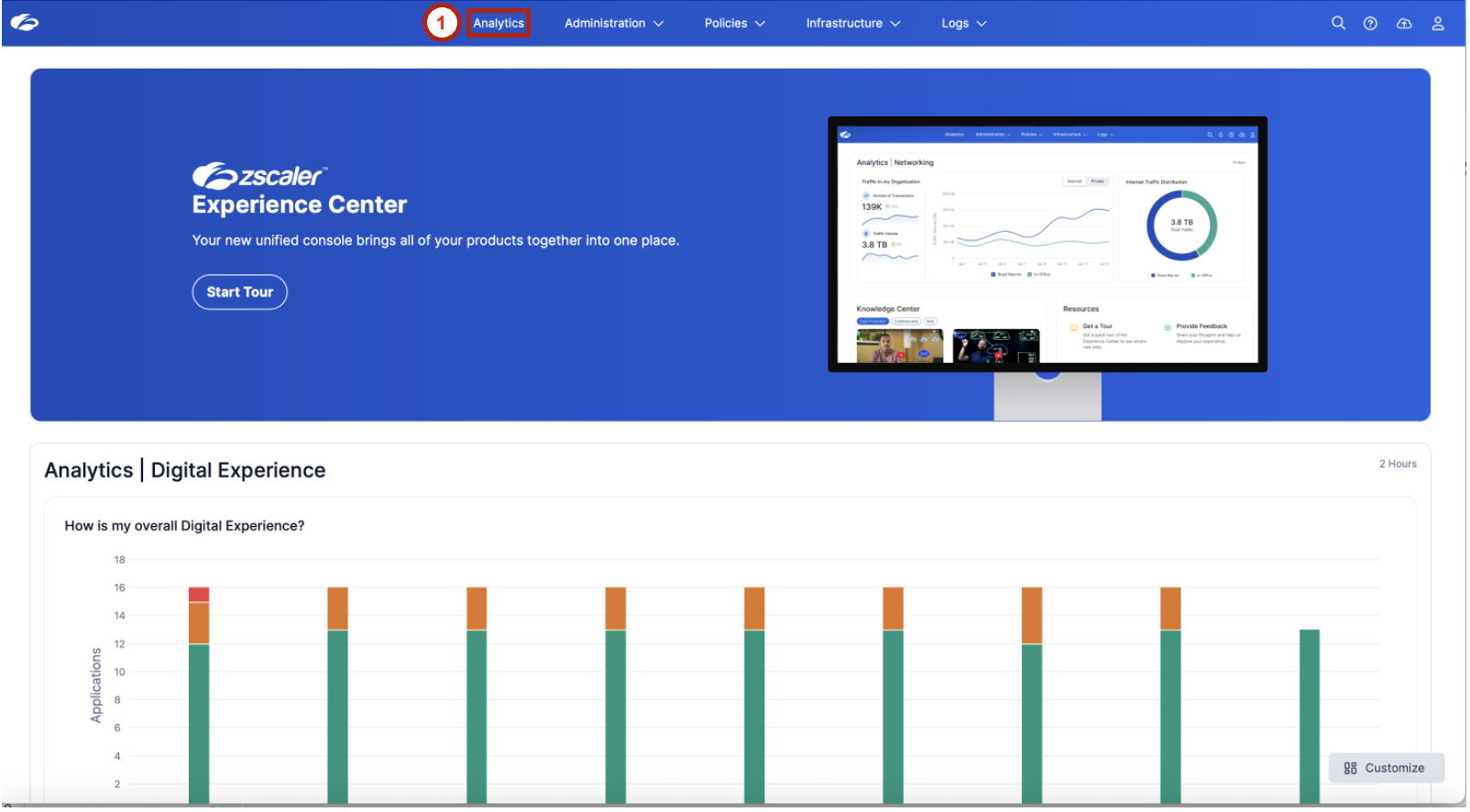
The Experience Center aggregates data from multiple security services to provide a unified visibility platform.
Locate the Switch to Existing Reports toggle in the lower-left corner and ensure it is enabled.
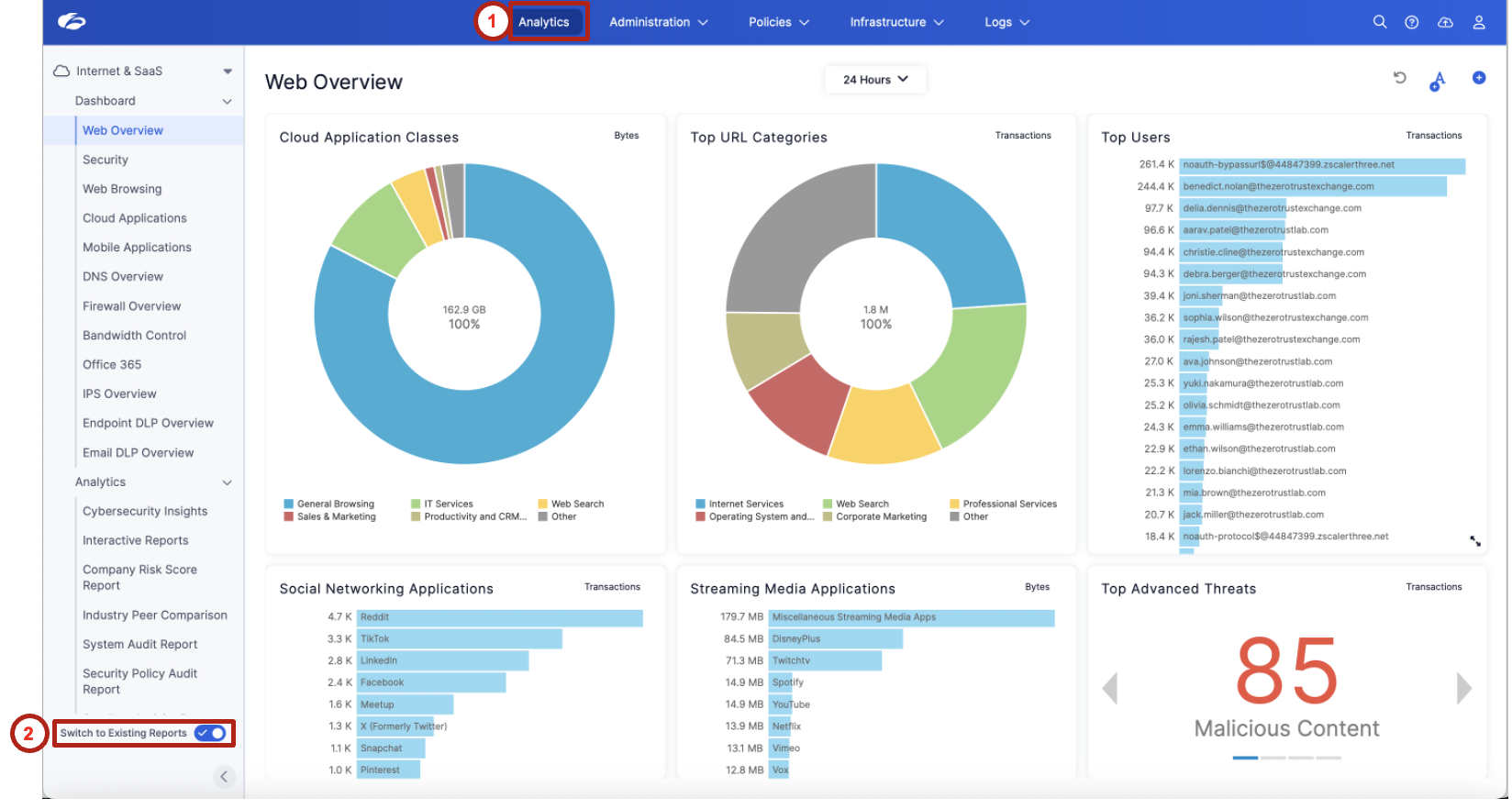
Analytics → SaaS Security Report
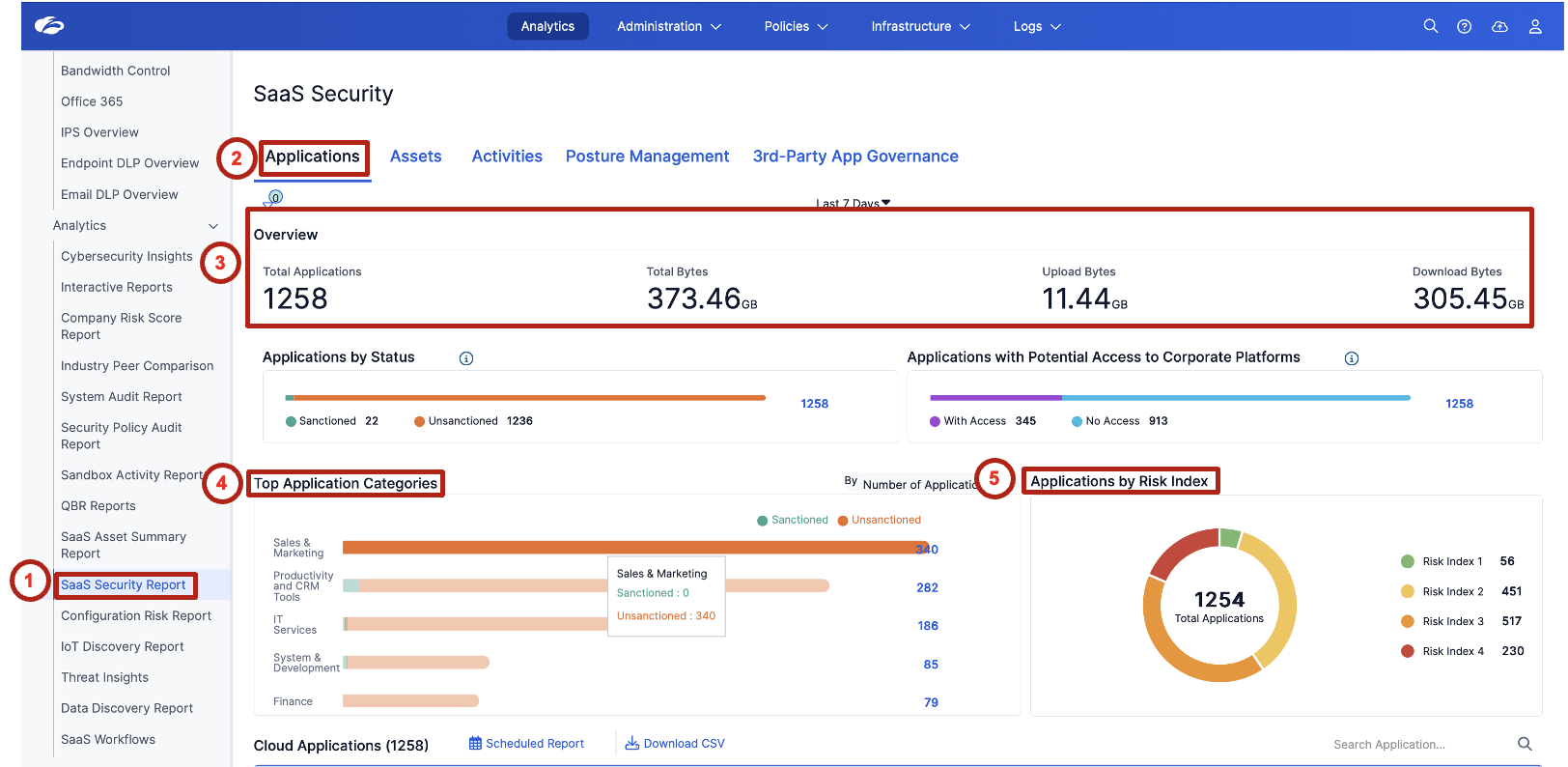
Observe the following metrics in the Overview section, then review Top Application Categories and Applications by Risk Index:
| Metric | What it tells you |
|---|---|
| Total Applications | Number of unique SaaS applications detected |
| Total Bytes | Total volume of data transferred |
| Upload Bytes | Data leaving the organization |
| Download Bytes | Data entering the organization |
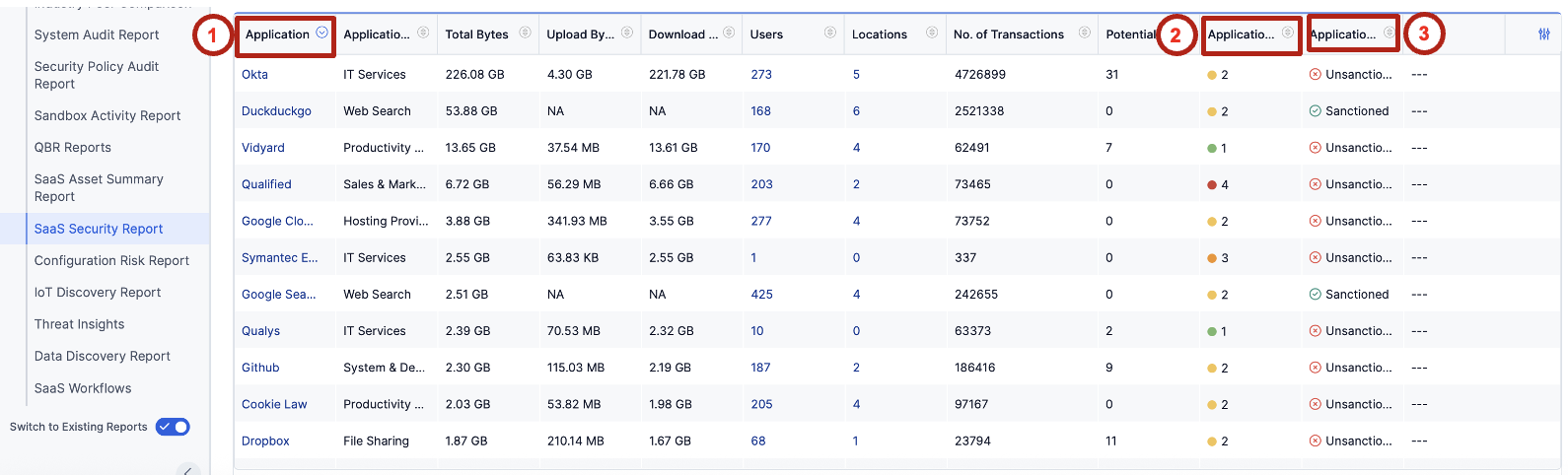
Risk Index scoring helps prioritize investigation and remediation efforts based on potential security impact. Focus on high-risk unsanctioned apps with upload capability first.
Locate an application marked as Unsanctioned — for example, Dropbox — and click the application name to view detailed risk information.
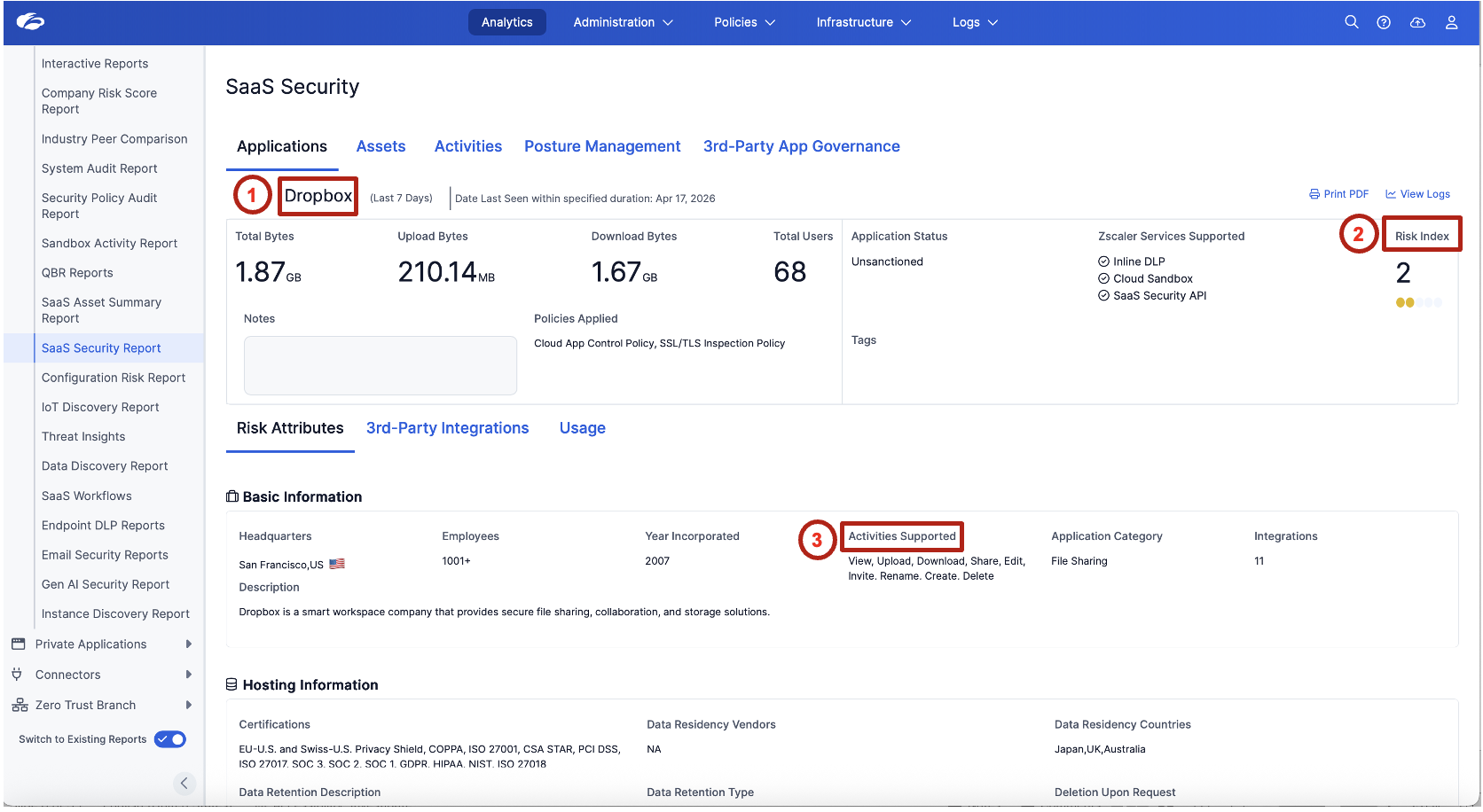
Review the application risk details:
- Application Status — Sanctioned or unsanctioned
- Risk Index — Relative risk level
- Activities Supported — Upload, Download, Share, Edit, Delete
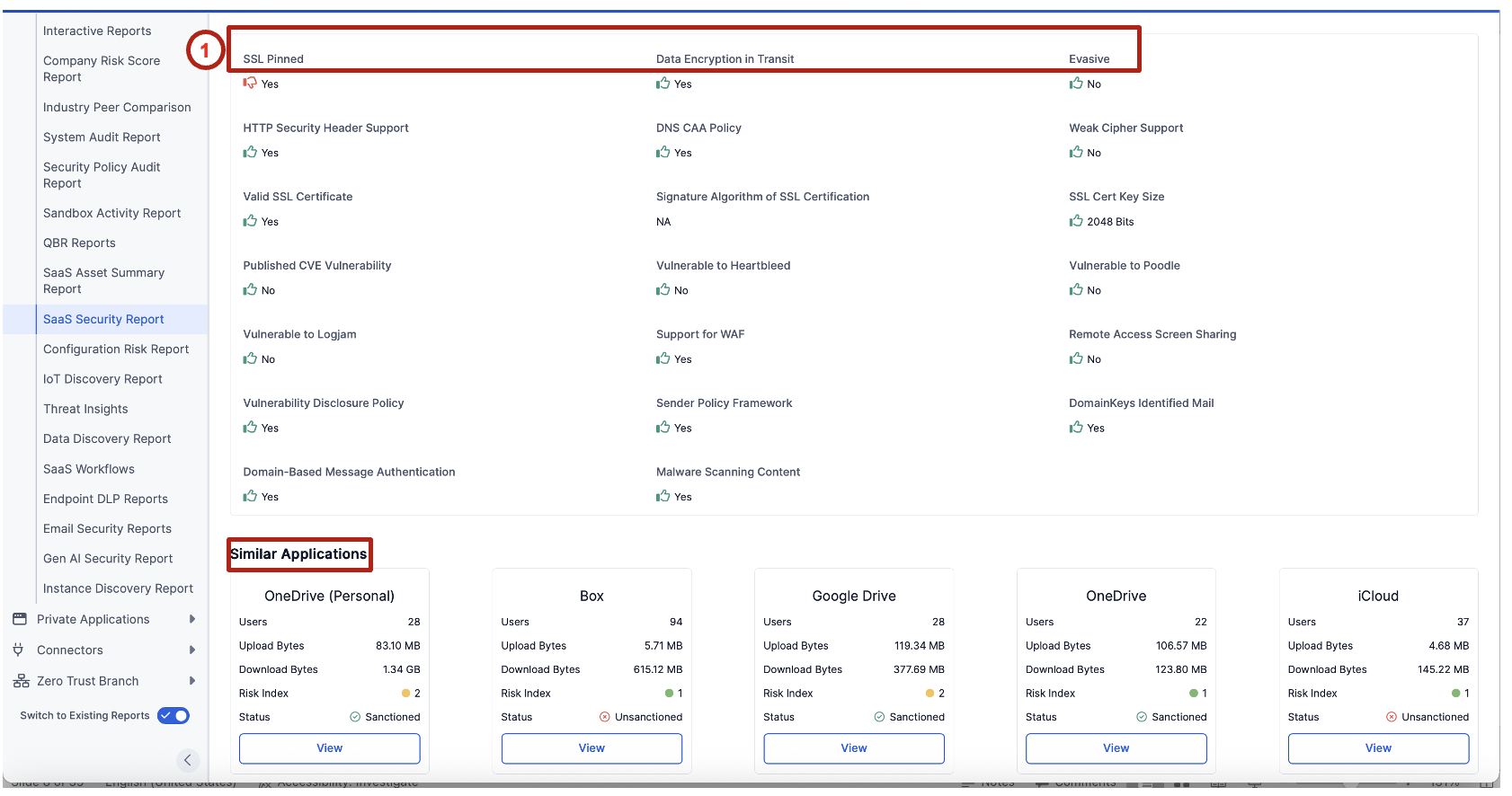
- How many unsanctioned applications exist in the environment?
- Which application categories present the highest risk?
- What types of data could be exposed through unsanctioned file-sharing applications?
- Should all unsanctioned applications be blocked, or should risk-based prioritization be applied?
You cannot protect what you cannot see. Shadow IT discovery provides the visibility required to identify potential data exfiltration vectors before applying security controls.
Task 2: Discover Application Instances
Identify individual SaaS application instances (domains) and understand which users are accessing them.
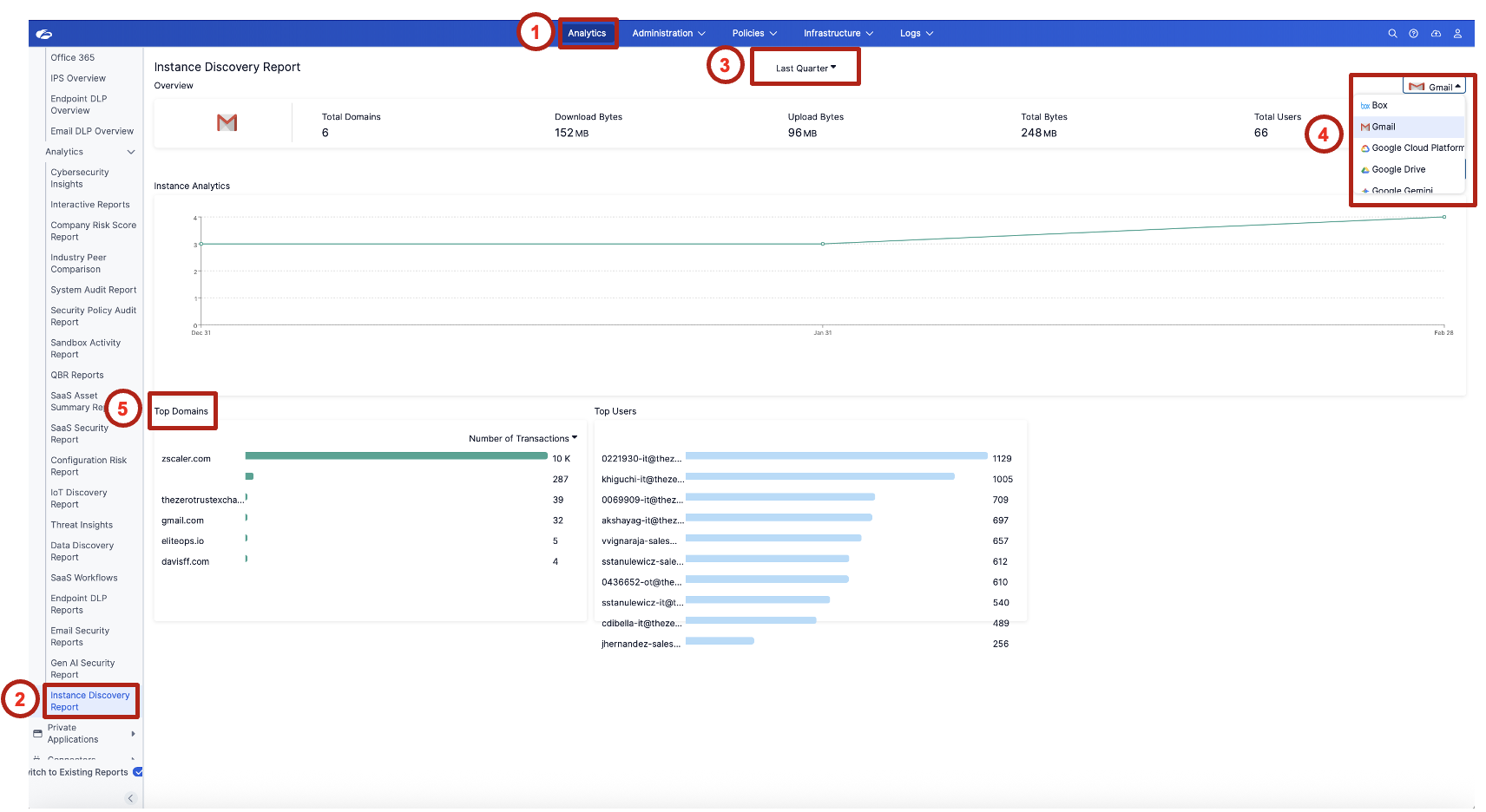
Analytics → Instance Discovery Report
Select the desired time range (for example, Last Quarter) and choose an application such as Gmail to review detected instances.
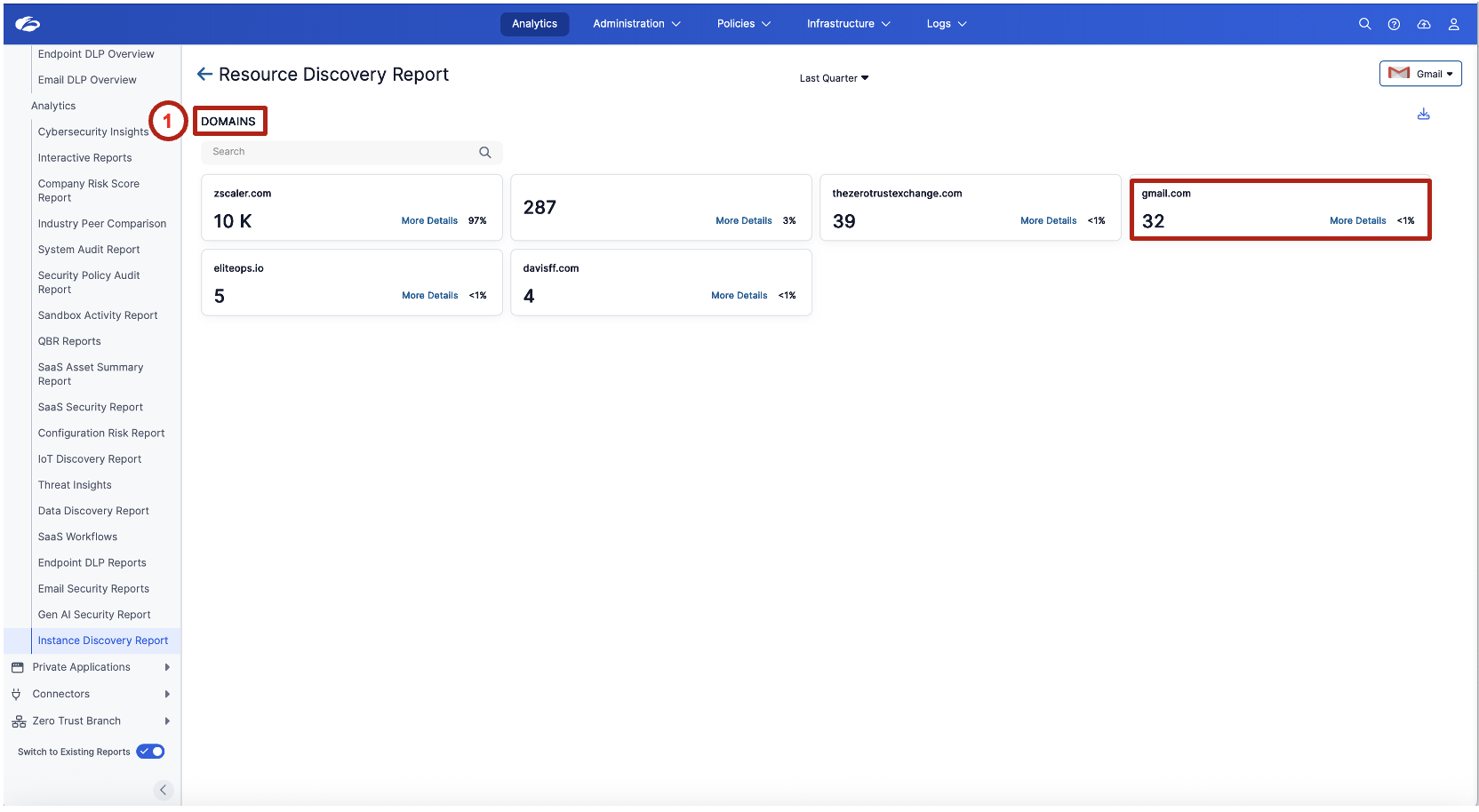
Review the list of detected domains associated with the selected application. Click a domain such as gmail.com to investigate usage details. Then click the Analyze More button to drill deeper into the domain activity.
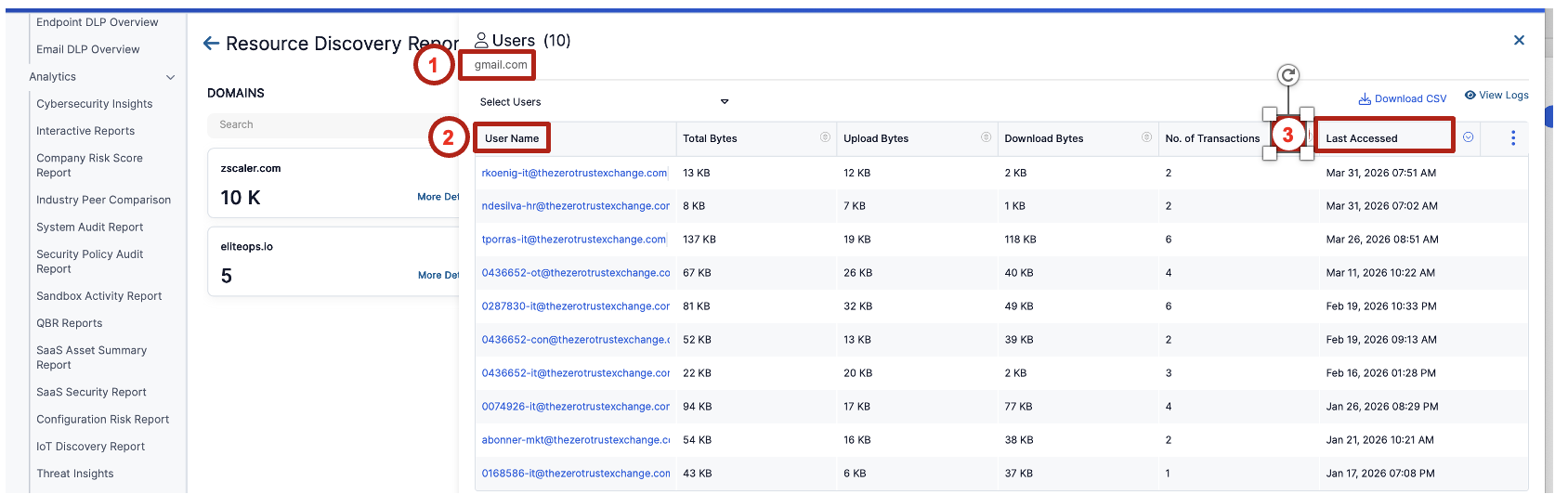
Observe the list of users interacting with the selected domain and review their activity:
- Upload Bytes
- Download Bytes
- Number of Transactions
- Last Accessed
Instance-level visibility goes beyond just knowing which apps are in use — it reveals whether employees are using corporate-managed instances or personal accounts, which have entirely different risk and compliance implications.
Task 3: Automatic Content Classification Using ML-Based Detection
Observe how sensitive content is automatically classified using machine learning, even when no policy is configured.
Analytics → Data Discovery Report
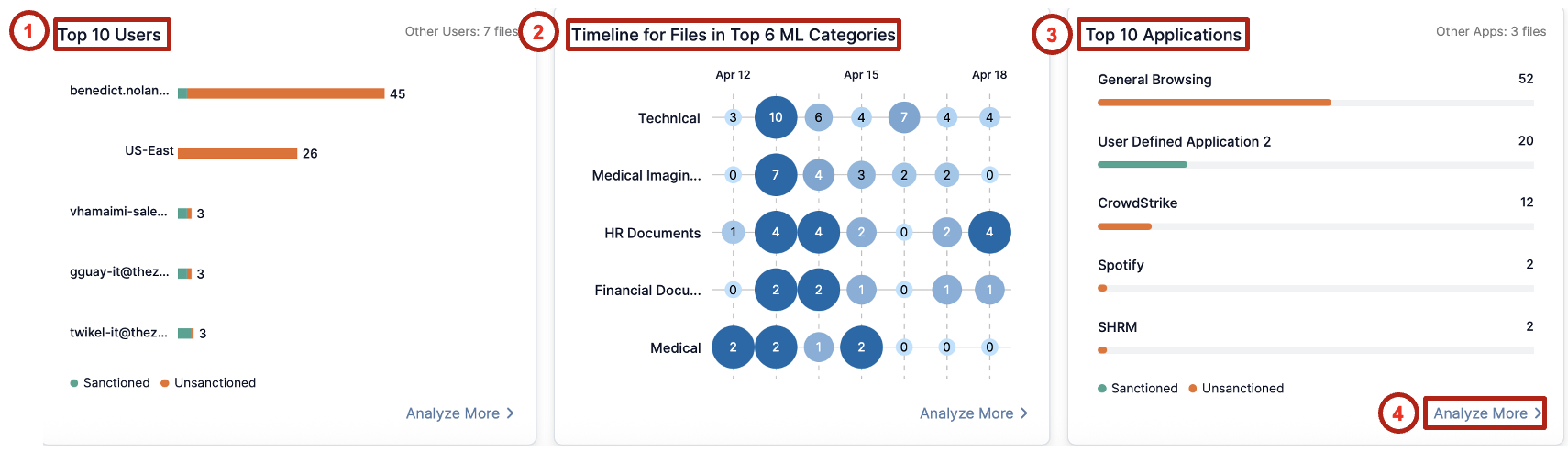
Ensure Switch to Existing Reports is enabled. Review the dashboard showing detected sensitive files and ML categories.
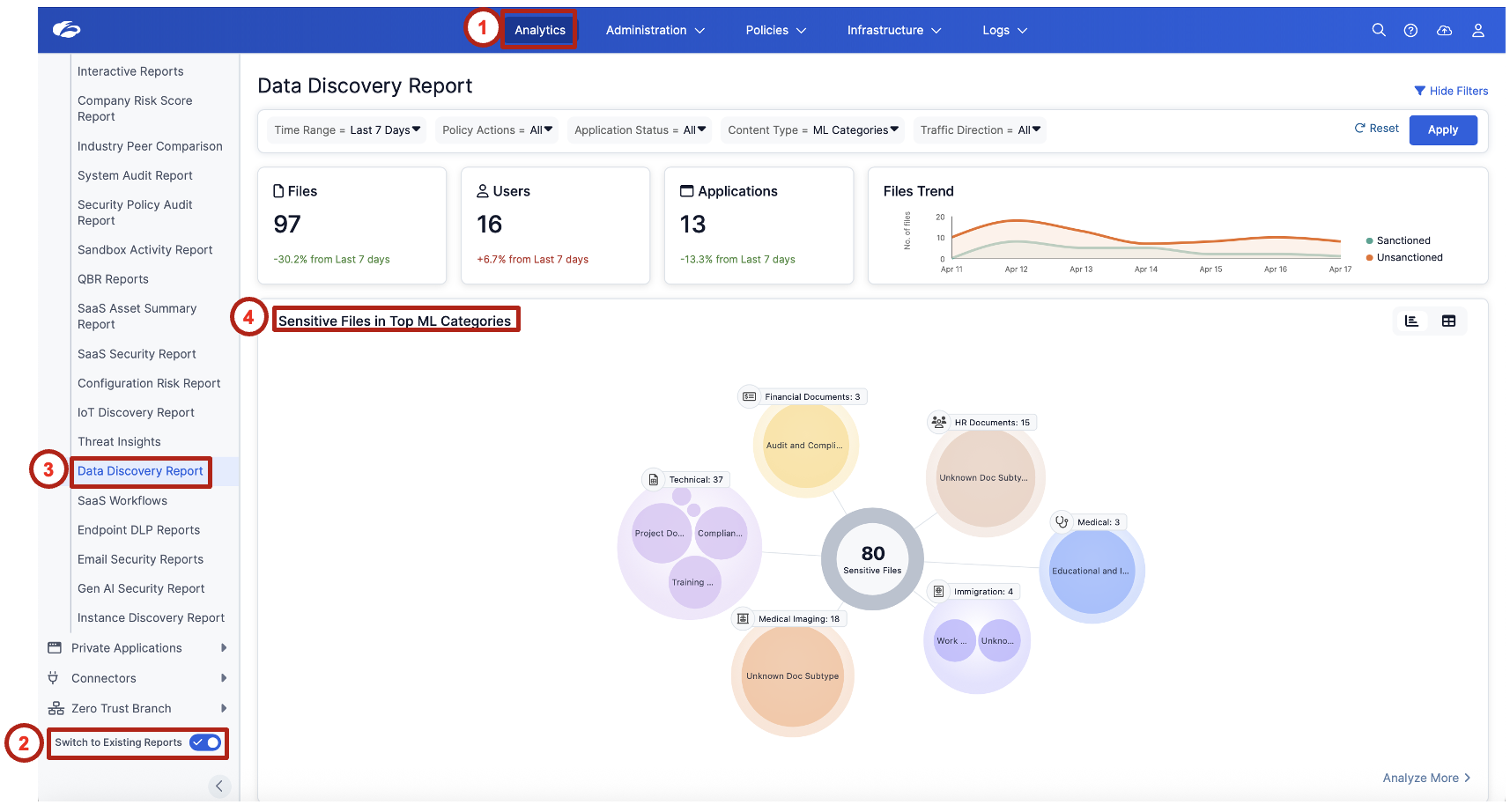
Review the dashboard widgets — Top 10 Users, Timeline for Files in Top ML Categories, Top 10 Applications — and click Analyze More to investigate further.
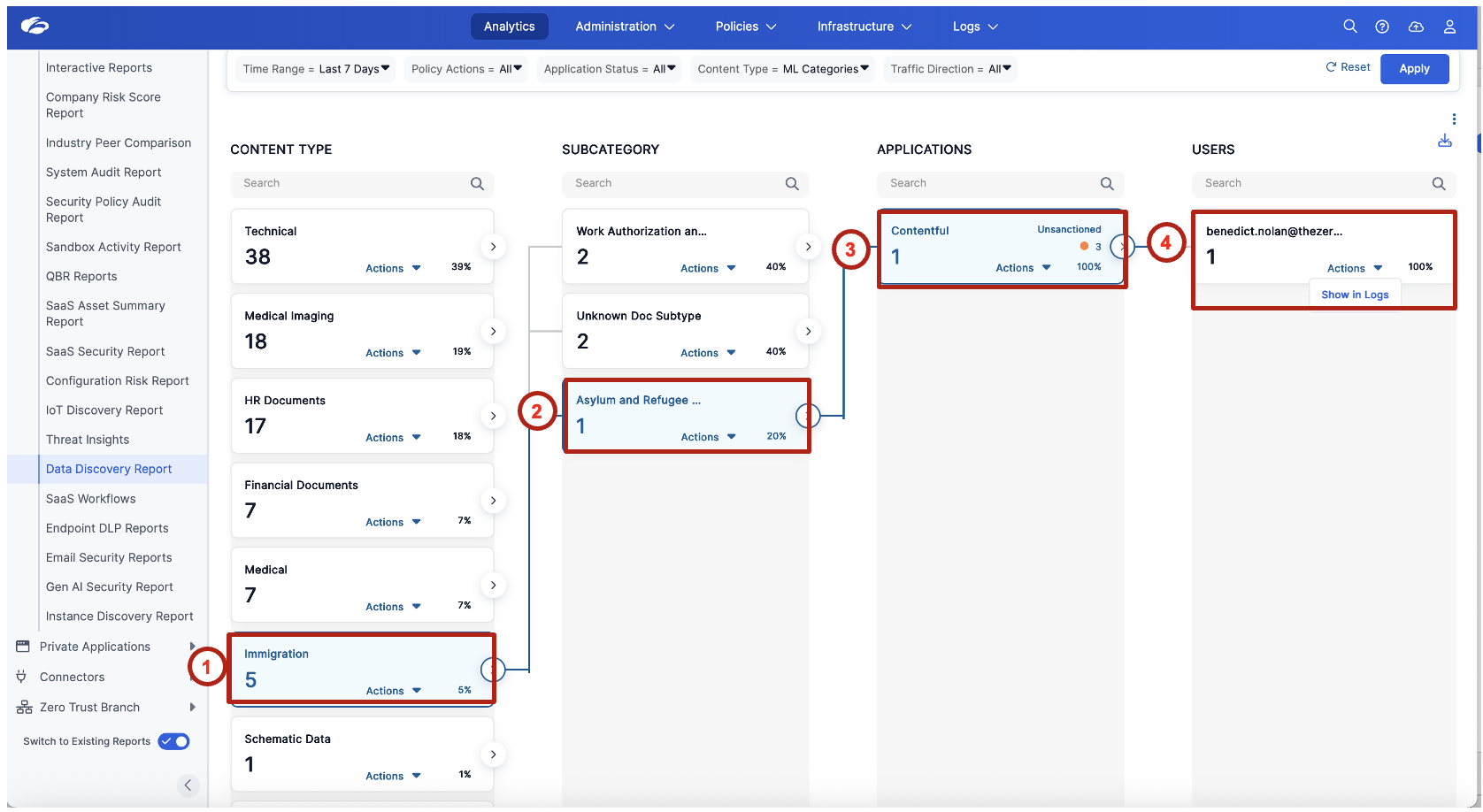
Select a Content Type such as Immigration and a Subcategory such as Asylum and Refugee. Review the associated Application and User.
- Which ML content categories appear most frequently in your environment?
- Does seeing user-level attribution change how you would approach a data exposure investigation?
- How does automatic classification without a predefined policy change the traditional DLP deployment model?
Full data lineage from content to user. This drill-down demonstrates the complete chain — content classification → application → user — without any policy configuration. It's the foundation that makes targeted enforcement in Labs 6, 7, and 8 possible.
Lab Summary
In this lab you established foundational visibility into SaaS usage and sensitive data activity:
| Task | What you did |
|---|---|
| Task 1 | Discovered shadow IT applications and reviewed risk profiles |
| Task 2 | Identified application instances and user-level activity |
| Task 3 | Observed automatic ML-based content classification |
These capabilities provide the visibility required before implementing data protection and enforcement controls in subsequent labs.