Lab 9 – SOC Triage with Workflow Automation
Triage DLP incidents in Workflow Automation — from queue navigation to incident drill-down to automated response templates.
Background
Return to the Enterprise Tenant using CloudShare → Credentials → SDC Credentials, as described in Lab 1. Keep the Experience Center Nav 1.0 interface for the navigation shown here.
As Priya, investigate a pre-populated inline DLP incident in Workflow Automation (WFA). Review its file metadata, policy, notifications, and state-change history to understand how incidents are handled.
Incident counts, dates, and available records may differ from the screenshots. If the example record is unavailable, select another Inline incident and review the same fields.
Task 1 — Navigate to Workflow Automation and Open the Incidents Queue
Workflow Automation is accessed from the main Zscaler console navigation bar. Follow the steps below to reach the Incidents list.
Steps
Step 1 — Open Administration → Workflow Automation
From the top navigation bar, click Administration. In the drop-down, locate the Workflow Automation section on the far right and click it to switch context.
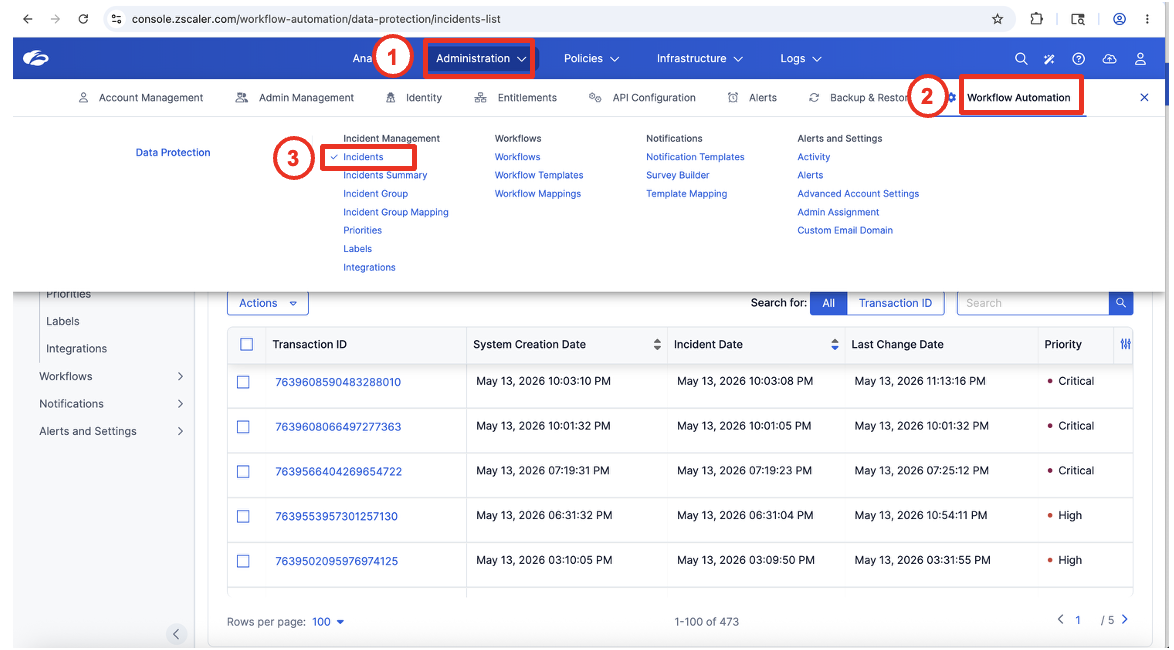
Callout 1 — Click Administration in the top nav. Callout 2 — Select Workflow Automation from the sub-menu. Callout 3 — Under Incident Management, click Incidents.
Step 2 — Review the Incidents Landing Page
You are now on the Incidents list. It brings together incident records from the sources integrated with this tenant.
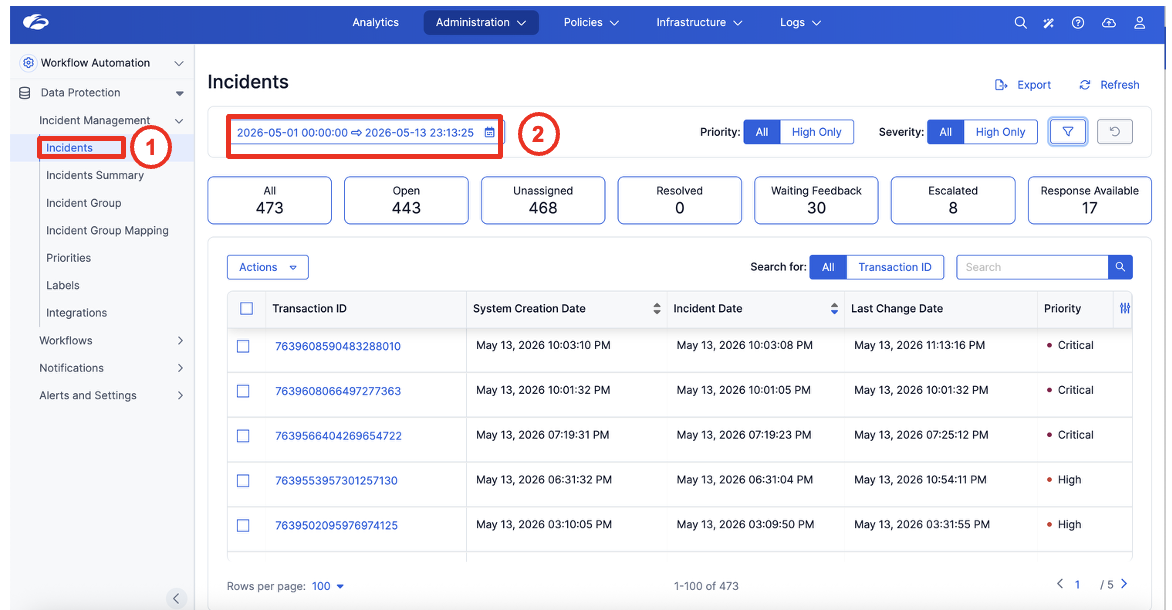
Observe the following on this page:
| Element | What it shows |
|---|---|
| Date Range | Incidents from 2026-05-01 through today |
| All: 473 | Total incidents in the selected window |
| Open: 443 | Incidents not yet resolved |
| Unassigned: 468 | Incidents with no assigned analyst |
| Waiting Feedback: 30 | Incidents pending user justification |
| Escalated: 8 | Incidents flagged for senior review |
| Response Available: 17 | Incidents where an automated response is ready |
The Priority and Severity quick filters at the top right let you surface Critical and High incidents instantly without opening the advanced filter panel.
Task 2 — Filter by Source DLP Type
Use the Filters panel to isolate the available incident sources relevant to your investigation.
Steps
Step 1 — Open the Filters Panel
Click the filter icon (funnel) at the top right of the Incidents toolbar.
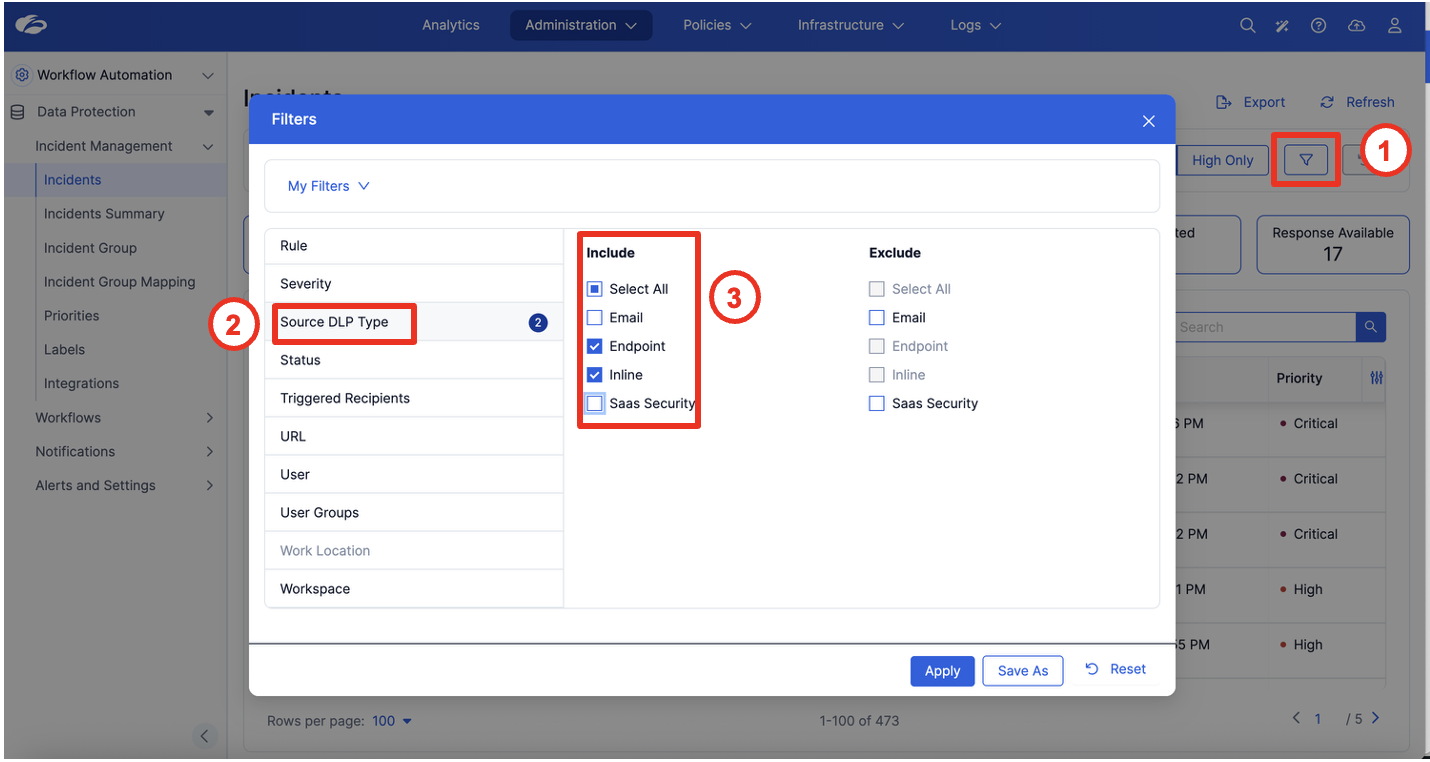
Callout 1 — Click the filter funnel icon. Callout 2 — Select Source DLP Type from the filter category list. Callout 3 — Check Endpoint and Inline under Include to see violations from those two channels side by side.
Available Source DLP Types:
- Email — incidents from ZIA Email DLP
- Endpoint — incidents from Zscaler Client Connector endpoint DLP agent
- Inline — incidents from ZIA inline proxy (web traffic)
- SaaS Security — incidents supplied by integrated SaaS data-protection sources
Task 3 — Drill Into an Incident: Full Triage Walk-Through
Now open one of the inline incidents to see the complete forensic picture Zscaler captures.
Steps
Step 1 — Open the Incident Details Page (Overview)
Click on Transaction ID 53-1282-7639608590483288010 — the top-of-queue Critical incident — to open its full detail view.
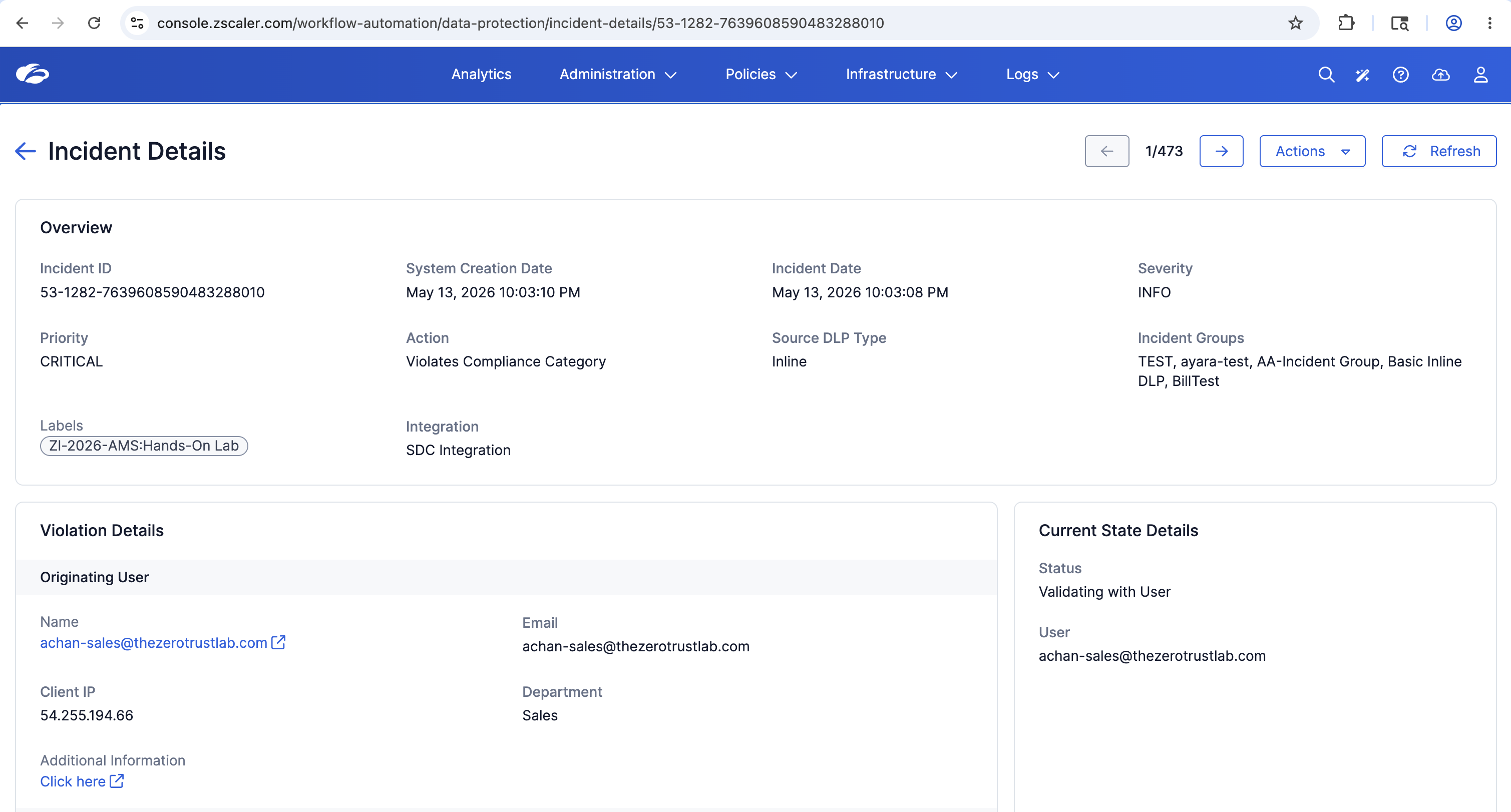
Read each section of the Overview panel:
| Field | Value |
|---|---|
| Incident ID | 53-1282-7639608590483288010 |
| System Creation Date | May 13, 2026 10:03:10 PM |
| Incident Date | May 13, 2026 10:03:08 PM |
| Severity | INFO |
| Priority | CRITICAL |
| Action | Violates Compliance Category |
| Source DLP Type | Inline |
| Incident Groups | TEST, ayara-test, AA-Incident Group, Basic Inline DLP, BillTest |
| Labels | ZI-2026-AMS:Hands-On Lab |
| Integration | SDC Integration |
Scroll to the Violation Details section:
| Field | Value |
|---|---|
| Name | achan-sales@thezerotrustlab.com |
| Client IP | 54.255.194.66 |
| Department | Sales |
| Status | Validating with User |
The example's Current State Details panel shows Validating with User. Review User Notifications and State Changes below to establish what actions were recorded; the status alone does not identify whether they were manual or automated.
Step 2 — Review the Policy and Content Sections
Scroll down to the Policy and Content panels.
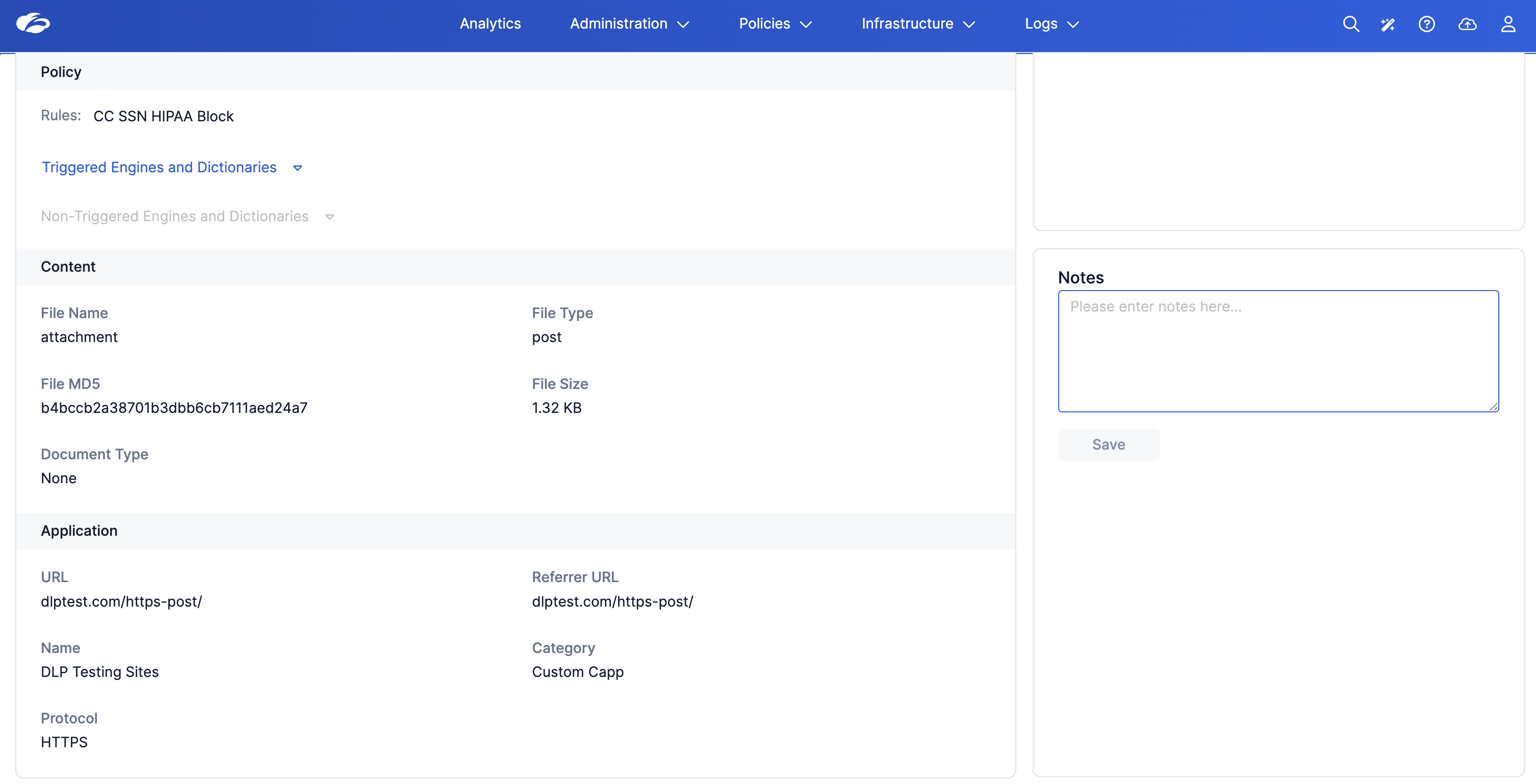
Policy section:
| Field | Value |
|---|---|
| Rules | CC SSN HIPAA Block |
| Triggered Engines | Expand to see which classification engines fired |
Content section:
| Field | Value |
|---|---|
| File Name | attachment |
| File Type | post |
| File MD5 | b4bccb2a38701b3dbb6cb7111aed24a7 |
| File Size | 1.32 KB |
| Document Type | None |
Application section:
| Field | Value |
|---|---|
| URL | dlptest.com/https-post/ |
| Referrer URL | dlptest.com/https-post/ |
| Name | DLP Testing Sites |
| Category | Custom Capp |
| Protocol | HTTPS |
The File MD5 hash is a pivotal forensic artefact. Priya can use this to verify whether the same file has appeared in multiple incidents, pivot into threat intelligence, or correlate with endpoint DLP logs.
Step 3 — Review Violation Content, User Notifications, and State Changes
Scroll further down to the Violation Content, User Notifications, and State Changes sections.
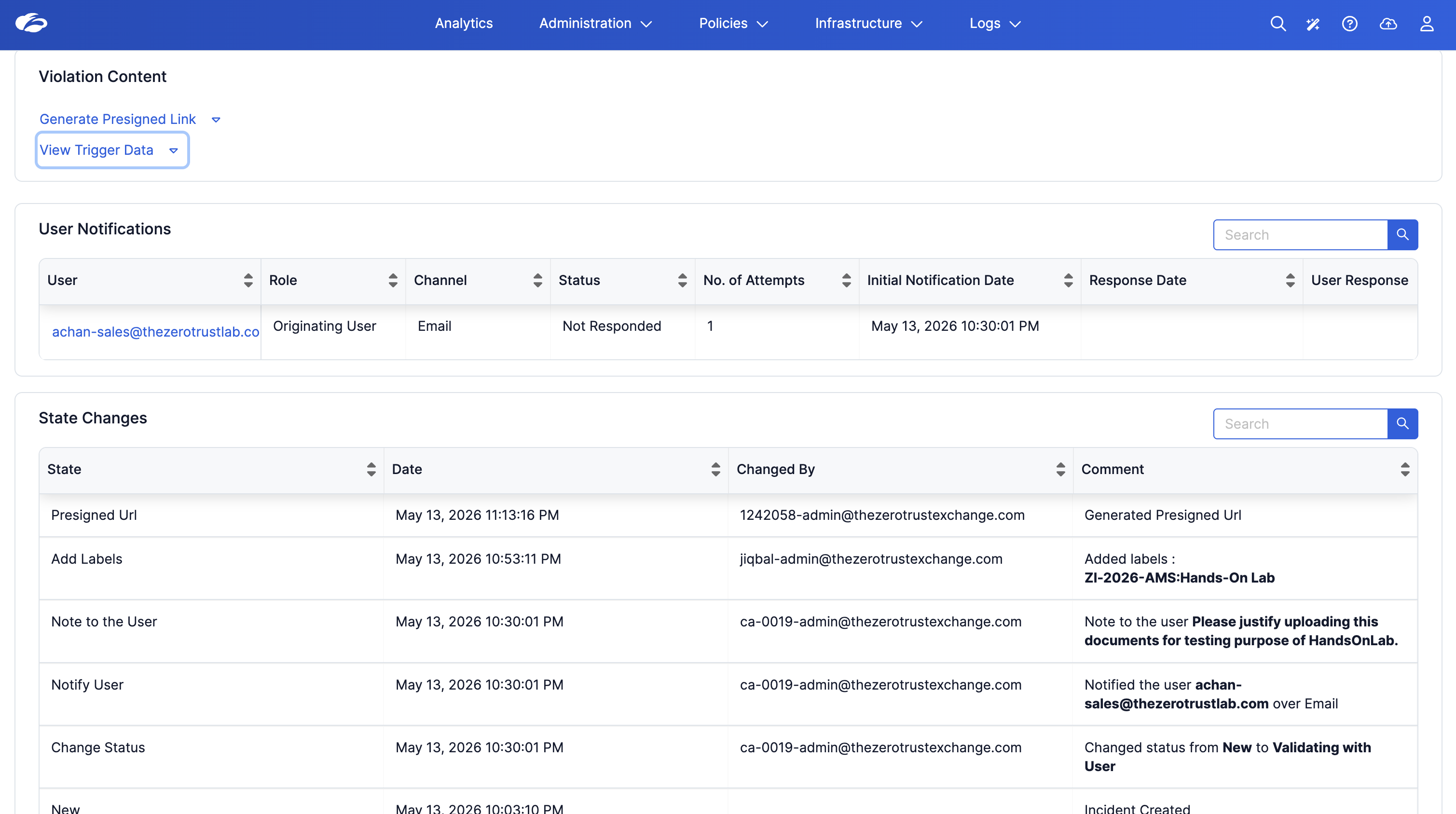
Violation Content:
- Generate Presigned Link — produces a time-limited URL to retrieve the actual violating file content (subject to tenant permissions).
- View Trigger Data — shows the raw data that fired the DLP engine, including matched content snippets and engine confidence scores.
User Notifications table:
| User | Role | Channel | Status | Attempts | Notified |
|---|---|---|---|---|---|
| achan-sales@thezerotrustlab.com | Originating User | Not Responded | 1 | May 13, 2026 10:30:01 PM |
State Changes audit trail (most recent first):
| State | Date | Changed By | Comment |
|---|---|---|---|
| Presigned Url | May 13 11:13 PM | 1242058-admin | Generated Presigned Url |
| Add Labels | May 13 10:53 PM | jiqbal-admin | Added label: ZI-2026-AMS:Hands-On Lab |
| Note to the User | May 13 10:30 PM | ca-0019-admin | Please justify uploading this document for testing purpose of HandsOnLab. |
| Notify User | May 13 10:30 PM | ca-0019-admin | Notified achan-sales over Email |
| Change Status | May 13 10:30 PM | ca-0019-admin | Changed status: New to Validating with User |
| New | May 13 10:03 PM | System | Incident Created |
Use State Changes to review the recorded actions, timestamps, actors, and comments. The example attributes notification and status changes to an administrator; identifying a specific automated workflow would require additional evidence.
Task 4 — Explore Available Actions
Return to the top of the Incident Details page and open Actions. Review the available options without executing them; this exercise explores existing records in the read-only Enterprise Tenant.
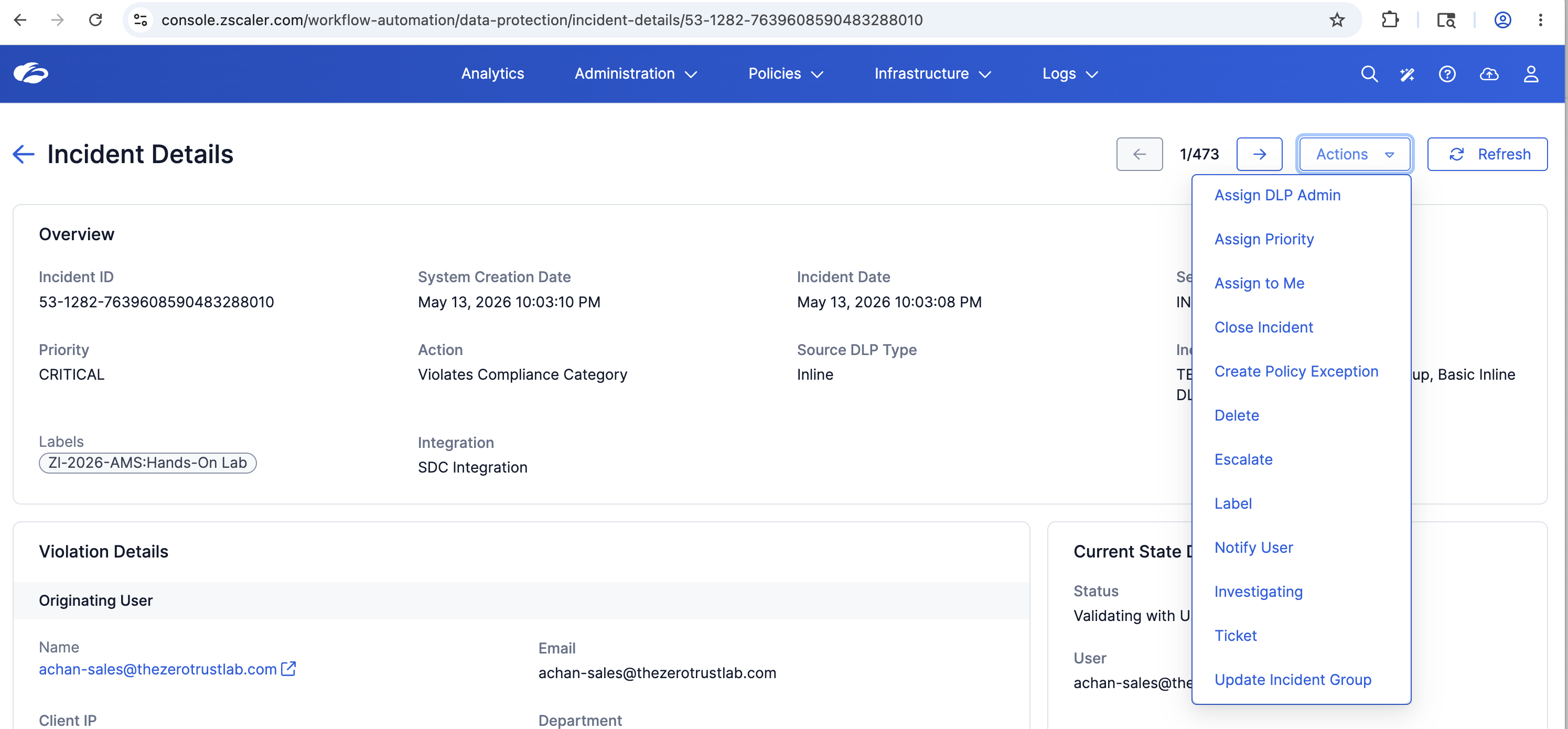
| Action | Description |
|---|---|
| Assign DLP Admin | Route incident to a named DLP administrator |
| Assign Priority | Manually override the system-calculated priority |
| Assign to Me | Claim the incident for personal investigation |
| Close Incident | Mark the incident as resolved and close it |
| Create Policy Exception | Allow the triggering pattern for this user or content type going forward |
| Delete | Remove the incident record (audited) |
| Escalate | Bump to senior analyst or management queue |
| Label | Tag the incident for reporting or grouping |
| Notify User | Send a manual notification/survey to the originating user |
| Investigating | Set status to indicate active analyst review |
| Ticket | Create a linked ticket in an integrated ITSM (e.g., ServiceNow) |
| Update Incident Group | Move incident to a different incident group |
Task 5 — Explore Workflow Templates
Priya has reviewed an incident and its recorded history. Next, preview an existing workflow template to understand how notification and escalation can be automated; no workflow configuration is required in this lab.
Steps
Step 1 — Navigate to Workflow Templates
In the left rail of Workflow Automation, expand Workflows and click Workflow Templates.
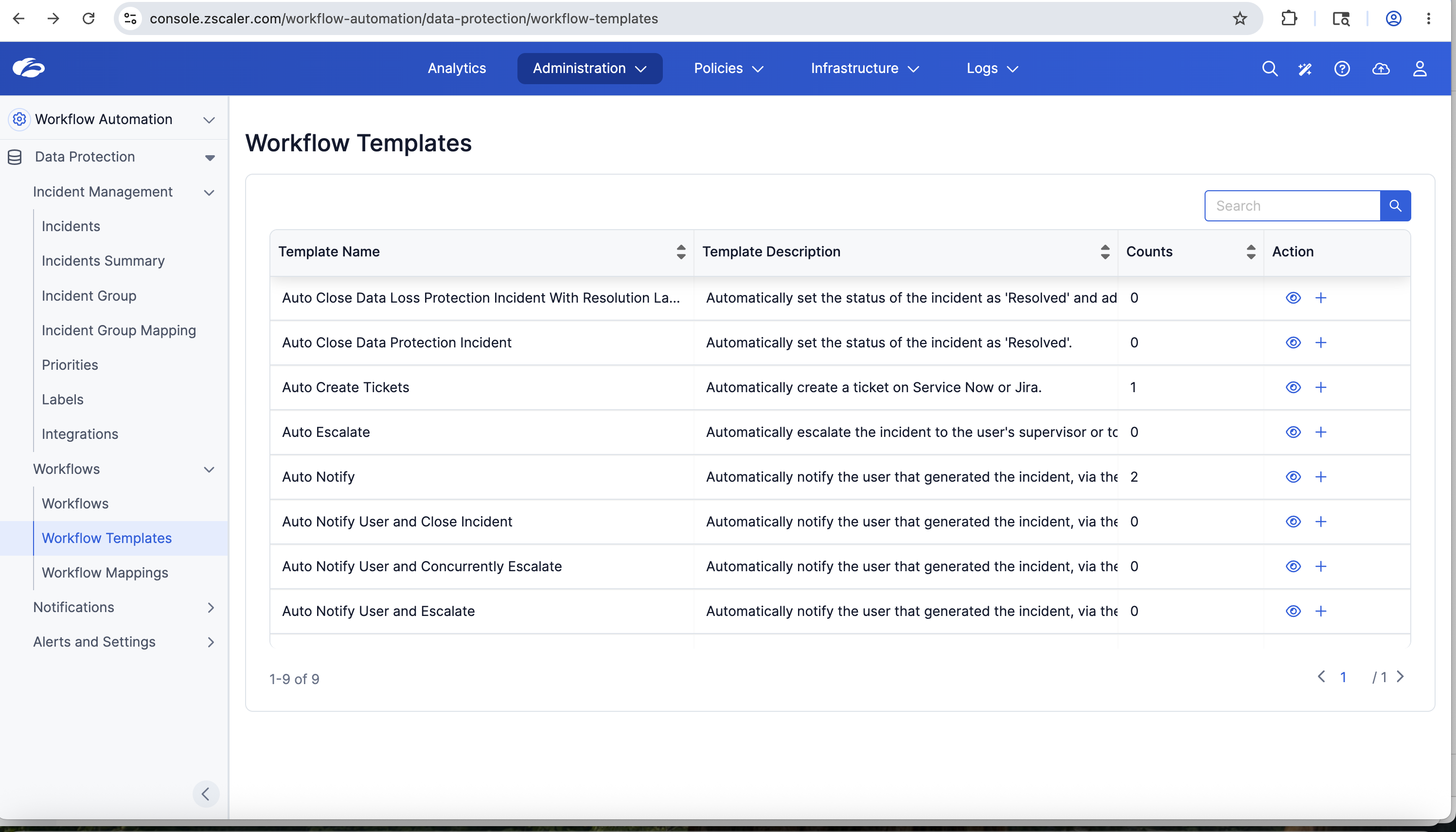
Review the available templates. Examples shown include:
| Template Name | Description |
|---|---|
| Auto Close Data Loss Protection Incident With Resolution La... | Automatically resolves the incident and adds a resolution label |
| Auto Close Data Protection Incident | Automatically sets status to Resolved |
| Auto Create Tickets | Automatically creates a ticket in ServiceNow or Jira |
| Auto Escalate | Automatically escalates to the user's supervisor or approver |
| Auto Notify | Automatically notifies the originating user via the configured channel |
| Auto Notify User and Close Incident | Notifies user then closes the incident in one step |
| Auto Notify User and Concurrently Escalate | Notifies user and escalates simultaneously |
| Auto Notify User and Escalate | Notifies user first, then escalates |
Review the Counts column and available mapping details. A count alone does not establish that a workflow ran for the incident you inspected; check its mapping criteria and execution evidence.
Step 2 — Preview the Auto Notify User and Concurrently Escalate Template
Click the eye icon next to Auto Notify User and Concurrently Escalate to open the workflow preview.
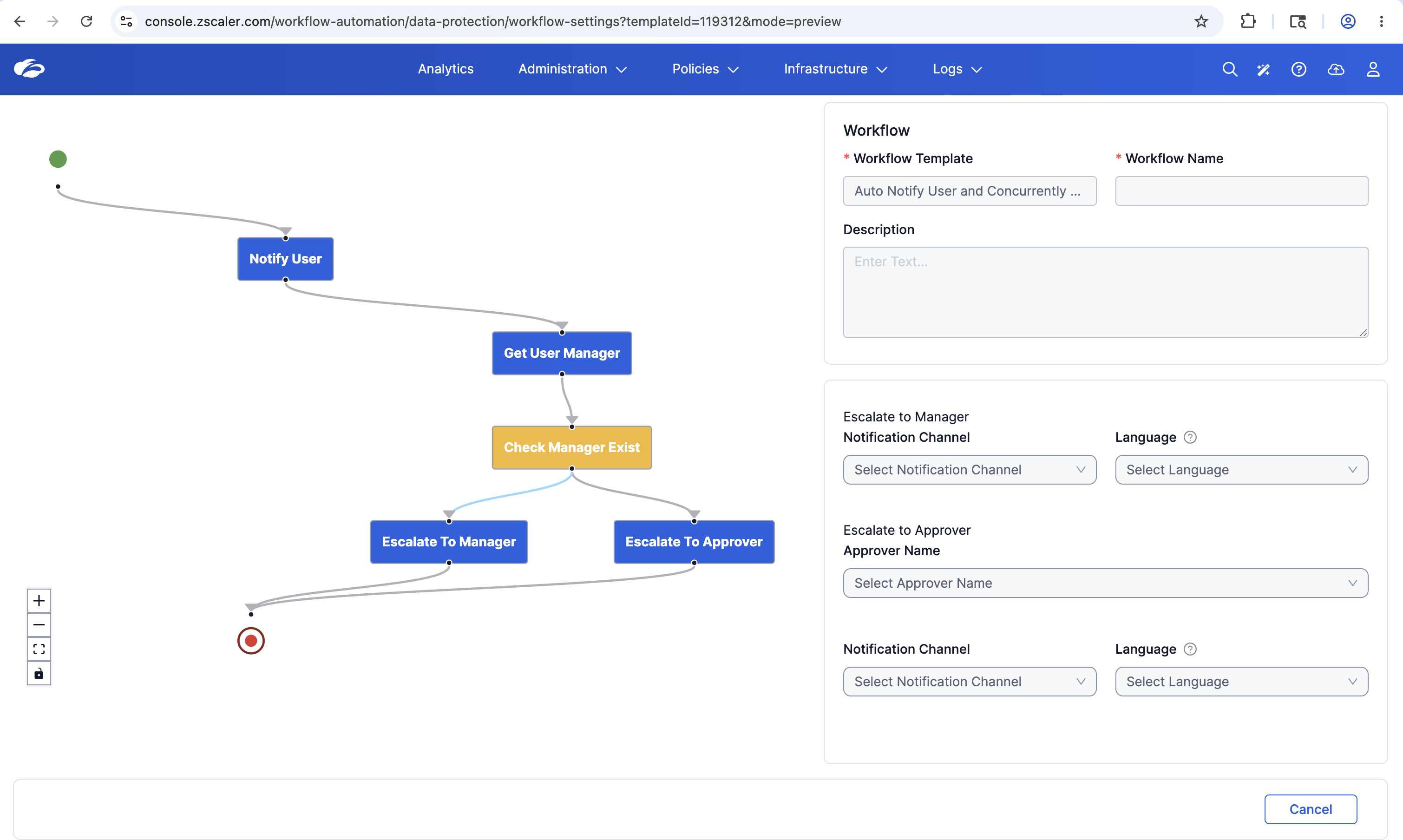
Read the visual workflow diagram:
| Node | Description |
|---|---|
| Start | Triggered when a matching incident is created |
| Notify User | Sends notification to the originating user |
| Get User Manager | Looks up the user's manager in the directory |
| Check Manager Exist | Decision node — does this user have a manager configured? |
| Escalate to Manager | If manager found — escalates to the user's direct manager |
| Escalate to Approver | If no manager — escalates to a pre-configured approver |
| End | Workflow completes |
The right panel shows the configurable settings:
- Escalate to Manager — Notification Channel + Language
- Escalate to Approver — Approver Name + Notification Channel + Language
This single template replaces what would otherwise be a multi-step manual process: notify, look up manager, escalate, confirm. It executes in seconds, automatically, for every incident that matches the workflow mapping criteria.
Lab Summary
In this lab, Priya explored a pre-populated incident and response workflow:
- Navigated to the Incidents queue via Administration → Workflow Automation
- Reviewed queue counts and statuses for the selected reporting window
- Filtered by Source DLP Type to compare Inline and Endpoint records
- Inspected an incident's user, file metadata, application, and policy details
- Reviewed recorded User Notifications and State Changes
- Explored available response actions without executing them
- Previewed an existing notification-and-escalation workflow template
Key Takeaway: Workflow Automation is not a passive log viewer. It is an active SOC workspace where detection, investigation, user notification, and automated response all converge — replacing the multi-tool, multi-console workflow most security teams operate today. The State Changes audit trail and Workflow Templates together deliver both compliance evidence and operational efficiency.